Showing posts with label old. Show all posts
Showing posts with label old. Show all posts
Wednesday, March 15, 2017
Xóa Folder Windows old trên Windows 10
Xóa Folder Windows old trên Windows 10
Xóa Folder Windows.old trên Windows 10
 Thông tin
Sau khi cài ho?c nâng c?p win 10 trên cùng ? ??a v?i h? ?i?u hành c? mà không th?c hi?n xóa d? li?u ? c?ng, b?n s? có thêm m?t folder là C:Windows.old. Folder Windows.old ch?a m?t b?n sao c?a h? ?i?u hành c? và dung l??ng t??ng ??i l?n.
N?u b?n ?ã có folder C:Windows.old r?i mà l?i cài l?i, cài m?i win 10 thì s? có folder m?i t??ng t? nh? C:Windows.old.(1) (b?n c? h?n) cùng t?n t?i song song v?i folder C:Windows.old m?i ???c t?o. B?n m?i nh?t luôn luôn là C:Windows.old.
D??i ?ây là h??ng d?n làm sao ?? xóa b? folder the Windows.old và $Windows.~BT trong th? m?c g?c c?a ? c?ng (th??ng là ? C).
N?u b?n ?ã có folder C:Windows.old r?i mà l?i cài l?i, cài m?i win 10 thì s? có folder m?i t??ng t? nh? C:Windows.old.(1) (b?n c? h?n) cùng t?n t?i song song v?i folder C:Windows.old m?i ???c t?o. B?n m?i nh?t luôn luôn là C:Windows.old.
D??i ?ây là h??ng d?n làm sao ?? xóa b? folder the Windows.old và $Windows.~BT trong th? m?c g?c c?a ? c?ng (th??ng là ? C).
 C?nh báo
Hãy ch?c ch?n là b?n ?ã sao l?u các t?p tin quan tr?ng trong folder Windows.old tr??c khi b?n xóa nó. Vì m?t khi ?ã xóa là m?t tiêu luôn!
N?u b?n xóa folder Windows.old, b?n s? không còn c? h?i ?? quay tr? l?i phiên b?n windows c?.
B?n ph?i có quy?n admin thì m?i th?c hi?n ???c theo h??ng d?n trong bài này.
N?u b?n xóa folder Windows.old, b?n s? không còn c? h?i ?? quay tr? l?i phiên b?n windows c?.
B?n ph?i có quy?n admin thì m?i th?c hi?n ???c theo h??ng d?n trong bài này.
Ví d?: Folder Windows.old

 CÁCH ??N GI?N VÀ HI?U QU? NH?T
1. B?m ??ng th?i hai nút Windows + R ?? m? c?a s? l?nh Run, gõ cleanmgr vào, r?i b?m nút ENTER ho?c OK.
2. N?u b?n có nhi?u h?n m?t ? c?ng ho?c phân vùng, h? th?ng s? yêu c?u b?n ch?n phân vùng nào mu?n, th??ng là C: và b?m OK nh? trong ?nh d??i:

3. B?m vào nút Clean up system files

4. N?u yêu c?u xác nh?n quy?n qu?n tr? UAC, b?m nút Yes.
5. Th?c hi?n l?i b??c 2 bên trên.
6. Ch?n Previous Windows installation(s), b?m OK.

7. B?m nút Delete Files ?? xác nh?n.
8. B?m nút Yes ?? kh?ng ??nh m?t l?n n?a tr??c khi h? th?ng th?c thi l?nh xóa.

9. Khi h? th?ng th?c hi?n xong , folder C:Windows.old s? không còn n?a.

Available link for download

Monday, January 30, 2017
How to delete the Windows old folder on Windows 10
How to delete the Windows old folder on Windows 10
How to delete the Windows.old folder on Windows 10
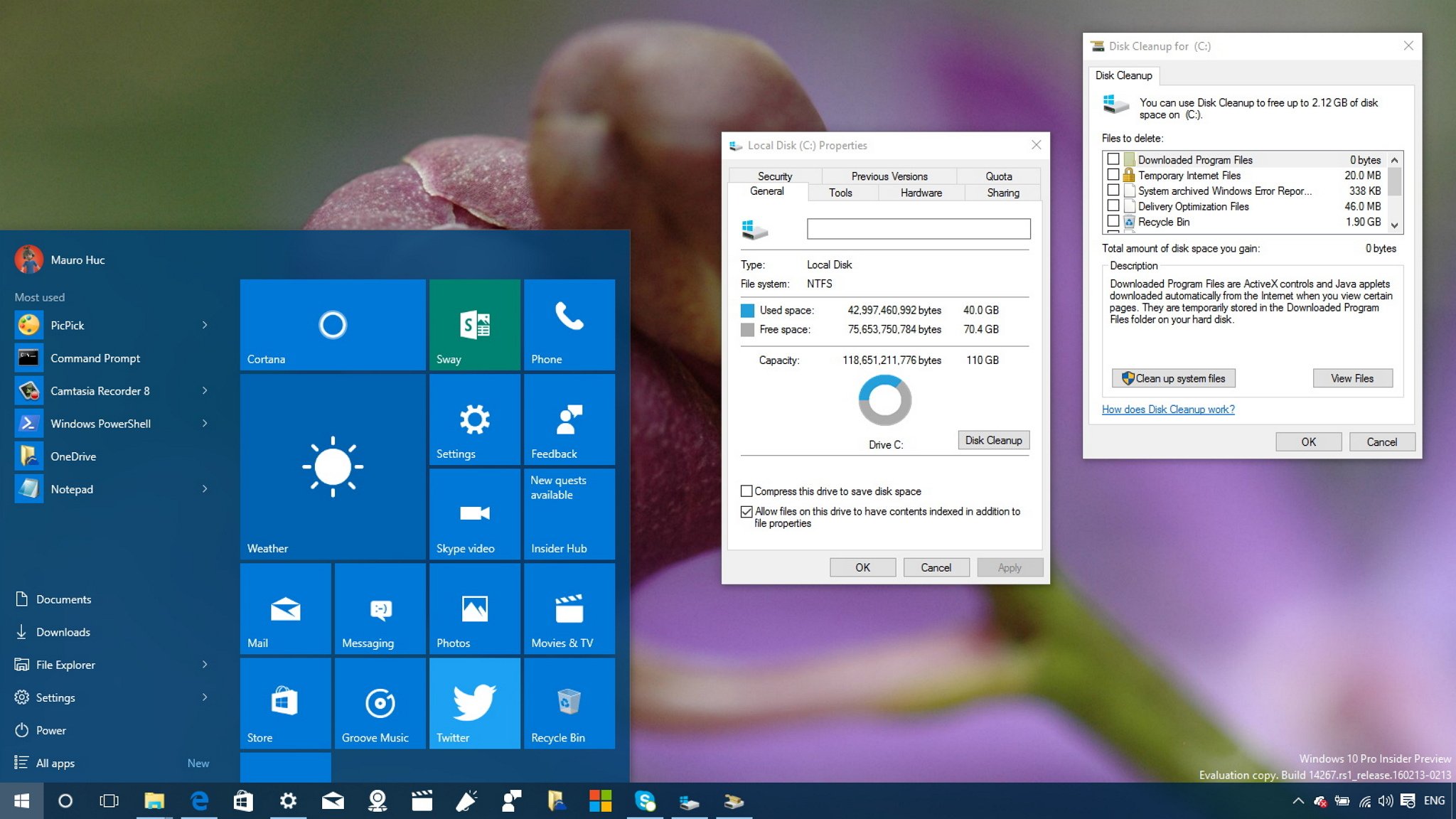
Did you upgrade to Windows 10 or install a new Insider test build? Then use this guide to get rid of the Windows.old folder that is only wasting gigabytes of space in your PCs hard drive.
Every time you upgrade your PC from an older version of Windows to Windows 10 without first formatting the hard drive, or when you install a new Windows Insider Preview test build, the install wizard will save a copy of the previous version inside of the "Windows.old" folder on your computer.
This copy is a safeguard mechanism in case something goes wrong during the installation process. If something bad happens, the operating system can use the backup copy to roll back any change automatically. Or in the case of Windows 10, you also get the option to go back to your previous version of the operating system within the first month if you dont like it.
If everything is working as expected after upgrading to Windows 10, you probably dont need these files, as they will just be wasting precious hard drive space. In this Windows 10 guide, well walk you through the steps to delete the Windows.old folder and other files that can be taking more than 15GB of storage space on your computer.
How to delete the Windows.old folder on Windows 10
The Windows.old folder resides in the hard drive where the operating system is currently installed (typically the C: drive). However, you cant just hit the delete key and to make it disappear, you need to use the Disk Cleanup tool.
1/. Use the Windows key + E keyboard shortcut to open File Explorer.
2/. From the left pane, click This PC.
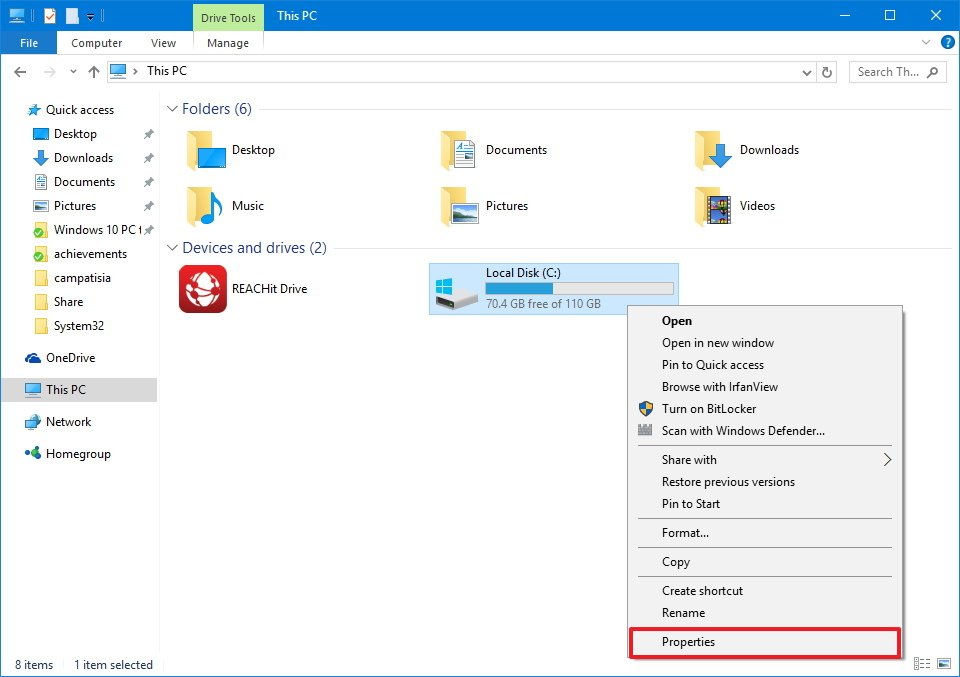
3/. Under Devices and drives, right-click the drive with the Windows 10 installation, and click Properties.
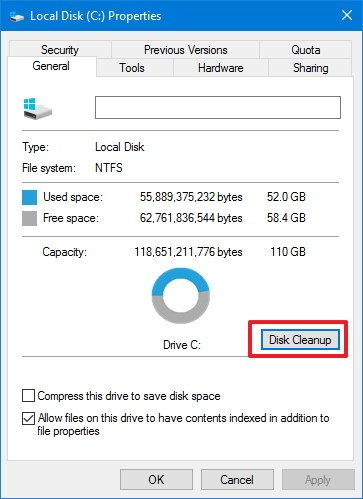
4/. Click the Disk Cleanup button.
5/. Click the Clean up system button.
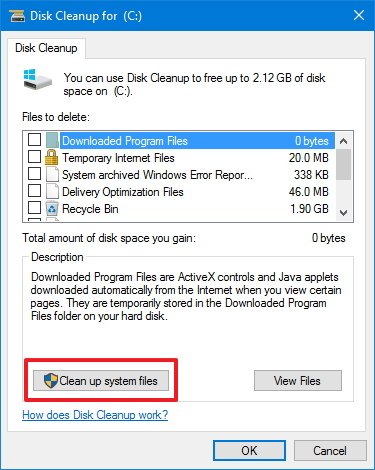
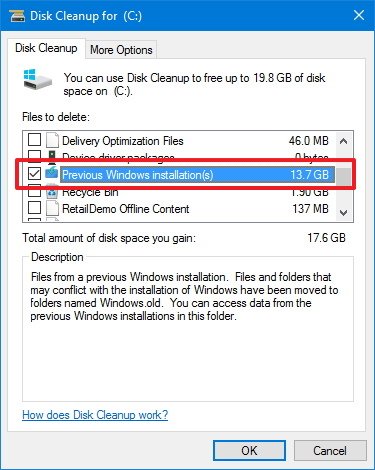
6/. Select the Previous Windows Installation(s) option to delete the Windows.old folder. Here you can also choose to delete other installation related files, including Windows upgrade log files and Temporary Windows installation files, which can take up several gigabytes of storage as well.
7/. Click OK.
8/. Click Delete Files on the pop-up dialog to confirm the deletion.
9/. On the Disk Cleanup warning click Yes to complete the process.
While saving a previous installation is a useful method to rollback in case of problems, if the installation completes successfully, the Windows.old folder and other related installation files will just waste valuable storage space on your computer. Even more on mobile devices with limited storage, such as particular models of Surface and low-end PCs.
Keep in mind that its safe to delete the Windows.old folder and related files from your computer. However, you should also consider that after removing these files, you will no longer be able to roll back to the previous version of Windows 10 using the recovery options. After deleting the Windows.old folder, the only way to go back is by performing a clean installation of the operating system.
Available link for download
Subscribe to:
Posts (Atom)