Showing posts with label builds. Show all posts
Showing posts with label builds. Show all posts
Thursday, March 2, 2017
Sleep option missing in Windows 10 Solved Updated to all builds
Sleep option missing in Windows 10 Solved Updated to all builds
Sleep option missing in Windows 10, how to enable it - Thats what we gonna see in this post. Works
on Windows 10 first build, Nov 2015 build, Anniversary build and Creators Update..
In our last post, we had seen how to put windows 10 pc to sleep, but the problem is some of our
users said, they cant find sleep option in windows 10 or more commonly sleep missing in
Windows 10 and they are increasingly asking on how to enable missing sleep option in Windows
10 pc.
Which, made me to write an separate post on it..,If you are searching for how to fix sleep option
that was not showing in power menu then i hope this guide solves your problem too.
Lets make a point clear.. You dont need to download software to fix missing sleep option in your
Windows 10 PC. As what we need to do is just configure a simple setting which we gonna see in the
below steps..
So, just follow the below steps, at the end you will see yourself fixing the no sleep option problem in Windows 10...
1) Open Control Panel.
[Helpful link : How to Open control panel in Windows 10 in different ways ]
Step 3 : Click on Hardware and Sound.
Step 4 : Find and Click On Change What the Power buttons do.
"the Option Change What the Power button do Will be Available under Power Options on right pane.
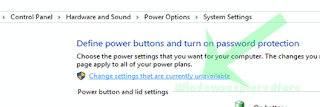
Step 5 : Click on Change Settings that Are unavailable on the Window that Opens.
on Windows 10 first build, Nov 2015 build, Anniversary build and Creators Update..
In our last post, we had seen how to put windows 10 pc to sleep, but the problem is some of our
users said, they cant find sleep option in windows 10 or more commonly sleep missing in
Windows 10 and they are increasingly asking on how to enable missing sleep option in Windows
10 pc.
Which, made me to write an separate post on it..,If you are searching for how to fix sleep option
that was not showing in power menu then i hope this guide solves your problem too.
Lets make a point clear.. You dont need to download software to fix missing sleep option in your
Windows 10 PC. As what we need to do is just configure a simple setting which we gonna see in the
below steps..
So, just follow the below steps, at the end you will see yourself fixing the no sleep option problem in Windows 10...
1) Open Control Panel.
[Helpful link : How to Open control panel in Windows 10 in different ways ]
Step 3 : Click on Hardware and Sound.
Step 4 : Find and Click On Change What the Power buttons do.
"the Option Change What the Power button do Will be Available under Power Options on right pane.
Step 5 : Click on Change Settings that Are unavailable on the Window that Opens.
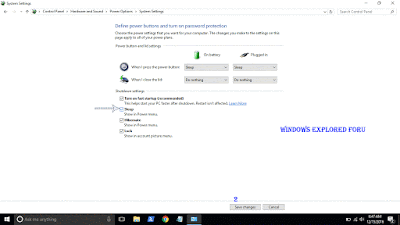
Step 6 : Clicking on it will enable grayed out shutdown settings..
Below the shutdown settings ,you will see various options like Turn on Fast startup, Sleep , Hibernate,etc..
Step 7 : Check the on Sleep option check box.
Step 8 : Click on Save Changes..
Thats it...
Now, visit again your start menu.. Boom?? sleep problem will be resolved you will get back your sleep option, ..
Enjoy..
Other Basic Articles ...
How to Pin App to start menu in Windows 10 [Updated]
Pin app to taskbar in Windows 10 - How to [Updated]
Available link for download

Wednesday, March 1, 2017
Your Microsoft Account requires Attention to get Insider Builds Fix Solved
Your Microsoft Account requires Attention to get Insider Builds Fix Solved
Your Microsoft Account requires Attention to get Insider Builds and a Fix me button - This is the
error i got when i tried to activate insiders program on my friends Windows 10 Laptop. If you are
searching this then, probably You must be the one who loves to tweak or customize your PC and the
one who loves to get the latest among others. So, i think you dont need a bit of introduction to what insider build means, so lets move to
the direct post.

Why/ When this error happens ?
You wish to join Insider program and you clicked the Join Insider Program button, you will be
prompted to enter into your Microsoft account, thats the process behind it.. Though you dont need
an Microsoft Account to use your Preview builds,When you understand the error it says you need to
sign-in using your Microsoft Account to fix the error.,
So, how to solve it..? Just
1) Open settings
2) Click on Accounts
3) click on Your Info
4) On your Right pane, you will see Sign-in using Microsoft Account Instead option
5) Click on it..
6) It will ask you to enter the email, Password enter it.
7) Follow the onscreen instructions
8) Go back to insider program window and click Fix.
It will work now..
If that failed, then try this
Resign-in to your Microsoft Account., this wont make sense but its what worked for me (when i
used insider builds on the beginning)...
9) Follow the above steps (1 to 3)
10) On your right pane, click on Sign-in using local account instead
11) Follow the onscreen instructions, and again follow solution 1.
You will it working now..
If everything fails, Restart your PC and try visiting insider.windows.com and click on get started and
then , it will sign-in using your Microsoft Account., You will get " Welcome to the program, insider
"screen which indicates you are now an insider.
Try Registry editor..
1) Open registry editor
2) Navigate to following Key
HKEY_LOCAL_MACHINESOFTWAREMicrosoftWindowsSelfHostApplicability
3) On your right pane, you can see EnableInsiderPreviewBuilds
4) Click on it and set its value 1.
Restart your PC and go to join insider program on settings, you can find it working now..
See you soon!????
error i got when i tried to activate insiders program on my friends Windows 10 Laptop. If you are
searching this then, probably You must be the one who loves to tweak or customize your PC and the
one who loves to get the latest among others. So, i think you dont need a bit of introduction to what insider build means, so lets move to
the direct post.
Why/ When this error happens ?
You wish to join Insider program and you clicked the Join Insider Program button, you will be
prompted to enter into your Microsoft account, thats the process behind it.. Though you dont need
an Microsoft Account to use your Preview builds,When you understand the error it says you need to
sign-in using your Microsoft Account to fix the error.,
So, how to solve it..? Just
1) Open settings
2) Click on Accounts
3) click on Your Info
4) On your Right pane, you will see Sign-in using Microsoft Account Instead option
5) Click on it..
6) It will ask you to enter the email, Password enter it.
7) Follow the onscreen instructions
8) Go back to insider program window and click Fix.
It will work now..
If that failed, then try this
Resign-in to your Microsoft Account., this wont make sense but its what worked for me (when i
used insider builds on the beginning)...
9) Follow the above steps (1 to 3)
10) On your right pane, click on Sign-in using local account instead
11) Follow the onscreen instructions, and again follow solution 1.
You will it working now..
If everything fails, Restart your PC and try visiting insider.windows.com and click on get started and
then , it will sign-in using your Microsoft Account., You will get " Welcome to the program, insider
"screen which indicates you are now an insider.
Try Registry editor..
1) Open registry editor
2) Navigate to following Key
HKEY_LOCAL_MACHINESOFTWAREMicrosoftWindowsSelfHostApplicability
3) On your right pane, you can see EnableInsiderPreviewBuilds
4) Click on it and set its value 1.
Restart your PC and go to join insider program on settings, you can find it working now..
See you soon!????
Available link for download
Subscribe to:
Posts (Atom)