Showing posts with label sleep. Show all posts
Showing posts with label sleep. Show all posts
Wednesday, March 22, 2017
Sleep mode settings How to set or change sleep mode settings in Windows 10
Sleep mode settings How to set or change sleep mode settings in Windows 10
Sleep mode settings- how to set or change sleep mode settings in Windows 10 thats what we gonna
see in this post - Works on Windows 10 Creators Update, Windows 10
Anniversary Update, and other editions of Windows like Windows 10 earlier builds like Aug 2015
and Nov 2015 builds.
In our last post, we had seen how to enable missing sleep option in windows 10 and how to put your
computer to sleep. but i hadnt explained how to change the amount of time your computer to put
into sleep, which is essential when putting in your PC to sleep.Because its we need to decide how
long our computer needs to sleep for example if we set it 10 minutes, then our pc will go into sleep
after 10 minutes of non usage.
So,In this post lets see how to change sleep settings in Windows 10.
Again, the same words, you dont need an software to fix sleep mode settings on windows 10, all
you need to is just explore like i always do..
OK,lets see how to change sleep settings on Windows 10. there are two ways, we can change or
set sleep settings in windows 10 one is traditional way through control panel and other is through
settings. If you are using windows 10 latest build, then you cant change sleep settings using
control panel because they are migrated into new app called settings, so we can say the control
panel step wont work 99 % so i explain the steps through settings app.
How to change sleep settings on Windows 10 and where is sleep mode located in windows 10
Just follow the below steps..
1) Open settings
[Helpful link : How to open settings using different methods in Windows 10]
2) Click on System.
3) It will open a new window, on that find an option called power & search options on your left pane..
4) Now, you will see different options on your right pane.. just look for an option sleep..
Under that, you will see On battery power, PC goes to sleep after and when plugged in. PC goes to sleep after options..
We need to customize that things, changing the things there would change the time our PC goes into
sleep..

5) Set the amount of time you wish to set ..
For example : if your computer wants to go sleep after 10 min,which means if you wish to set sleep timer for 10 minutes, then choose 10 minutes on that options..
Thats it..
You have done..???
Click to read all basic tutorials..
see in this post - Works on Windows 10 Creators Update, Windows 10
Anniversary Update, and other editions of Windows like Windows 10 earlier builds like Aug 2015
and Nov 2015 builds.
In our last post, we had seen how to enable missing sleep option in windows 10 and how to put your
computer to sleep. but i hadnt explained how to change the amount of time your computer to put
into sleep, which is essential when putting in your PC to sleep.Because its we need to decide how
long our computer needs to sleep for example if we set it 10 minutes, then our pc will go into sleep
after 10 minutes of non usage.
So,In this post lets see how to change sleep settings in Windows 10.
Again, the same words, you dont need an software to fix sleep mode settings on windows 10, all
you need to is just explore like i always do..
OK,lets see how to change sleep settings on Windows 10. there are two ways, we can change or
set sleep settings in windows 10 one is traditional way through control panel and other is through
settings. If you are using windows 10 latest build, then you cant change sleep settings using
control panel because they are migrated into new app called settings, so we can say the control
panel step wont work 99 % so i explain the steps through settings app.
How to change sleep settings on Windows 10 and where is sleep mode located in windows 10
Just follow the below steps..
1) Open settings
[Helpful link : How to open settings using different methods in Windows 10]
2) Click on System.
3) It will open a new window, on that find an option called power & search options on your left pane..
4) Now, you will see different options on your right pane.. just look for an option sleep..
Under that, you will see On battery power, PC goes to sleep after and when plugged in. PC goes to sleep after options..
We need to customize that things, changing the things there would change the time our PC goes into
sleep..
[Click on the image to view full size]
5) Set the amount of time you wish to set ..
For example : if your computer wants to go sleep after 10 min,which means if you wish to set sleep timer for 10 minutes, then choose 10 minutes on that options..
Thats it..
You have done..???
Click to read all basic tutorials..
Available link for download

Thursday, March 2, 2017
Sleep option missing in Windows 10 Solved Updated to all builds
Sleep option missing in Windows 10 Solved Updated to all builds
Sleep option missing in Windows 10, how to enable it - Thats what we gonna see in this post. Works
on Windows 10 first build, Nov 2015 build, Anniversary build and Creators Update..
In our last post, we had seen how to put windows 10 pc to sleep, but the problem is some of our
users said, they cant find sleep option in windows 10 or more commonly sleep missing in
Windows 10 and they are increasingly asking on how to enable missing sleep option in Windows
10 pc.
Which, made me to write an separate post on it..,If you are searching for how to fix sleep option
that was not showing in power menu then i hope this guide solves your problem too.
Lets make a point clear.. You dont need to download software to fix missing sleep option in your
Windows 10 PC. As what we need to do is just configure a simple setting which we gonna see in the
below steps..
So, just follow the below steps, at the end you will see yourself fixing the no sleep option problem in Windows 10...
1) Open Control Panel.
[Helpful link : How to Open control panel in Windows 10 in different ways ]
Step 3 : Click on Hardware and Sound.
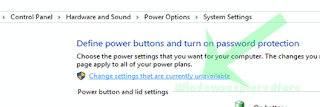
Step 4 : Find and Click On Change What the Power buttons do.
"the Option Change What the Power button do Will be Available under Power Options on right pane.
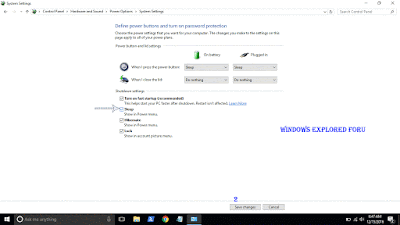
Step 5 : Click on Change Settings that Are unavailable on the Window that Opens.
on Windows 10 first build, Nov 2015 build, Anniversary build and Creators Update..
In our last post, we had seen how to put windows 10 pc to sleep, but the problem is some of our
users said, they cant find sleep option in windows 10 or more commonly sleep missing in
Windows 10 and they are increasingly asking on how to enable missing sleep option in Windows
10 pc.
Which, made me to write an separate post on it..,If you are searching for how to fix sleep option
that was not showing in power menu then i hope this guide solves your problem too.
Lets make a point clear.. You dont need to download software to fix missing sleep option in your
Windows 10 PC. As what we need to do is just configure a simple setting which we gonna see in the
below steps..
So, just follow the below steps, at the end you will see yourself fixing the no sleep option problem in Windows 10...
1) Open Control Panel.
[Helpful link : How to Open control panel in Windows 10 in different ways ]
Step 3 : Click on Hardware and Sound.
Step 4 : Find and Click On Change What the Power buttons do.
"the Option Change What the Power button do Will be Available under Power Options on right pane.
Step 5 : Click on Change Settings that Are unavailable on the Window that Opens.
Step 6 : Clicking on it will enable grayed out shutdown settings..
Below the shutdown settings ,you will see various options like Turn on Fast startup, Sleep , Hibernate,etc..
Step 7 : Check the on Sleep option check box.
Step 8 : Click on Save Changes..
Thats it...
Now, visit again your start menu.. Boom?? sleep problem will be resolved you will get back your sleep option, ..
Enjoy..
Other Basic Articles ...
How to Pin App to start menu in Windows 10 [Updated]
Pin app to taskbar in Windows 10 - How to [Updated]
Available link for download
Subscribe to:
Posts (Atom)