Showing posts with label missing. Show all posts
Showing posts with label missing. Show all posts
Sunday, March 12, 2017
Recycle Bin in Windows 10 How to Restore missing Recycle bin icon where is it located
Recycle Bin in Windows 10 How to Restore missing Recycle bin icon where is it located
Recycle bin is an important component for most of Windows beginners, its also the area where our
deleted files are stored unless we used a shift+del combination, When we upgrade our PC from
previous edition,especially like Windows 7 most of us will naturally google or bing Recycle bin
missing in Windows 10 after upgrading.
So,here is a post i wrote to explain how to restore the missing recycle bin icon on windows 10
anniversary Update and where is it located.
Where is Recycle bin located in Windows 10 ?
If you are searching for recycle bin location, you need to understand the fact, that is there is no
particular location for recycle bin it exists in all drives, but mainly on your primary drive.
How to Restore recycle bin in Windows 10?
Generally, the recycle bin icon is enabled by default, but it was not available in your Windows 10 PC,then you can restore the missing recycle bin icon in Windows 10 using the below steps..
1) Open settings
[Helpful link : How to open settings in windows 10]
2) Click on personalization
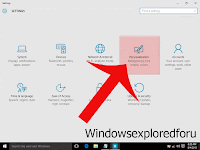
3) It will open a new window with options like Background,Colors, lockscreen,etc.. Find and click on Option called "Themes", which will be on the left pane.
4) When you clicked, you can change some changes in the right pane as new options like Theme settings, Related settings will appear.
5) Click on the Desktop icon Settings Option
6) Now, it will open Desktop icon settings window, find and check the "Recycle bin" box
7) Click on Apply
8) Click on OK.
9) Close the Window.
Now, go to your desktop you can find the missing recycle bin icon, you can use this to open recycle
bin in your Windows 10.
Thats it..
You have done..??
deleted files are stored unless we used a shift+del combination, When we upgrade our PC from
previous edition,especially like Windows 7 most of us will naturally google or bing Recycle bin
missing in Windows 10 after upgrading.
So,here is a post i wrote to explain how to restore the missing recycle bin icon on windows 10
anniversary Update and where is it located.
Where is Recycle bin located in Windows 10 ?
If you are searching for recycle bin location, you need to understand the fact, that is there is no
particular location for recycle bin it exists in all drives, but mainly on your primary drive.
How to Restore recycle bin in Windows 10?
Generally, the recycle bin icon is enabled by default, but it was not available in your Windows 10 PC,then you can restore the missing recycle bin icon in Windows 10 using the below steps..
1) Open settings
[Helpful link : How to open settings in windows 10]
2) Click on personalization
3) It will open a new window with options like Background,Colors, lockscreen,etc.. Find and click on Option called "Themes", which will be on the left pane.
 |
| Click on the image to view full size |
4) When you clicked, you can change some changes in the right pane as new options like Theme settings, Related settings will appear.
5) Click on the Desktop icon Settings Option
6) Now, it will open Desktop icon settings window, find and check the "Recycle bin" box
7) Click on Apply
8) Click on OK.
9) Close the Window.
Now, go to your desktop you can find the missing recycle bin icon, you can use this to open recycle
bin in your Windows 10.
Thats it..
You have done..??
Available link for download

Thursday, March 2, 2017
Sleep option missing in Windows 10 Solved Updated to all builds
Sleep option missing in Windows 10 Solved Updated to all builds
Sleep option missing in Windows 10, how to enable it - Thats what we gonna see in this post. Works
on Windows 10 first build, Nov 2015 build, Anniversary build and Creators Update..
In our last post, we had seen how to put windows 10 pc to sleep, but the problem is some of our
users said, they cant find sleep option in windows 10 or more commonly sleep missing in
Windows 10 and they are increasingly asking on how to enable missing sleep option in Windows
10 pc.
Which, made me to write an separate post on it..,If you are searching for how to fix sleep option
that was not showing in power menu then i hope this guide solves your problem too.
Lets make a point clear.. You dont need to download software to fix missing sleep option in your
Windows 10 PC. As what we need to do is just configure a simple setting which we gonna see in the
below steps..
So, just follow the below steps, at the end you will see yourself fixing the no sleep option problem in Windows 10...
1) Open Control Panel.
[Helpful link : How to Open control panel in Windows 10 in different ways ]
Step 3 : Click on Hardware and Sound.
Step 4 : Find and Click On Change What the Power buttons do.
"the Option Change What the Power button do Will be Available under Power Options on right pane.
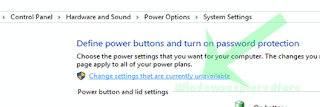
Step 5 : Click on Change Settings that Are unavailable on the Window that Opens.
on Windows 10 first build, Nov 2015 build, Anniversary build and Creators Update..
In our last post, we had seen how to put windows 10 pc to sleep, but the problem is some of our
users said, they cant find sleep option in windows 10 or more commonly sleep missing in
Windows 10 and they are increasingly asking on how to enable missing sleep option in Windows
10 pc.
Which, made me to write an separate post on it..,If you are searching for how to fix sleep option
that was not showing in power menu then i hope this guide solves your problem too.
Lets make a point clear.. You dont need to download software to fix missing sleep option in your
Windows 10 PC. As what we need to do is just configure a simple setting which we gonna see in the
below steps..
So, just follow the below steps, at the end you will see yourself fixing the no sleep option problem in Windows 10...
1) Open Control Panel.
[Helpful link : How to Open control panel in Windows 10 in different ways ]
Step 3 : Click on Hardware and Sound.
Step 4 : Find and Click On Change What the Power buttons do.
"the Option Change What the Power button do Will be Available under Power Options on right pane.
Step 5 : Click on Change Settings that Are unavailable on the Window that Opens.
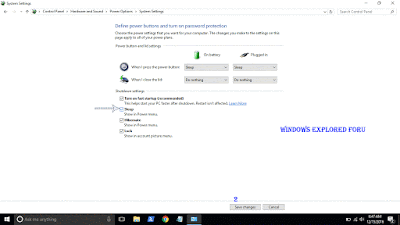
Step 6 : Clicking on it will enable grayed out shutdown settings..
Below the shutdown settings ,you will see various options like Turn on Fast startup, Sleep , Hibernate,etc..
Step 7 : Check the on Sleep option check box.
Step 8 : Click on Save Changes..
Thats it...
Now, visit again your start menu.. Boom?? sleep problem will be resolved you will get back your sleep option, ..
Enjoy..
Other Basic Articles ...
How to Pin App to start menu in Windows 10 [Updated]
Pin app to taskbar in Windows 10 - How to [Updated]
Available link for download
Saturday, February 4, 2017
Extensions tab on history window missing in Chrome 55 and later Solved Here is a way to launch extensions again
Extensions tab on history window missing in Chrome 55 and later Solved Here is a way to launch extensions again
Where are my extensions in chrome, where is the about button in chrome - thats what people are
searching in Chrome 55 which can be downloaded using official site google.com/chrome.
Recently if you had updated your google Chrome then, you may be aware of this. Google redesigned
the Chromes History tab as it replaced it with the complete material design. The chrome 55 update
also features some bug fixes, but the popular extensions and about tabs are missing in Chrome
version 55 and later in the history window.
So, in this post lets see how to access extensions tab, where extensions in chrome located and how to
access extensions in Chrome.
What is mean by extensions ?
As the name suggests, extensions are nothing but the additional things that help the user to add some
more facilities the browser lacks. For example : In Some btowsers, the translate of page is done by
the extensions.So they are simply the additional facility that can be downloaded and installed.
In Chrome, they are available in .crx files, Which means when you download chrome extension you
will see the filename .crx files downloading..
Where are my extensions in Chrome ?
They are located inside the Chrome folder which would be on many locations like AppData,
program files and so on.
How can i find extensions on Chrome ?
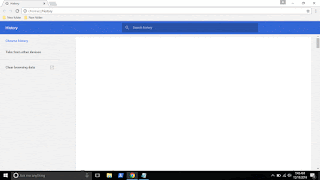
In the earlier versions of Chrome, you can see the Chrome extensions tab available on the history tab
which can be opened by simply pressing ctrl + H keys on keyboard. But in the update the extensions
tab was removed so, you cant open it using that method, you need to follow the main method...
1) Open Google Chrome.
2) On the top right corner, you will see the ? icon click on it..
3) It will display many options like New tab, New Windows,etc.. Find More tools option and click
on it.
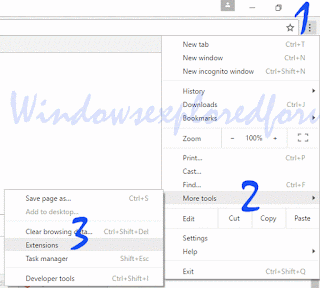
4) When you clicked it will open more options now like Save page as, Add to desktop, Clear browsing data, extensions, etc..
5) Click on Extensions
Thats it..
You will find all your Extensions there...
Thats the end of this post..
Click to read all basic tutorials..
searching in Chrome 55 which can be downloaded using official site google.com/chrome.
Recently if you had updated your google Chrome then, you may be aware of this. Google redesigned
the Chromes History tab as it replaced it with the complete material design. The chrome 55 update
also features some bug fixes, but the popular extensions and about tabs are missing in Chrome
version 55 and later in the history window.
So, in this post lets see how to access extensions tab, where extensions in chrome located and how to
access extensions in Chrome.
What is mean by extensions ?
As the name suggests, extensions are nothing but the additional things that help the user to add some
more facilities the browser lacks. For example : In Some btowsers, the translate of page is done by
the extensions.So they are simply the additional facility that can be downloaded and installed.
In Chrome, they are available in .crx files, Which means when you download chrome extension you
will see the filename .crx files downloading..
Where are my extensions in Chrome ?
They are located inside the Chrome folder which would be on many locations like AppData,
program files and so on.
How can i find extensions on Chrome ?
In the earlier versions of Chrome, you can see the Chrome extensions tab available on the history tab
which can be opened by simply pressing ctrl + H keys on keyboard. But in the update the extensions
tab was removed so, you cant open it using that method, you need to follow the main method...
1) Open Google Chrome.
2) On the top right corner, you will see the ? icon click on it..
3) It will display many options like New tab, New Windows,etc.. Find More tools option and click
on it.
4) When you clicked it will open more options now like Save page as, Add to desktop, Clear browsing data, extensions, etc..
5) Click on Extensions
Thats it..
You will find all your Extensions there...
Thats the end of this post..
Click to read all basic tutorials..
Available link for download
Subscribe to:
Posts (Atom)