Showing posts with label launch. Show all posts
Showing posts with label launch. Show all posts
Monday, February 20, 2017
Launch Easydiag 2 0 Plus diagnose car on iPhone and Android tablet
Launch Easydiag 2 0 Plus diagnose car on iPhone and Android tablet
Today I want to share my experience and review on Launch Easydiag 2.0 plus. I used this little scanner on iphone 6 and Android tablet both OK. It read and clear DTC fault codes of BMW and Mercedes which help me turn off EML engine light!
I bought the unit $49, free shipping at diyobd2.fr. If you need download additional software, it’s $39.95 per brand. After a week I received it.

Now I start to show you how I use this Launch Easydiag OBDII scanner to read DTC codes for my Bimmer on iphone 6.
First I download Easydiag app, register by serial number show on the device. Next I connect this 16 pin scanner with my car: plug it into car OBD2 port. Then I pair and connect the Bluetooth.
OK, now I open the software, choose “Diagnostics” then “Read Trouble Code”.


Choose “EOBD2” then “Generic”, hit “Read Current DTC”

And it read out the fault code: P0341 Camshaft Position Sensor A Circuit”.

Click “Clear Trouble Code” and the code is cleared. Everything OK without ELM light!
Now I will show you how to use Launch Easydiag 2.0 on Android tablet. This time I read and clear DTC codes for a Mercedes W203.

Also plug the scanner into OBD2 port. Click “Setting” to connect to car via Bluetooth.

Open the software; choose “European” and “Benz”.

After manually select all vehicle information, I click “Quick Test” and turn ignition on.

And it automatically start to diagnose car.

Last step just need to clear all the fault codes and the car back to normal status!
Available link for download

Saturday, February 4, 2017
Extensions tab on history window missing in Chrome 55 and later Solved Here is a way to launch extensions again
Extensions tab on history window missing in Chrome 55 and later Solved Here is a way to launch extensions again
Where are my extensions in chrome, where is the about button in chrome - thats what people are
searching in Chrome 55 which can be downloaded using official site google.com/chrome.
Recently if you had updated your google Chrome then, you may be aware of this. Google redesigned
the Chromes History tab as it replaced it with the complete material design. The chrome 55 update
also features some bug fixes, but the popular extensions and about tabs are missing in Chrome
version 55 and later in the history window.
So, in this post lets see how to access extensions tab, where extensions in chrome located and how to
access extensions in Chrome.
What is mean by extensions ?
As the name suggests, extensions are nothing but the additional things that help the user to add some
more facilities the browser lacks. For example : In Some btowsers, the translate of page is done by
the extensions.So they are simply the additional facility that can be downloaded and installed.
In Chrome, they are available in .crx files, Which means when you download chrome extension you
will see the filename .crx files downloading..
Where are my extensions in Chrome ?
They are located inside the Chrome folder which would be on many locations like AppData,
program files and so on.
How can i find extensions on Chrome ?
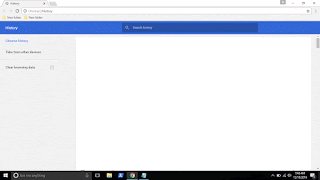
In the earlier versions of Chrome, you can see the Chrome extensions tab available on the history tab
which can be opened by simply pressing ctrl + H keys on keyboard. But in the update the extensions
tab was removed so, you cant open it using that method, you need to follow the main method...
1) Open Google Chrome.
2) On the top right corner, you will see the ? icon click on it..
3) It will display many options like New tab, New Windows,etc.. Find More tools option and click
on it.
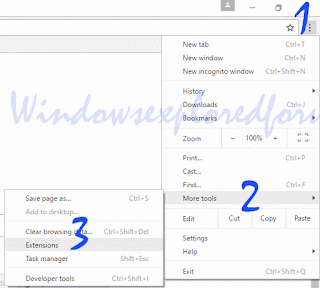
4) When you clicked it will open more options now like Save page as, Add to desktop, Clear browsing data, extensions, etc..
5) Click on Extensions
Thats it..
You will find all your Extensions there...
Thats the end of this post..
Click to read all basic tutorials..
searching in Chrome 55 which can be downloaded using official site google.com/chrome.
Recently if you had updated your google Chrome then, you may be aware of this. Google redesigned
the Chromes History tab as it replaced it with the complete material design. The chrome 55 update
also features some bug fixes, but the popular extensions and about tabs are missing in Chrome
version 55 and later in the history window.
So, in this post lets see how to access extensions tab, where extensions in chrome located and how to
access extensions in Chrome.
What is mean by extensions ?
As the name suggests, extensions are nothing but the additional things that help the user to add some
more facilities the browser lacks. For example : In Some btowsers, the translate of page is done by
the extensions.So they are simply the additional facility that can be downloaded and installed.
In Chrome, they are available in .crx files, Which means when you download chrome extension you
will see the filename .crx files downloading..
Where are my extensions in Chrome ?
They are located inside the Chrome folder which would be on many locations like AppData,
program files and so on.
How can i find extensions on Chrome ?
In the earlier versions of Chrome, you can see the Chrome extensions tab available on the history tab
which can be opened by simply pressing ctrl + H keys on keyboard. But in the update the extensions
tab was removed so, you cant open it using that method, you need to follow the main method...
1) Open Google Chrome.
2) On the top right corner, you will see the ? icon click on it..
3) It will display many options like New tab, New Windows,etc.. Find More tools option and click
on it.
4) When you clicked it will open more options now like Save page as, Add to desktop, Clear browsing data, extensions, etc..
5) Click on Extensions
Thats it..
You will find all your Extensions there...
Thats the end of this post..
Click to read all basic tutorials..
Available link for download
Wednesday, February 1, 2017
Windows Maps app in Windows 10 Where it is and how to launch it in Windows 10 Updated
Windows Maps app in Windows 10 Where it is and how to launch it in Windows 10 Updated
Microsofts Windows 10 have a default Maps App, but many of us dont know about this thing.. So
in this post, lets see how to open windows maps app in Windows 10. Works on Windows 10
Creators Update, Windows 10
Anniversary Update, and other editions of Windows like Windows 10 earlier builds like Aug 2015
and Nov 2015 builds.
Google Maps vs Microsoft Windows Map which is better ?
Comparing those two is very difficult, because they both provide the same function, same features
most of the time. However, some features depend on your location. For example : Though, they both
provide traffic update the update time will be lesser in Windows maps App when it comes to non
popular areas or for a particular location. In the same way, google Maps which worked great on the area will fail on some other area.
So, we cant say this is best and that is best. Its you who want to test it..
OK,then
how to download Maps app for windows 10?
Actually, we dont need to download an separate map for windows 10, because such app already
exists on our system, all we need to do is find it.
if your windows 10 maps app is not working then try restarting your PC and open it..
How to open windows Maps ?
just follow the below steps...
1) Press Windows (logo) Key on your keyboard or press start button
2) Type Maps
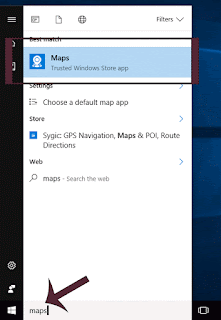
3) Select the top most result... "Maps" trusted windows store app
Thats it..
It will open maps app in windows 10.
If you think windows 10 maps app is missing, then you can find it using the above method..
Click to read all basic tutorials..
in this post, lets see how to open windows maps app in Windows 10. Works on Windows 10
Creators Update, Windows 10
Anniversary Update, and other editions of Windows like Windows 10 earlier builds like Aug 2015
and Nov 2015 builds.
Google Maps vs Microsoft Windows Map which is better ?
Comparing those two is very difficult, because they both provide the same function, same features
most of the time. However, some features depend on your location. For example : Though, they both
provide traffic update the update time will be lesser in Windows maps App when it comes to non
popular areas or for a particular location. In the same way, google Maps which worked great on the area will fail on some other area.
So, we cant say this is best and that is best. Its you who want to test it..
OK,then
how to download Maps app for windows 10?
Actually, we dont need to download an separate map for windows 10, because such app already
exists on our system, all we need to do is find it.
if your windows 10 maps app is not working then try restarting your PC and open it..
How to open windows Maps ?
just follow the below steps...
1) Press Windows (logo) Key on your keyboard or press start button
2) Type Maps
3) Select the top most result... "Maps" trusted windows store app
Thats it..
It will open maps app in windows 10.
If you think windows 10 maps app is missing, then you can find it using the above method..
Click to read all basic tutorials..
Available link for download
Subscribe to:
Posts (Atom)