Showing posts with label a. Show all posts
Showing posts with label a. Show all posts
Sunday, March 19, 2017
What it means to be a Good Knowledge Worker
What it means to be a Good Knowledge Worker
It is common knowledge in today’s business environment that the market has gone global. Even small, seemingly local businesses have ties overseas and across borders. As businesses expand all around the world, the business processes grow increasingly complicated and complex. As a result, many businesses are using information technology to tie together and coordinate the many business processes taking place all around the world.
Employees in these companies then tend to fall into one of two primary camps: those that cannot keep up with the rapid technological advances, and those that can. Those that can are able to filter through the onslaught of overwhelming quantities of information provided by these systems and mold that information into relevant and applicable content that will aid in decision making. Need for these capable individuals is mounting.
These individuals are what is called Knowledge Workers.
A Knowledge Worker:
1. Uses information and Communication Technology to make, access, or utilize data to increase their and the company’s productivity (Magal, Essentials of Business Processes and Information Systems). They use both structured and unstructured information, meaning that they use easily accessed and obvious information as well as information that is tougher to realize that you need or is difficult to find a way to access.
2. Will perform nonroutine jobs everyday. They have to think through their problems and work and work outside the box. Technology is advancing so quickly that Knowledge Workers are often swimming in uncharted territory. To access and appropriately utilize the necessary information the workers have to be able to work outside dictated parameters and find their own trail to the answer (or even the question in order to find the answer) that they require. Each task performed can vary and requires the Knowledge Worker to be constantly on their toes.
3. Constantly pulls data from numerous sources in an attempt to form relevant conclusions. This is key because the Knowledge Worker has to be able to determine: 1) the appropriate question; 2) what information is necessary to answer the question; 3) what resources are available that contain said information; and 4) to pull that information and draw significant conclusions. This is called information literacy.
4. Knows the big picture of the company and their place within it. This is central to being a Knowledge Worker because it aids in determining what constitutes relevant information. This is called thinking strategically. This is called communication and collaboration and is one of the most important parts of being a knowledge worker. It puts the rest of the work done into perspective. No one process or function is isolated anymore. No one operates in a functional silo. Recognizing this fact assists employees in increasing communication, collaboration, and productivity.
Being a quality Knowledge Worker is expected of most graduating Business students. Employers assume that these graduates have a capacity for thinking strategically through any problems thrown at them, especially given their fresh perspective on business processes and their more recent (i.e. less outdated) education. Knowledge Workers are expected to know how to process information to provide strategic conclusions.
Caitlin Richardson
Accounting Systems and Theory
Whitworth University
Employees in these companies then tend to fall into one of two primary camps: those that cannot keep up with the rapid technological advances, and those that can. Those that can are able to filter through the onslaught of overwhelming quantities of information provided by these systems and mold that information into relevant and applicable content that will aid in decision making. Need for these capable individuals is mounting.
These individuals are what is called Knowledge Workers.
A Knowledge Worker:
1. Uses information and Communication Technology to make, access, or utilize data to increase their and the company’s productivity (Magal, Essentials of Business Processes and Information Systems). They use both structured and unstructured information, meaning that they use easily accessed and obvious information as well as information that is tougher to realize that you need or is difficult to find a way to access.
2. Will perform nonroutine jobs everyday. They have to think through their problems and work and work outside the box. Technology is advancing so quickly that Knowledge Workers are often swimming in uncharted territory. To access and appropriately utilize the necessary information the workers have to be able to work outside dictated parameters and find their own trail to the answer (or even the question in order to find the answer) that they require. Each task performed can vary and requires the Knowledge Worker to be constantly on their toes.
3. Constantly pulls data from numerous sources in an attempt to form relevant conclusions. This is key because the Knowledge Worker has to be able to determine: 1) the appropriate question; 2) what information is necessary to answer the question; 3) what resources are available that contain said information; and 4) to pull that information and draw significant conclusions. This is called information literacy.
4. Knows the big picture of the company and their place within it. This is central to being a Knowledge Worker because it aids in determining what constitutes relevant information. This is called thinking strategically. This is called communication and collaboration and is one of the most important parts of being a knowledge worker. It puts the rest of the work done into perspective. No one process or function is isolated anymore. No one operates in a functional silo. Recognizing this fact assists employees in increasing communication, collaboration, and productivity.
Being a quality Knowledge Worker is expected of most graduating Business students. Employers assume that these graduates have a capacity for thinking strategically through any problems thrown at them, especially given their fresh perspective on business processes and their more recent (i.e. less outdated) education. Knowledge Workers are expected to know how to process information to provide strategic conclusions.
Caitlin Richardson
Accounting Systems and Theory
Whitworth University
Available link for download

Saturday, March 18, 2017
Bringing the Internet to more Indians—starting with 10 million rail passengers a day
Bringing the Internet to more Indians—starting with 10 million rail passengers a day
When I was a student, I relished the day-long railway journey I would make from Chennai Central station (then known as Madras Central) to IIT Kharagpur. I vividly remember the frenetic energy at the various stations along the way and marveled at the incredible scale and scope of Indian Railways.
I’m very proud to announce that it’s the train stations of India that are going to help get millions of people online. In the past year, 100 million people in India started using the Internet for the first time. This means there are now more Internet users in India than in every country in the world aside from China. But whats really astounding is the fact that there are still nearly one billion people in India who aren’t online.
We’d like to help get these next billion Indians online—so they can access the entire web, and all of its information and opportunity. And not just with any old connection—with fast broadband so they can experience the best of the web. That’s why, today, on the occasion of Indian Prime Minister Narendra Modi’s visit to our U.S. headquarters, and in line with his Digital India initiative, we announced a new project to provide high-speed public Wi-Fi in 400 train stations across India.
Working with Indian Railways, which operates one of the worlds largest railway networks, and RailTel, which provides Internet services as RailWire via its extensive fiber network along many of these railway lines, our Access & Energy team plans to bring the first stations online in the coming months. The network will expand quickly to cover 100 of the busiest stations in India before the end of 2016, with the remaining stations following in quick succession.
Even with just the first 100 stations online, this project will make Wi-Fi available for the more than 10 million people who pass through every day. This will rank it as the largest public Wi-Fi project in India, and among the largest in the world, by number of potential users. It will also be fast—many times faster than what most people in India have access to today, allowing travelers to stream a high definition video while they’re waiting, research their destination, or download some videos, a book or a new game for the journey ahead. Best of all, the service will be free to start, with the long-term goal of making it self-sustainable to allow for expansion to more stations and other places, with RailTel and more partners, in the future.
We think this is an important part of making the Internet both accessible and useful for the more than 300 million Indians already online, and the nearly one billion more who are not.
But it’s not the only piece. To help more Indians get access to affordable, high-quality smartphones, which is the primary way most people there access the Internet, we launched Android One last year. To help address the challenges of limited bandwidth, we recently launched a feature that makes mobile webpages load faster and with less data, and we’ve made YouTube available offline with offline Maps coming soon.
To help make web content more useful for Indians, many of whom don’t speak English, we launched the Indian Language Internet Alliance last year to foster more local language content, and have built greater local language support into our products—including Hindi Voice Search, an improved Hindi keyboard and support for seven Indian languages with the latest versions of Android. And finally, to help all Indians reap the benefits of connectivity, we’ve been ramping up efforts to help women, who make up just a third of Internet users in India today, get the most from the web.
Just like I did years ago, thousands of young Indians walk through Chennai Central every day, eager to learn, to explore and to seek opportunity. It’s my hope that this Wi-Fi project will make all these things a little easier.
Posted by Sundar Pichai, CEO, Google
 |
| Prime Minister Narendra Modi at the Googleplex today |
We’d like to help get these next billion Indians online—so they can access the entire web, and all of its information and opportunity. And not just with any old connection—with fast broadband so they can experience the best of the web. That’s why, today, on the occasion of Indian Prime Minister Narendra Modi’s visit to our U.S. headquarters, and in line with his Digital India initiative, we announced a new project to provide high-speed public Wi-Fi in 400 train stations across India.
Working with Indian Railways, which operates one of the worlds largest railway networks, and RailTel, which provides Internet services as RailWire via its extensive fiber network along many of these railway lines, our Access & Energy team plans to bring the first stations online in the coming months. The network will expand quickly to cover 100 of the busiest stations in India before the end of 2016, with the remaining stations following in quick succession.
Even with just the first 100 stations online, this project will make Wi-Fi available for the more than 10 million people who pass through every day. This will rank it as the largest public Wi-Fi project in India, and among the largest in the world, by number of potential users. It will also be fast—many times faster than what most people in India have access to today, allowing travelers to stream a high definition video while they’re waiting, research their destination, or download some videos, a book or a new game for the journey ahead. Best of all, the service will be free to start, with the long-term goal of making it self-sustainable to allow for expansion to more stations and other places, with RailTel and more partners, in the future.
 |
| This map shows the first 100 stations that will have high-speed Wi-Fi by the end of 2016 |
We think this is an important part of making the Internet both accessible and useful for the more than 300 million Indians already online, and the nearly one billion more who are not.
But it’s not the only piece. To help more Indians get access to affordable, high-quality smartphones, which is the primary way most people there access the Internet, we launched Android One last year. To help address the challenges of limited bandwidth, we recently launched a feature that makes mobile webpages load faster and with less data, and we’ve made YouTube available offline with offline Maps coming soon.
To help make web content more useful for Indians, many of whom don’t speak English, we launched the Indian Language Internet Alliance last year to foster more local language content, and have built greater local language support into our products—including Hindi Voice Search, an improved Hindi keyboard and support for seven Indian languages with the latest versions of Android. And finally, to help all Indians reap the benefits of connectivity, we’ve been ramping up efforts to help women, who make up just a third of Internet users in India today, get the most from the web.
Just like I did years ago, thousands of young Indians walk through Chennai Central every day, eager to learn, to explore and to seek opportunity. It’s my hope that this Wi-Fi project will make all these things a little easier.
Posted by Sundar Pichai, CEO, Google
Available link for download
Friday, March 17, 2017
Program size 2 mega to repair all Windows xp problems 7 8 1 10 click of a button!
Program size 2 mega to repair all Windows xp problems 7 8 1 10 click of a button!
Program to repair all Windows xp problems, 7,8.9,10
All those who have spent several years in the field of informatics know very well that the computers is the maintenance of the inevitable special Windows system, and that you have the required tools is also vital to detect and fix problems in the operating system or even hardware. Availability of these tools on your computer and upload them individually is difficult, for this there are many programs that offer you several tools in one place, so you can easily access and repair computer problems without trouble.

Everyone knows the famous repair Windows problems Alhaarenz disc, but the disc is probably out of date by the time of the other alternatives in this area, which will bring you all the important tools to fix Windows in one place, most notably the "Windows Repair Toolbox" program.
Windows Repair Toolbox is a small-sized program comes a set of tools and commands and programs that will help you in solving most of the problems and errors in the computer system, whether Windows XP, 7.8 0.10. The program does not exceed 2 megabytes in size, it allows you to download and access to the latest versions of Windows in their own reform programs.

Of course program provides you with many different tools depending on your needs, it can repair the problems related to viruses, Altroyjonat .. also the possibility of repairing hard drives and solving its problems, with the possibility of deleting stubborn roots programs, update all the programs on your computer .alatlaa important information in your computer , as knowing the hard drive, memory, processor ..ogerha.
How to use the program:
All you have to do to is click on the desired tool, and wait until the program is downloaded and run them at all, then you work for the solution of the problem suffered by the computer, The program is divided into six sections, section first special Balhardoar, the second task of the tools, and also fix Windows problems Programs and then a special section to retrieve files and so on, in addition to section includes task orders usually need and that you can Tidh for a way "CMD" finally, a special department to deal with programs and files that eludes the deletion.

The beauty of this program is that it allows you to free software only small-scale, where you will notice the speed of loading and running, in addition of course to follow to the latest versions of those programs.
downloading programs
Link to the original site
Available link for download
Thursday, March 16, 2017
Sunday, March 12, 2017
Activating camtasia studio program 9 free 2017 A very easy way
Activating camtasia studio program 9 free 2017 A very easy way
Activating camtasia studio program 9 free 2017

Method of activation and loading
Download activation file
Download
Available link for download
Friday, March 10, 2017
Activating Advanced SystemCare 10 RC Pro program for a full year free 2017
Activating Advanced SystemCare 10 RC Pro program for a full year free 2017
Activating Advanced SystemCare 10 RC Pro program for a full year

How to download files

Download the program with activation key
Download
Download activation key
Download
Available link for download
Wednesday, March 8, 2017
How to copy files from your computer to your Android phone without a cable
How to copy files from your computer to your Android phone without a cable
How to copy files from your computer to your Android phone or from phone filel copy via computer without cables. In fact in some devices also support our work to share and manage files via the intranet via wifi. But not all phone can do it.
Now I show you a way to copy music, pictures, files, types of ostriches from the computer to the phone or vice versa via Wifi or Internet, 3G is simple. Also following the application also allows you to manage phone always, includes management messages, calls, applications, libraries ... ..
First you download and install the application AirDroid here , plus you do not need to install anything.However you need a wifi or 3G connection.
How to copy files from your computer to your phone when you use Wifi
You note that computer and telephone network must share the internal one, that is the first modem, or the last 1 1 Department discovered where wifi or play offline.
Step 1: Open the downloaded AirDroid
In the open web addresses, and you'll see the web address. Please access from the browser computer IP address shows up on the screen, his example here is 192.168.100.100:8888
 |
| How to copy files from your computer to your Android phone without a cable |
Read more »
Available link for download
Sunday, March 5, 2017
Share WiFi connection in Windows 10 tutorial You dont need to be a computer specialist to create hotspot
Share WiFi connection in Windows 10 tutorial You dont need to be a computer specialist to create hotspot
Share WiFi connection in Windows 10 - Thats what we gonna see in this post.
Works on Windows 10
Creators Update, Windows 10 Anniversary Update, and other editions of Windows like Windows 10
earlier builds like Aug 2015 and Nov 2015 builds...
If you wish to share WiFi connection from laptop to mobile or share WiFi connection from desktop
to laptop or to mobile.. Here is your guide..
If you dont know how to connect your WiFi then, check this article [ Connect to WiFi network in
Windows 10 - how to [Beginners guide][link]
We can share WiFi connection from our device to other device using many ways, for example :we
can share wifi connection through cmd, share wifi connection through powershell, Share wifi
connection by installing an software or application.
But, windows 10 have a inbuilt option to share wifi connection from windows 10 device to others
known as Mobile Hotspot.
How to turn on Mobile hotspot in Windows 10
[Video tutorial]
You dont need to download software to share WiFi connection in Windows 10, just follow the
following steps..
2) Select Network & Internet.
3) Click on Mobile Hotspot tab on the left pane
The mobile hotspot field will be available as 3rd from bottom).
4) When you clicked you can see "Mobile Hotspot" and Other items on your right pane...
5) Click/Slide right side of the option that was available under "Share my internet connection with
Other devices",so that it looks as ON.
Thats it..
Now,type the password that was visible near "network Password" on your connecting device...
You can now share your internet..
Hope it is helpful.
Thats it...
Works on Windows 10
Creators Update, Windows 10 Anniversary Update, and other editions of Windows like Windows 10
earlier builds like Aug 2015 and Nov 2015 builds...
If you wish to share WiFi connection from laptop to mobile or share WiFi connection from desktop
to laptop or to mobile.. Here is your guide..
If you dont know how to connect your WiFi then, check this article [ Connect to WiFi network in
Windows 10 - how to [Beginners guide][link]
can share wifi connection through cmd, share wifi connection through powershell, Share wifi
connection by installing an software or application.
But, windows 10 have a inbuilt option to share wifi connection from windows 10 device to others
known as Mobile Hotspot.
How to turn on Mobile hotspot in Windows 10
[Video tutorial]
You dont need to download software to share WiFi connection in Windows 10, just follow the
following steps..
1) Press Windows + I which will open you Settings app instantly.
2) Select Network & Internet.
3) Click on Mobile Hotspot tab on the left pane
The mobile hotspot field will be available as 3rd from bottom).
4) When you clicked you can see "Mobile Hotspot" and Other items on your right pane...
5) Click/Slide right side of the option that was available under "Share my internet connection with
Other devices",so that it looks as ON.
Thats it..
Now,type the password that was visible near "network Password" on your connecting device...
You can now share your internet..
Hope it is helpful.
Thats it...
Are you a beginner ? then here are all posts that deals with mastering basics of Windows 10.
Click to see all the basic tutorials
Click to see all the basic tutorials
Available link for download
Friday, March 3, 2017
Managing A Multi Location Business with Technology
Managing A Multi Location Business with Technology
Location Collaboration with Business Technology
by: Dalton Crosby
?
 |
| www.TekoaERP.com |
In order to keep up in today’s ever-changing business landscape; it is paramount to keep a mentality of expansion, but with this new growth comes plenty of challenges that will require creative, technological solutions.
Here are 4 of the most common business process issues that occur when operating multiple offices and their possible solutions:
1. Meetings.
In a traditional office, when a meeting needs to happen, everyone can just walk down the hall and sit in a conference room together. Often seen by the employee as a waste of time, a meeting must be done with extreme efficiency to be worth its time value of money. Adding an additional location can make this an even harder task as being in a separate physical setting might only add to the employee’s case of a meeting being worthless. In addition, if it becomes necessary to see work in real time, it could be expensive for a company to fly employees to a location to conduct meetings.
Solution: Implementing an effective system of communication for online meetings allow companies to meet face to face in an online conference call. It even allows employees to view each other’s desktops, making collaboration simple and safe with its built in security features. This technology is used by companies who have “$50,000 in travel savings” each year according to the Senior Director-International Finance.
2. Everyday Work.
In conjunction with meetings, it is the everyday work that becomes increasingly difficult to manage when operating a multi-office enterprise. In a traditional office, a worker could walk ten steps and ask their coworker a quick question about a projects progress, but when there is a physical distance, it becomes a time-consuming nuisance to try and always respond to an email.
Solution: Investing in a quality VoIP (Voice over IP) system allows employees to utilize simply picking up a phone and having direct communication with their coworkers. It also allows conference calls and the ability to transfer someone to different departments with the push of a button, which can make effective communication a lot easier.
3. Project Status.
Most jobs require multiple employees to work together to complete a common task. When you are in the same office, this is fairly simple as you know where to access data and what other employees have accomplished, but when you are across the country from your team, it becomes complex to know exactly where and how to access information and progress.
Solution: Installing an Enterprise Resource Planning System(ERP) that is right for your business can help cut costs and confusion by providing a central location for all of your company’s data. This can mean that everything from sales, to product costing information is available at the click of a mouse, allowing employees to understand their assignment and complete it in the timeliest fashion possible. Fast growing companies use an ERP system to manage their “real-time availability of data”, and as a company that has grown from 5 employees to 2,200 in less than 10 years, it is crucial to maintain this growth through their ERP system.
4. Manager Supervision.
As a manager in a traditional office, it is easy to see your employees and be able to manage their everyday operations, such as getting to work on time, and handling work hours appropriately, but when you are unable to physically be in the same office, it become hard to control.
Solution: To solve this issue, it is best to implement the mixture of the previous 3 solutions. By having meetings over a communication system, installing a VoIP structure, and by using ERP software, it becomes much easier to keep in touch with other locations. Even though you may not be able to physically be there, a high level of technological communication allows you to manage employees like you were.
Ultimately, the higher level of technology you implement in your business, the more successful you can be in managing a multi-location enterprise.
For more information about Cloud ERP Systems for Todays Enterprise, visit www.TekoaSoftware.com.
Available link for download
Thursday, February 16, 2017
How to Install a Hard Drive with Pictures
How to Install a Hard Drive with Pictures
 1. Power down the computer.Shut off the power supply in the back. Even if you can access the inside where it stands, you need to unplug the computer. Otherwise, unplug the computer and place it somewhere that allows you to get inside.
 2. Remove the case panels. You may need a Phillips head screwdriver, but most newer computers have thumbscrews. You will need to remove both sides so that you can screw the hard drive in on both sides.
- Ensure that you do not have any static electricity.Touch a metal object (other than your computer), such as a doorknob, to discharge any existing static electricity that you may have.
 4. Make sure you are grounded.If your computer is still plugged in (but the power supply is switched off), you can ground yourself by touching any metal part of the case. Otherwise, make sure that you are grounded before starting to work on the inside of the computer. This will prevent electrostatic shock from damaging the components of your computer.
 5. Remove the old drive (if applicable).If you are removing an old hard drive, make sure all of the cables are disconnected from both the motherboard and the power supply. Unscrew all the screws on both sides of the hard drive, and then slide it out of the housing.
- You may need to remove more cables or cards in order to access the hard drives in a tight case.


 6. Insert your new drive.Remove it from the antistatic packaging and slide it into an open space in the hard drive housing. The drive should slide directly in, and the holes on the side of the drive should line up to the screw guides on the housing.
- If you can, use a slot that has some space around it. This will improve airflow and lead to a cooler system, but is not a critical concern.
 7. Secure the hard drive.Once the hard drive has been inserted, use the screws that came with it to secure the hard drive in the housing. Ideally you should use two screws on each side of the hard drive. If the hard drive is loose, it can rattle and cause more noise and lead to physical damage.
- Tighten the screws to a firm tightness, but don’t overtighten as that may cause damage as well.
 8. Connect a SATA hard drive to the motherboard.Newer hard drives will use SATA cables, which are thin and resemble USB cables. Use a SATA cable to connect the hard drive to the motherboard. SATA cables can be connected in either direction.
- If you are connecting your primary hard drive, the SATA cable should be plugged into the first SATA channel. This may be labeled SATA0 or SATA1. Refer to your motherboard documentation for detailed information for your motherboard.
- Secondary drives should be connected to the next available SATA channel.
 9. Connect a PATA (IDE) hard drive to the motherboard.IDE drives are older model hard drives that can be identified by the long rows of pins on the back. IDE Drives are connected via an IDE cable, which is wide and flat. The cable is usually gray in color
- The blue end of the cable plugs into the motherboard. The black connector plugs into your primary (Master) drive, while the black connector plugs into the secondary (Slave) drive if applicable.
- Set the jumper for your primary drive to Master. The jumper diagram should be printed onto the hard drive. If you are installing a secondary drive but it is the only drive connected to the cable, it should be set to Master as well.
 10. Connect the power supply to the hard drive.Most newer power supplies have SATA power connectors, though older power supplies typically only have Molex (4 pin) connectors. If this is the case, and you are installing a SATA drive, you will need a Molex-to-SATA adapter. IDE drives will use the Molex connector.Make sure that all of your connections are secure. Ensure that none of the cables can come undone by wiggling them a little bit.
 11. Close up your computer.Replace the case sides and reconnect your cables if you had to move the case to work on the inside. Turn the power supply back on and then turn your computer on.
 12. Finish the installation.Once you’ve got everything connected and the computer turned back on, you’ll need to finish the installation of the hard drive from your computer. If you are replacing your primary drive, you’ll have to reinstall your operating system. If you are adding a new drive, youll need to format the drive before you can use it..


Method 2 Laptop Hard Drive
 1. Power down your laptop.Shut your laptop down completely (don’t put it in Sleep mode). Turn it over and remove the battery from the back of the laptop. This will help prevent the possibility of electrocution.
 2. Open the hard disk panel.This panel is located on the bottom of the laptop. You will need a small Phillip’s head screwdriver in order to remove the screws and the panel. The panel can be identified by the hard drive logo printed next to it.Almost every laptop can only fit one hard drive at a time. Some of the higher-end laptops may be able to support two. If you are replacing your only hard drive, you will need to reinstall your operating system after replacing it.
- Ensure that you do not have any static electricity. Touch a metal object (other than your computer), such as a doorknob, to discharge any existing static electricity that you may have.
 4. Unscrew the hard drive.Depending on the laptop, you may have to remove a screw or two before you can remove the hard drive. Not all laptop hard drives are secured by screws.
 5. Pull the ribbon to release the hard drive.The hard drive will pop back about half an inch, allowing you to remove it from its housing. Place your old hard drive somewhere safe in case you need to retrieve data off of it.
 6. Insert your new hard drive.Ensure that you insert it with the correct side facing out. Once you’ve placed the hard drive in the housing, press it firmly into the connectors. Do not force the hard drive, or you may damage the connectors. Once the hard drive is secure, reinsert any screws.
7. Close up the laptop.
Once the hard drive is installed, close up the panel and reinsert the battery. Make sure the panel is securely closed. You will now need to prepare the new drive:


Available link for download
Friday, February 10, 2017
A backpacker sketching Nepal
A backpacker sketching Nepal

[Guest post by Bernat Moreno in Nepal]
Back in 2016, from January to March, I was travelling around Nepal. It was my second time in the country, the first one was in 2008, but in this journey I discovered much more. The purpose of the most recent journey was making an art book about Nepal. Here are a few of my drawings that are in the book.
Durbar Square (above) in Kathmandu is one of the highlights in Nepal. It was really damaged by the 2015 earthquakes but it is still beautiful.

Two weeks later I came back to Durbar Square for the Holi, a Hindu spring festival (above left). I have to say: it is the BEST PARTY EVER.

This is the view from the rooftop of my second hotel in Kathmandu: Potala Guest House. Rooftops are one of the best places to chill out: less noise, pollution, crowds. In this picture you can see some solar panels, this is because Nepal has a serious problem with power cuts (at least 12 hours a day while I was there). Im very optimistic and I think it could be a good opportunity for it to be an energy sustainable country in the long term.

- Dal Bath (kind of a national dish): Nepali people eat this recipe based on rice and lentils almost every day, it is very simple but absolutely delicious in part because they have very good rice.
- Momos: There are two kinds of people, those who prefer steamed momos and those who prefer fried momos. I prefer the second ones.


In this small village I had the pleasure of:
Thank you very much for reading this post, Ive enjoyed a lot writing it. Ive remembered many good times spent in the country. But if there is something that travelers often avoid when telling their experiences is this: bad moments. Bad moments are also a part of travel. Embrace them, remember them and stay with them.
You can download the full ebook I made about Nepal for free: www.bernatmoreno.com/books/nepal
Greetings from Valencia, Spain.
- Being surprised by a rhino while having a beer at a river bar.
- Being scared by a wild elephant while riding in a boat on the river.
- Finding a plantation of wild marihuana next to my hostel.
- Paying less than 4€ night for two people in a hostel.
- Enjoying some of the best moments in the country: sitting on a rooftop bar at sunset while taking a Red Star (Red Bull fake), listening to good music and drawing in my sketchbook.
You can download the full ebook I made about Nepal for free: www.bernatmoreno.com/books/nepal
Greetings from Valencia, Spain.
Available link for download
Wednesday, February 8, 2017
Activating avg 2017 for a period of 500 days with a single click
Activating avg 2017 for a period of 500 days with a single click
Activating avg 2017 for a period of 500 days with a single click

Method of activation
How to download the activation file
Download activation file
Download
Available link for download
Activate a copy of Windows 10 without any problems Key 2017
Activate a copy of Windows 10 without any problems Key 2017
Activate a copy of Windows 10 without any problems Key 2017

Activate a copy of Windows 10 without any problems Key 2017
Download link activation key: here
Activate a copy of Windows8.1 professional key :here
Activating Windows8-ConsumerPreview-64bit-English :here
Activate a copy of Windows 7 key :here
Activate a copy of Windows 7 pro key :here
Key to activate a copy of Windows XP Pro :here
Available link for download
Monday, February 6, 2017
School Administrative Officer Job in A Standard Private School Akobo Ibadan
School Administrative Officer Job in A Standard Private School Akobo Ibadan
EZ37 Solutions Limited - Our client, a standard Private School, is currently recruiting to fill the position below:
Job Title: School Administrative Officer
Job ID: EZ03042017
Location: Akobo, Ibadan
Job Description
Preferred Candidate Must Possess The Following:
Click here to apply online
Job Title: School Administrative Officer
Job ID: EZ03042017
Location: Akobo, Ibadan
Job Description
- Attend to all administrative functions of the school
- Attend to parents, admission processing and inventory management
- Perform routine clerical and administrative functions such as drafting correspondence, scheduling appointments etc.
- Use computers for various applications, such as database management or word processing. Answer telephones and give information to callers, take messages, or transfer calls to appropriate individuals.
- Create, maintain, and enter information into databases.
- Set up and manage paper or electronic filing systems, recording information, updating paperwork, or maintaining documents, such as attendance records, correspondence, or other material.
- Operate office equipment, such as fax machines, copiers, or phone systems and arrange for repairs when equipment malfunctions.
Preferred Candidate Must Possess The Following:
- B.Sc./B.Ed./M.Ed./M.Sc. in Educational Management.
- Excellent communication and computer skills.
- Be smart, cheerful, disciplined and possess high level of integrity.
- Must be able to work with people, innovative and accountable.
- Preferably female
- Not more than 40 years of age.
- Years of experience: 2 years work experience.
Click here to apply online
Deadline: 16th January, 2017.
Available link for download
Saturday, February 4, 2017
Extensions tab on history window missing in Chrome 55 and later Solved Here is a way to launch extensions again
Extensions tab on history window missing in Chrome 55 and later Solved Here is a way to launch extensions again
Where are my extensions in chrome, where is the about button in chrome - thats what people are
searching in Chrome 55 which can be downloaded using official site google.com/chrome.
Recently if you had updated your google Chrome then, you may be aware of this. Google redesigned
the Chromes History tab as it replaced it with the complete material design. The chrome 55 update
also features some bug fixes, but the popular extensions and about tabs are missing in Chrome
version 55 and later in the history window.
So, in this post lets see how to access extensions tab, where extensions in chrome located and how to
access extensions in Chrome.
What is mean by extensions ?
As the name suggests, extensions are nothing but the additional things that help the user to add some
more facilities the browser lacks. For example : In Some btowsers, the translate of page is done by
the extensions.So they are simply the additional facility that can be downloaded and installed.
In Chrome, they are available in .crx files, Which means when you download chrome extension you
will see the filename .crx files downloading..
Where are my extensions in Chrome ?
They are located inside the Chrome folder which would be on many locations like AppData,
program files and so on.
How can i find extensions on Chrome ?
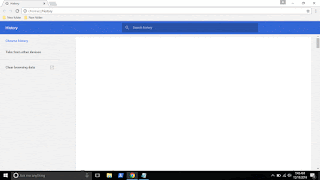
In the earlier versions of Chrome, you can see the Chrome extensions tab available on the history tab
which can be opened by simply pressing ctrl + H keys on keyboard. But in the update the extensions
tab was removed so, you cant open it using that method, you need to follow the main method...
1) Open Google Chrome.
2) On the top right corner, you will see the ? icon click on it..
3) It will display many options like New tab, New Windows,etc.. Find More tools option and click
on it.
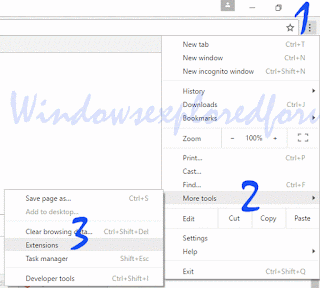
4) When you clicked it will open more options now like Save page as, Add to desktop, Clear browsing data, extensions, etc..
5) Click on Extensions
Thats it..
You will find all your Extensions there...
Thats the end of this post..
Click to read all basic tutorials..
searching in Chrome 55 which can be downloaded using official site google.com/chrome.
Recently if you had updated your google Chrome then, you may be aware of this. Google redesigned
the Chromes History tab as it replaced it with the complete material design. The chrome 55 update
also features some bug fixes, but the popular extensions and about tabs are missing in Chrome
version 55 and later in the history window.
So, in this post lets see how to access extensions tab, where extensions in chrome located and how to
access extensions in Chrome.
What is mean by extensions ?
As the name suggests, extensions are nothing but the additional things that help the user to add some
more facilities the browser lacks. For example : In Some btowsers, the translate of page is done by
the extensions.So they are simply the additional facility that can be downloaded and installed.
In Chrome, they are available in .crx files, Which means when you download chrome extension you
will see the filename .crx files downloading..
Where are my extensions in Chrome ?
They are located inside the Chrome folder which would be on many locations like AppData,
program files and so on.
How can i find extensions on Chrome ?
In the earlier versions of Chrome, you can see the Chrome extensions tab available on the history tab
which can be opened by simply pressing ctrl + H keys on keyboard. But in the update the extensions
tab was removed so, you cant open it using that method, you need to follow the main method...
1) Open Google Chrome.
2) On the top right corner, you will see the ? icon click on it..
3) It will display many options like New tab, New Windows,etc.. Find More tools option and click
on it.
4) When you clicked it will open more options now like Save page as, Add to desktop, Clear browsing data, extensions, etc..
5) Click on Extensions
Thats it..
You will find all your Extensions there...
Thats the end of this post..
Click to read all basic tutorials..
Available link for download
Tuesday, January 31, 2017
How to forget a WiFi network in Windows 10 Updated
How to forget a WiFi network in Windows 10 Updated
WiFi seems to be a big deal in our World, with the development of rapid technology, we can see
WiFi network everywhere. In fact, More number of People chooses to go where WiFi is available,
such a suitation was created by the technology. but if Our Network seems to be connected and there
was no connection then, the possible and basic solution we and other Persons ask you to do is to
forgot your network and re-try to connect your network.
So,in this post lets see how to forgot a WiFi network in Windows 10.
Just follow the steps..
1) Press Windows + I which will open settings.
2) Select Network & Internet.
3) Click on WiFi tab on the left pane.
4) Click on Manage Known Networks on the Right pane ,the option will be available below to Hardware properties and above to WiFi sense.
5) It will display the list of WiFi networks you had connected with your PC.
6) Click on the network you wish to forgot
![How to forget a WiFi network in Windows 10 [Updated]](https://blogger.googleusercontent.com/img/b/R29vZ2xl/AVvXsEgNzKdHrA_opAVrNQTaf9zJsQma33KsK5a4wJFpPv61VDxybqqc8mDhDFK58uhudLD2b0BXLSt-N0CvQHhCfbHVFOWZf7RvtF6OtnwBq97z5aPYqdc9ms-4D_hSPm93ZwB3TaHrV8xWtQA/s320/forget-wifi.gif "How to forget a WiFi network in Windows 10 [Updated]")
7) Click on Forget
8) Close the Window.
Thats it..
The above Solution works for the following queries...
WiFi network everywhere. In fact, More number of People chooses to go where WiFi is available,
such a suitation was created by the technology. but if Our Network seems to be connected and there
was no connection then, the possible and basic solution we and other Persons ask you to do is to
forgot your network and re-try to connect your network.
So,in this post lets see how to forgot a WiFi network in Windows 10.
Just follow the steps..
1) Press Windows + I which will open settings.
2) Select Network & Internet.
3) Click on WiFi tab on the left pane.
4) Click on Manage Known Networks on the Right pane ,the option will be available below to Hardware properties and above to WiFi sense.
5) It will display the list of WiFi networks you had connected with your PC.
6) Click on the network you wish to forgot
7) Click on Forget
8) Close the Window.
Thats it..
The above Solution works for the following queries...
forget wifi network windows 10,forget wifi network windows 8.1,forget wifi network,forget wifi network windows 8,how to forget a network on windows 10,windows 10 forget wifi network,forget wifi network windows 10 cmd,manage known networks windows 10,delete network connection windows 10,
Available link for download
Wednesday, January 25, 2017
Activate Windows 7 to a genuine copy 100 100
Activate Windows 7 to a genuine copy 100 100
Activate Windows 7 to a genuine copy 100% 100

Activate Windows 7
Download activation : here
Available link for download
Sunday, January 22, 2017
How to get JLR SDD to work with Ford IDS in a VCM2 clone
How to get JLR SDD to work with Ford IDS in a VCM2 clone
JLR SDD v142 and Ford IDS v100 can work no issues in one VCM2 china clone, if you pay attention to the synchronization of sw and fw.
That is, the software of Ford and JLR (Jaguar & Land Rover) has the corresponding VCM2 firmware versions. Software and firmware should be in sync. For example, IDS V86 is compatible with vcm fw: A, and SDD v135 also with vcm fw: A. But if you install IDS v98 for use, then the vcm firmware version would turn B, but the corresponding vcm firmware version remains A, as for SDD v135. The firmware version of IDS and SDD is different. When you convert IDS to SDD, or SDD to IDS, the system would pop up info as below like “VCMII software update”... To ask you to match the firmware with the software.


So for sake of compatibility, to update software.
For vcm2 units, Ford ids v86 had better work with JLR sdd v135,
ids v98 with sdd v140,
vcm2 ids v100 with sdd v142,
For the vcm unit, it’s not allow to update. It’s a must.
vcm ids v86 with sdd v136.
Original - from diyobd2.fr obd2 francais:How to get JLR SDD to work with Ford IDS in a VCM2 clone
Available link for download
Subscribe to:
Posts (Atom)