Showing posts with label wifi. Show all posts
Showing posts with label wifi. Show all posts
Wednesday, March 22, 2017
VDM Ucandas WIFI car diagnostic tool what can do
VDM Ucandas WIFI car diagnostic tool what can do
I am heard that a better alternative to Autocom, would be ucandas en francais.

Then I got ucandas when first came out, It’s not a bad scanner...it used to diag nissan very good until I did firmware update, I even have the first disc they sent with tool before they had the online register service. They use to listen to me and take my input. I love the wireless scan..And since they actually listen to me and been adding seat cal for most of the car its gotten better.
Also I have had success with Chrysler 300cc when snap on tool diag car as dpf problem when in fact ucandas diag correct as egr, also Mercedes slk airbag it diagnose car good.
They recently roll out the 2015 update for GM and it’s very up to date on Ford. I scanned 2014-2015 Fords before with it. It’s somewhat ok on SRS.
Howerver, no tool is perfect, VDM ucandas is very outdated on Nissan thought...up to 2011...then I have my eye on the GreenDS GDS+ 3, updates for Autel is a B****.
Additional inform: Can user update VDM Ucandas wifi automotive diagnosis system firmware?
Diyobd2.fr engineer confirm it’s not available with firmware update, but only software update online, the online register service is contained in the disc.
If your Ucandas performance becomes poor because of firmware update, contact email at: sales@diyobd2.fr for tech support.
Available link for download

Windows 10 Not opening WiFi login Pages Solved
Windows 10 Not opening WiFi login Pages Solved
Today, while i wish to connect to a hotspot on my locality i had came up with a strange issue, the
2) Click on Network and Internet
3) It will open a new window, on that select WiFi on the left pane.
4) Now,look for an option on the right pane Hotspot 2.0 networks
![Windows 10 Not opening WiFi login Pages [Solved]](https://blogger.googleusercontent.com/img/b/R29vZ2xl/AVvXsEhSh6SjY4JDL2EsKrfX2hZV4_QS7fHX0N_tfAWewLet8Mx5xJWkUHl_R7qfm9zUGfNSsmqgBdJ2AWmLMHs3ZB_ofioG1nxeaLtXOji1e9vrgAxS4FQt3O0-lgyaMHwNNfpqc6ggSfY6uw4/s320/online-sig-up.gif "Windows 10 Not opening WiFi login Pages [Solved]")
5) Below, the option there will be a button to toggle "Let me use Online Sign-up to get connected"
6) click ap on the right side of the option to set it to ON
7) Now,try it will work, if possible Restart your PC ( i had done that).
Thats it..
I used the above steps, it worked for me so i shared here, if it doesnt help, then try disabling the Antivirus or firewalls or type the login page address on your address bar.
Hope it helps.??
WiFi adapters that worked fine suddenly started to mess up, i was unavailable to connect to any login
pages of WiFi. Initially i thought the problem was with browser settings and did reset. But that
went avail. I began to search for every possible solutions and found one setting as the culprit, which i
like to share it here.
If you are experiencing similar issue, then try this option which worked for me.
Did i used any Special or third party softwares ?
No,i just changed an Option in settings.
What option do you changed ? and how ?
Just follow the below steps..
Cannot open WiFi login Pages in Windows 10 - How to fix
1) Press Windows + I keys.
2) Click on Network and Internet
3) It will open a new window, on that select WiFi on the left pane.
4) Now,look for an option on the right pane Hotspot 2.0 networks
5) Below, the option there will be a button to toggle "Let me use Online Sign-up to get connected"
6) click ap on the right side of the option to set it to ON
7) Now,try it will work, if possible Restart your PC ( i had done that).
Thats it..
I used the above steps, it worked for me so i shared here, if it doesnt help, then try disabling the Antivirus or firewalls or type the login page address on your address bar.
Hope it helps.??
Available link for download
Sunday, March 5, 2017
Share WiFi connection in Windows 10 tutorial You dont need to be a computer specialist to create hotspot
Share WiFi connection in Windows 10 tutorial You dont need to be a computer specialist to create hotspot
Share WiFi connection in Windows 10 - Thats what we gonna see in this post.
Works on Windows 10
Creators Update, Windows 10 Anniversary Update, and other editions of Windows like Windows 10
earlier builds like Aug 2015 and Nov 2015 builds...
If you wish to share WiFi connection from laptop to mobile or share WiFi connection from desktop
to laptop or to mobile.. Here is your guide..
If you dont know how to connect your WiFi then, check this article [ Connect to WiFi network in
Windows 10 - how to [Beginners guide][link]
We can share WiFi connection from our device to other device using many ways, for example :we
can share wifi connection through cmd, share wifi connection through powershell, Share wifi
connection by installing an software or application.
But, windows 10 have a inbuilt option to share wifi connection from windows 10 device to others
known as Mobile Hotspot.
How to turn on Mobile hotspot in Windows 10
[Video tutorial]
You dont need to download software to share WiFi connection in Windows 10, just follow the
following steps..
2) Select Network & Internet.
3) Click on Mobile Hotspot tab on the left pane
The mobile hotspot field will be available as 3rd from bottom).
4) When you clicked you can see "Mobile Hotspot" and Other items on your right pane...
5) Click/Slide right side of the option that was available under "Share my internet connection with
Other devices",so that it looks as ON.
Thats it..
Now,type the password that was visible near "network Password" on your connecting device...
You can now share your internet..
Hope it is helpful.
Thats it...
Works on Windows 10
Creators Update, Windows 10 Anniversary Update, and other editions of Windows like Windows 10
earlier builds like Aug 2015 and Nov 2015 builds...
If you wish to share WiFi connection from laptop to mobile or share WiFi connection from desktop
to laptop or to mobile.. Here is your guide..
If you dont know how to connect your WiFi then, check this article [ Connect to WiFi network in
Windows 10 - how to [Beginners guide][link]
can share wifi connection through cmd, share wifi connection through powershell, Share wifi
connection by installing an software or application.
But, windows 10 have a inbuilt option to share wifi connection from windows 10 device to others
known as Mobile Hotspot.
How to turn on Mobile hotspot in Windows 10
[Video tutorial]
You dont need to download software to share WiFi connection in Windows 10, just follow the
following steps..
1) Press Windows + I which will open you Settings app instantly.
2) Select Network & Internet.
3) Click on Mobile Hotspot tab on the left pane
The mobile hotspot field will be available as 3rd from bottom).
4) When you clicked you can see "Mobile Hotspot" and Other items on your right pane...
5) Click/Slide right side of the option that was available under "Share my internet connection with
Other devices",so that it looks as ON.
Thats it..
Now,type the password that was visible near "network Password" on your connecting device...
You can now share your internet..
Hope it is helpful.
Thats it...
Are you a beginner ? then here are all posts that deals with mastering basics of Windows 10.
Click to see all the basic tutorials
Click to see all the basic tutorials
Available link for download
Tuesday, January 31, 2017
Xtuner E3 wifi diagnosis OK on Honda Accord
Xtuner E3 wifi diagnosis OK on Honda Accord
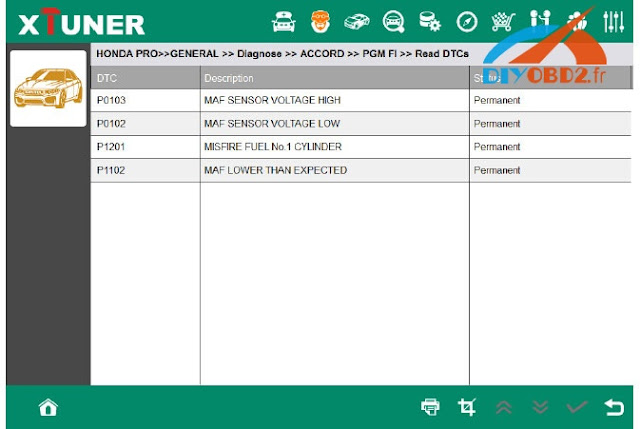
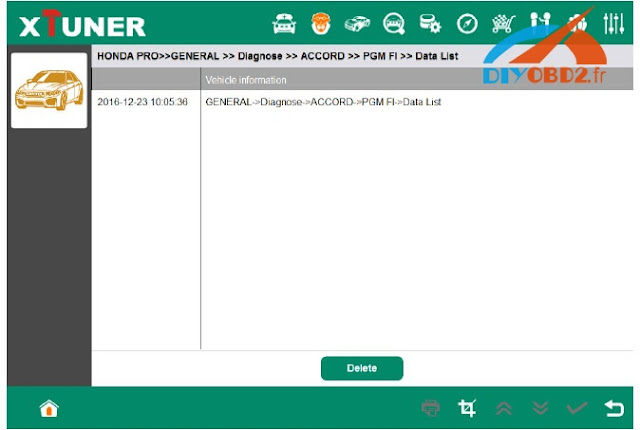
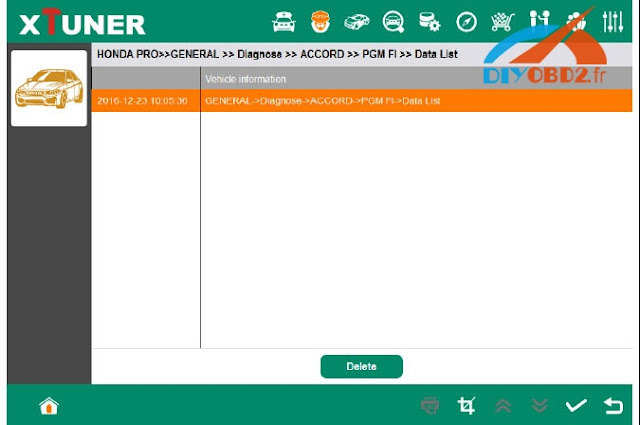
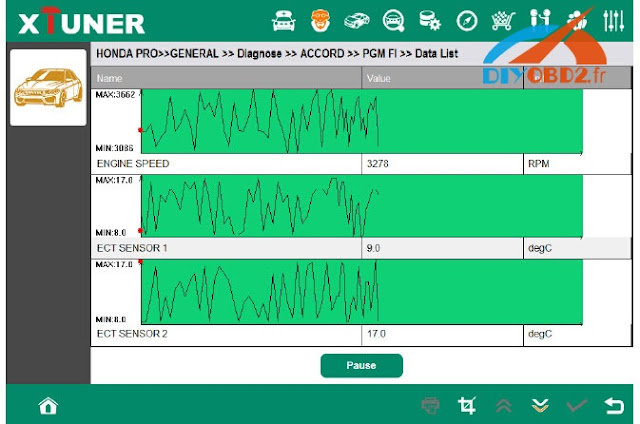
A new test report of a new Vpecker easydiag scanner - Xtuner E3 full diagnostic tool on a Honda Accord. Works good in OBD2 diagnosis through wifi / bluetooth.
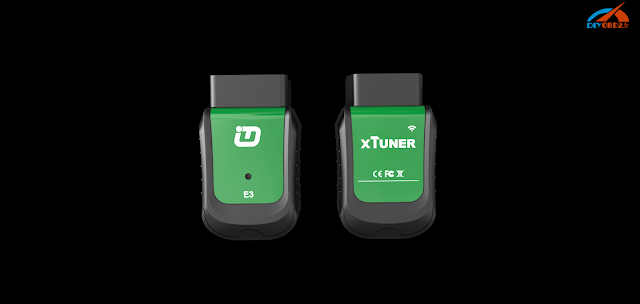
First, check the communication
connect the XTUNER-E3 scanner with the car.
the indication light turns redafter connection,
check the connection of Wi-Fi or Bluetooth
if connect successfully, the indication light will turn to blue.
Then, go to diagnosis
Run the XTUNER-E3, and start to diagnose.
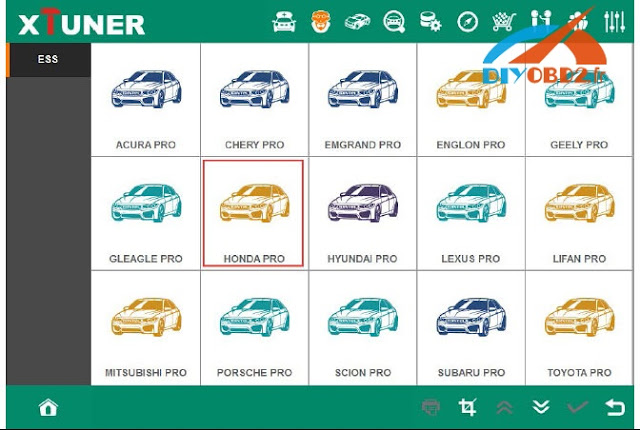
Choose the vehicle, and enter the diagnostic system:
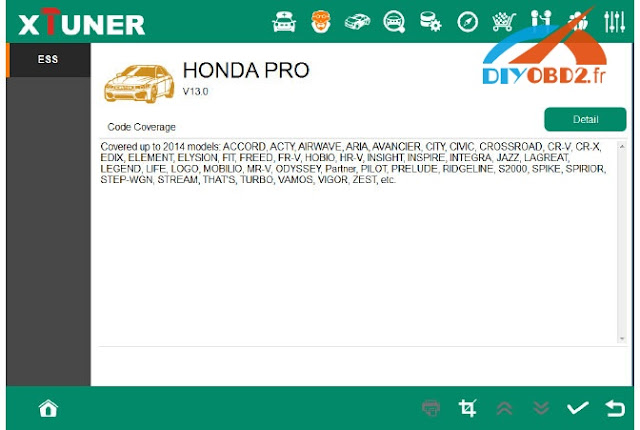
press next page.

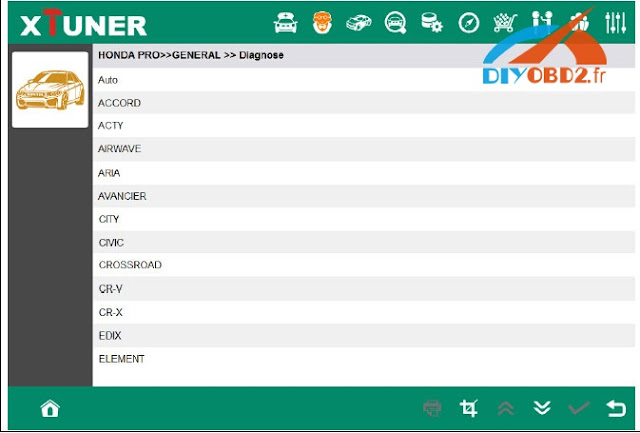
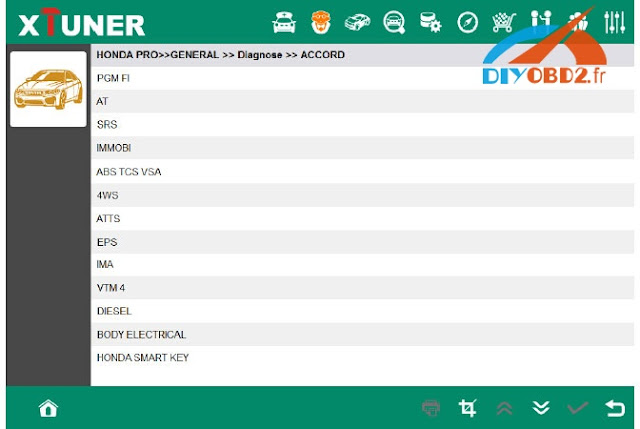
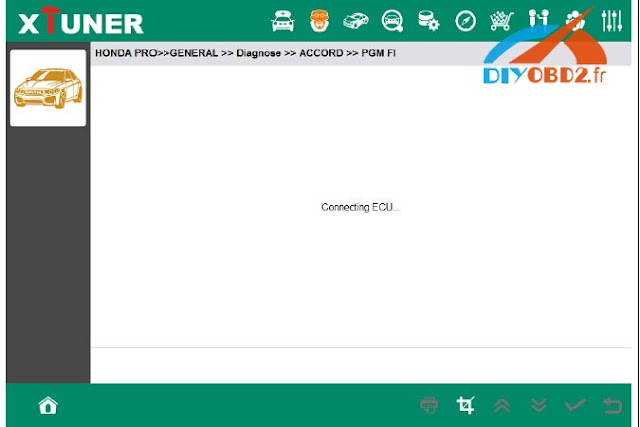
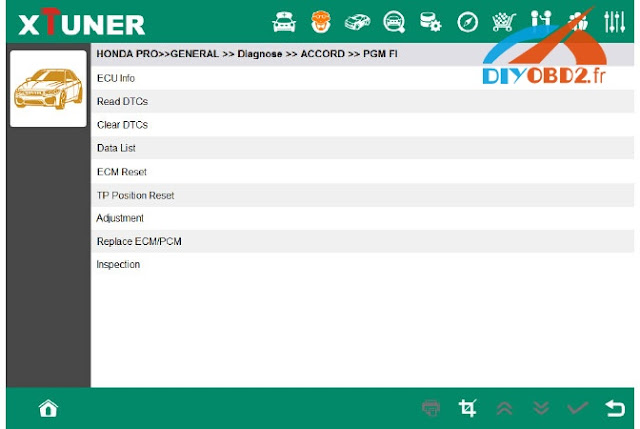
Read ECU Information
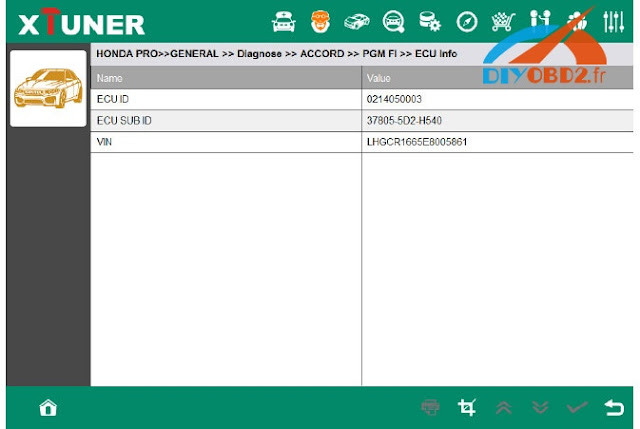
Read DTCs
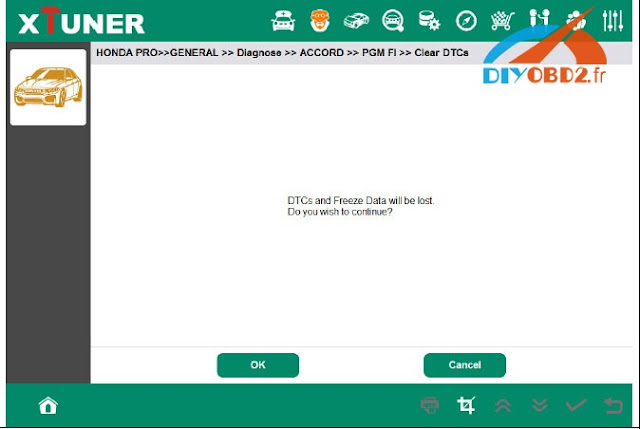
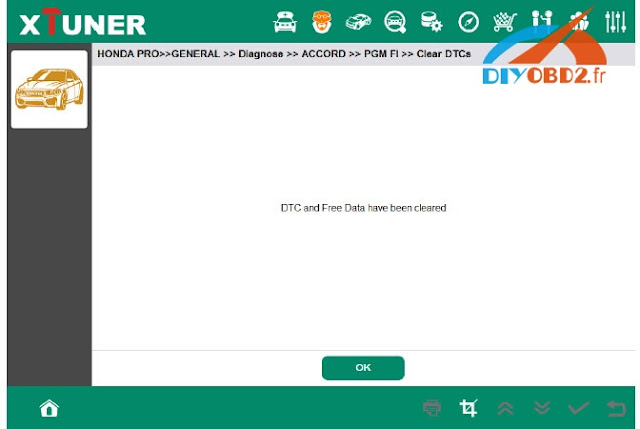
Erase DTCs
Data List
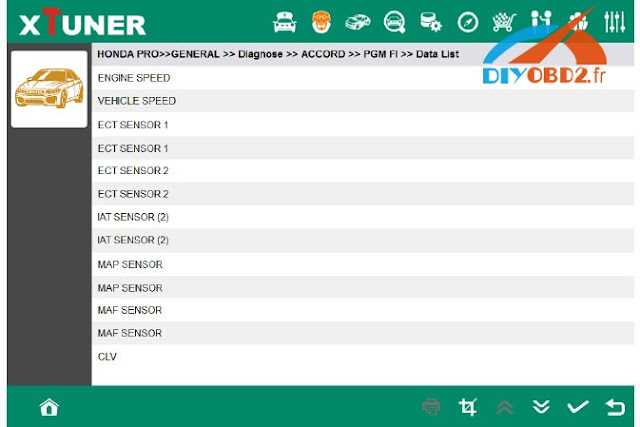
Select some items here:
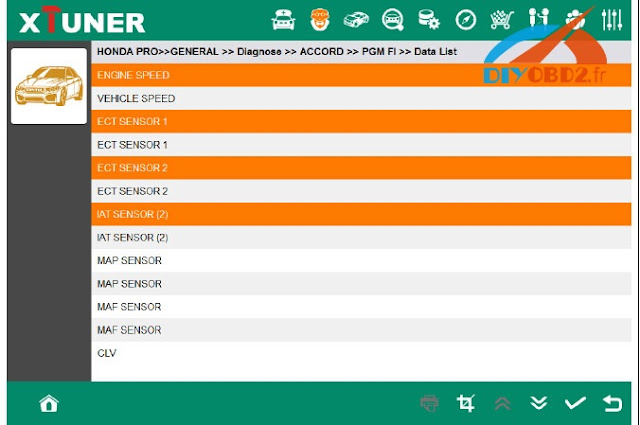
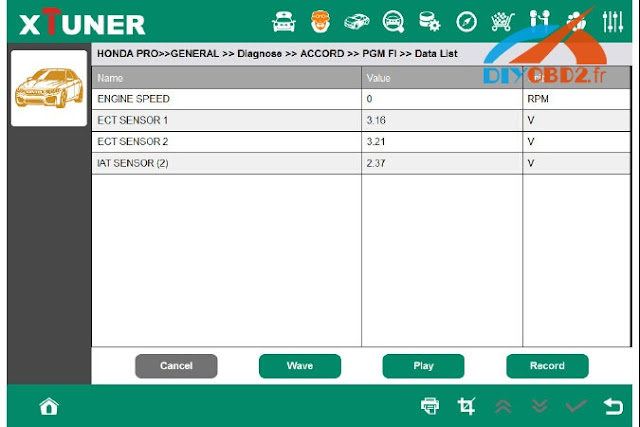
Select the 1st item, and click the Wave button:
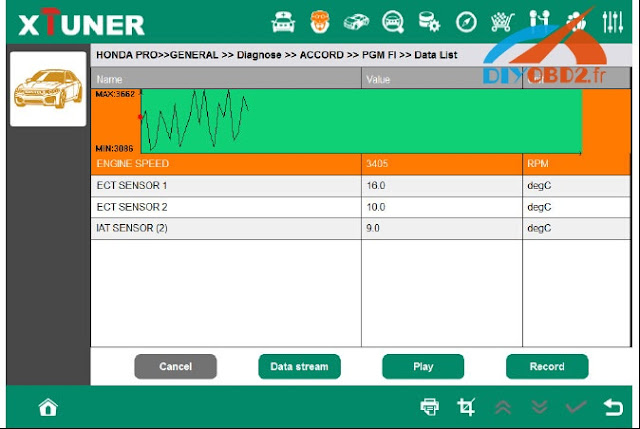
Click on the Record button to start data recording, until and click on the Stop button to stop recording:
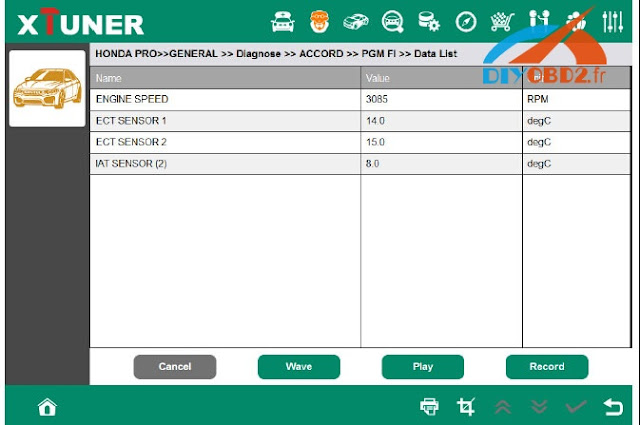
Click on the Play button, it will show the recording data list, select one of them and replay the recording data:
...
Other functions will be tested and reported here ( functions incl. Inspection, TP Position Reset, etc..)
Original - from diyobd2.fr obd2 francais:Xtuner-E3 wifi diagnosis OK on Honda Accord
Available link for download
How to forget a WiFi network in Windows 10 Updated
How to forget a WiFi network in Windows 10 Updated
WiFi seems to be a big deal in our World, with the development of rapid technology, we can see
WiFi network everywhere. In fact, More number of People chooses to go where WiFi is available,
such a suitation was created by the technology. but if Our Network seems to be connected and there
was no connection then, the possible and basic solution we and other Persons ask you to do is to
forgot your network and re-try to connect your network.
So,in this post lets see how to forgot a WiFi network in Windows 10.
Just follow the steps..
1) Press Windows + I which will open settings.
2) Select Network & Internet.
3) Click on WiFi tab on the left pane.
4) Click on Manage Known Networks on the Right pane ,the option will be available below to Hardware properties and above to WiFi sense.
5) It will display the list of WiFi networks you had connected with your PC.
6) Click on the network you wish to forgot
![How to forget a WiFi network in Windows 10 [Updated]](https://blogger.googleusercontent.com/img/b/R29vZ2xl/AVvXsEgNzKdHrA_opAVrNQTaf9zJsQma33KsK5a4wJFpPv61VDxybqqc8mDhDFK58uhudLD2b0BXLSt-N0CvQHhCfbHVFOWZf7RvtF6OtnwBq97z5aPYqdc9ms-4D_hSPm93ZwB3TaHrV8xWtQA/s320/forget-wifi.gif "How to forget a WiFi network in Windows 10 [Updated]")
7) Click on Forget
8) Close the Window.
Thats it..
The above Solution works for the following queries...
WiFi network everywhere. In fact, More number of People chooses to go where WiFi is available,
such a suitation was created by the technology. but if Our Network seems to be connected and there
was no connection then, the possible and basic solution we and other Persons ask you to do is to
forgot your network and re-try to connect your network.
So,in this post lets see how to forgot a WiFi network in Windows 10.
Just follow the steps..
1) Press Windows + I which will open settings.
2) Select Network & Internet.
3) Click on WiFi tab on the left pane.
4) Click on Manage Known Networks on the Right pane ,the option will be available below to Hardware properties and above to WiFi sense.
5) It will display the list of WiFi networks you had connected with your PC.
6) Click on the network you wish to forgot
7) Click on Forget
8) Close the Window.
Thats it..
The above Solution works for the following queries...
forget wifi network windows 10,forget wifi network windows 8.1,forget wifi network,forget wifi network windows 8,how to forget a network on windows 10,windows 10 forget wifi network,forget wifi network windows 10 cmd,manage known networks windows 10,delete network connection windows 10,
Available link for download
Thursday, January 19, 2017
VDM UCANDAS WIFI connection and WIFI name change
VDM UCANDAS WIFI connection and WIFI name change
One of the VDM UCANDAS WIFI automotive diagnostic tool reported that he failed to setup the WIFI wireless connection with vehicle. Following is the properly solution provided.
The most possible reason is that he did wrong configuration/operation. Please follow the correct procedure below:
1). First you should connect the VDM system with vehicle
2). Wait the VDM power to feed with power supply for 20 seconds
3). Until the VDM system finish initialization
4). Search the WIFI name “ucandas”
5). Open VDM UCANDAS software
6). The UCANDAS will automatically match the WIFI wireless connection

So if you run the software before searching WIFI, you will fail to setup the WIFI.
Important Tips:
- VDM UCANDAS WIFI is matched automatically. Some user misunderstand it is caused by the slow network connection which lead to the instability of the VDM system.
- Some user have several VDM auto systems, UCANDAS WIFI name is the same, so they have no idea which UCANDAS WIFI should be connected to.
V3.84 VDM UCANDAS en francais has WIFI name change/correction function. Locate in the “Setting” menu, users are able to set the WIFI name to ucandas 123*** in order to identify different UCANDAS software.
If the WIFI name is changed, you are required to enter the password 87654321 manually
After that first connect the VDM with vehicle and wait 20 seconds
Next start searching the ucadas WIFI name you have changed.
Then you open the V3.4 software, the WIFI wireless connection will automatically setup.
Original - from diyobd2.fr obd2 francais:VDM UCANDAS WIFI connection and WIFI name change
Available link for download
Subscribe to:
Posts (Atom)