Showing posts with label vdm. Show all posts
Showing posts with label vdm. Show all posts
Wednesday, March 22, 2017
VDM Ucandas WIFI car diagnostic tool what can do
VDM Ucandas WIFI car diagnostic tool what can do
I am heard that a better alternative to Autocom, would be ucandas en francais.

Then I got ucandas when first came out, It’s not a bad scanner...it used to diag nissan very good until I did firmware update, I even have the first disc they sent with tool before they had the online register service. They use to listen to me and take my input. I love the wireless scan..And since they actually listen to me and been adding seat cal for most of the car its gotten better.
Also I have had success with Chrysler 300cc when snap on tool diag car as dpf problem when in fact ucandas diag correct as egr, also Mercedes slk airbag it diagnose car good.
They recently roll out the 2015 update for GM and it’s very up to date on Ford. I scanned 2014-2015 Fords before with it. It’s somewhat ok on SRS.
Howerver, no tool is perfect, VDM ucandas is very outdated on Nissan thought...up to 2011...then I have my eye on the GreenDS GDS+ 3, updates for Autel is a B****.
Additional inform: Can user update VDM Ucandas wifi automotive diagnosis system firmware?
Diyobd2.fr engineer confirm it’s not available with firmware update, but only software update online, the online register service is contained in the disc.
If your Ucandas performance becomes poor because of firmware update, contact email at: sales@diyobd2.fr for tech support.
Available link for download

Wednesday, March 1, 2017
How to Solve VDM Ucandas Error “Update failed”
How to Solve VDM Ucandas Error “Update failed”
I met VDM UCANDAS “Update failed” error when update the software. This blog provides the solution to solve the error, hope to help someone.
Issue: Updating firmware failed and VDM is invalid.
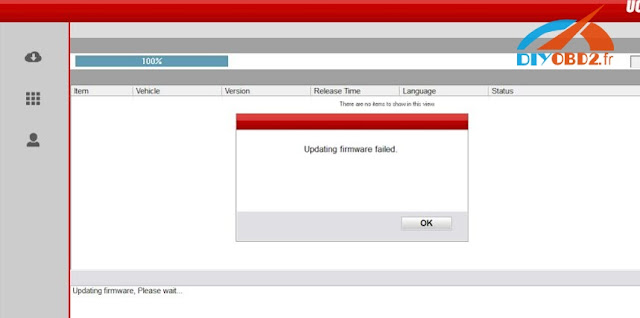
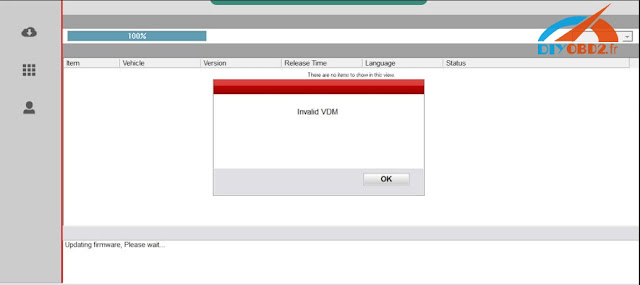
Solutions:
Enter the official website to download the newest the version, not use the version in CD.
Installed the software and connect the device with laptop
Make sure if the device management driver is well installed
Open the software and read serial number
VDM Ucandas V3.9 Software download:
http://www.ucandas.com/download.html
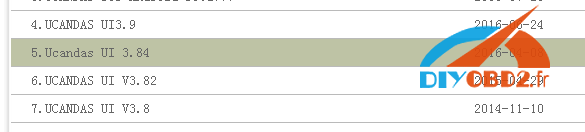
Notice: V3.9 have not been tested by our engineer, you should download and try it at your own risk!
Software installation:
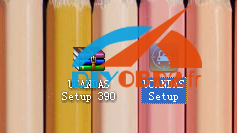
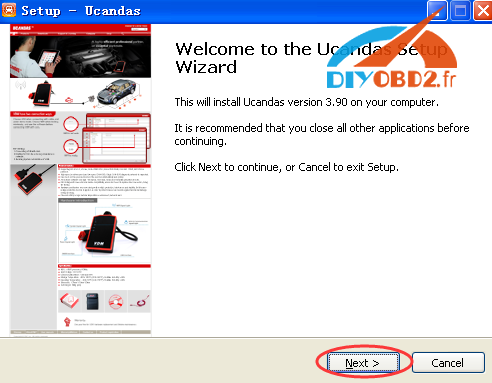
Unzip the software package, UCANDAS Setup. Double click the icon to begin install.
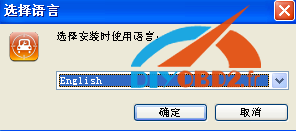
Choose language
Next
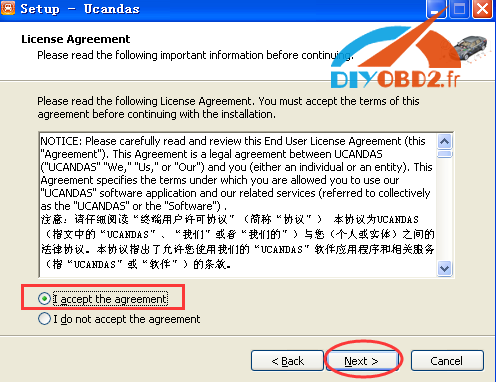
Choose I accept the agreement and click on Next
Next
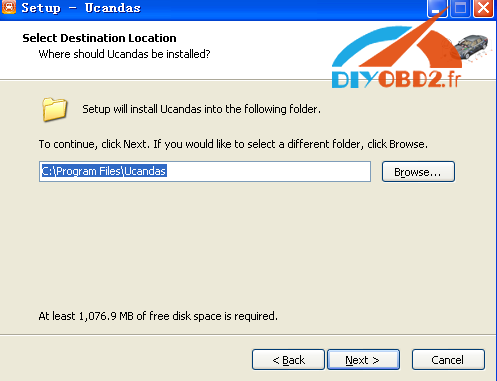
Next
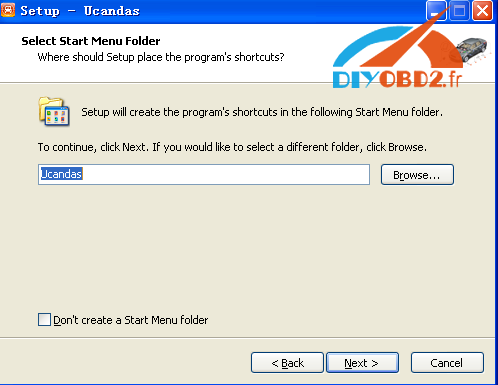
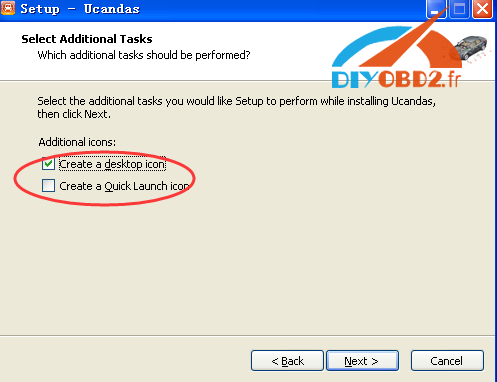
It will automatically pop out the installation of CP210X driver, click next to install.
Then connect Original VDM UCANDAS with the laptop via WIFI or USB, and open the software. And you can download its software and do other job like reading fault codes etc.
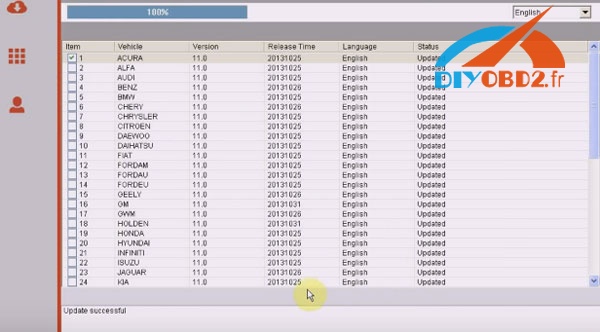
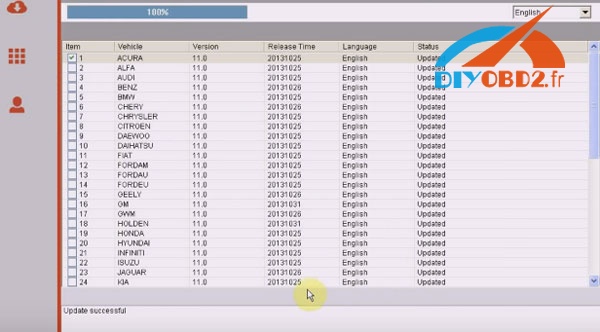
Done!
Available link for download
Thursday, January 19, 2017
VDM UCANDAS WIFI connection and WIFI name change
VDM UCANDAS WIFI connection and WIFI name change
One of the VDM UCANDAS WIFI automotive diagnostic tool reported that he failed to setup the WIFI wireless connection with vehicle. Following is the properly solution provided.
The most possible reason is that he did wrong configuration/operation. Please follow the correct procedure below:
1). First you should connect the VDM system with vehicle
2). Wait the VDM power to feed with power supply for 20 seconds
3). Until the VDM system finish initialization
4). Search the WIFI name “ucandas”
5). Open VDM UCANDAS software
6). The UCANDAS will automatically match the WIFI wireless connection

So if you run the software before searching WIFI, you will fail to setup the WIFI.
Important Tips:
- VDM UCANDAS WIFI is matched automatically. Some user misunderstand it is caused by the slow network connection which lead to the instability of the VDM system.
- Some user have several VDM auto systems, UCANDAS WIFI name is the same, so they have no idea which UCANDAS WIFI should be connected to.
V3.84 VDM UCANDAS en francais has WIFI name change/correction function. Locate in the “Setting” menu, users are able to set the WIFI name to ucandas 123*** in order to identify different UCANDAS software.
If the WIFI name is changed, you are required to enter the password 87654321 manually
After that first connect the VDM with vehicle and wait 20 seconds
Next start searching the ucadas WIFI name you have changed.
Then you open the V3.4 software, the WIFI wireless connection will automatically setup.
Original - from diyobd2.fr obd2 francais:VDM UCANDAS WIFI connection and WIFI name change
Available link for download
Subscribe to:
Posts (Atom)