Showing posts with label here. Show all posts
Showing posts with label here. Show all posts
Wednesday, March 1, 2017
Windows 10 build 15002 ISO Offline Images download Here is how you can download Windows 15002 build ISO files
Windows 10 build 15002 ISO Offline Images download Here is how you can download Windows 15002 build ISO files
Windows 10 build 15002 ISO Offline images ? you may think im just joking, because we wont get

15002.1001.170102-1700.rs_prerelease_CLIENTCORE_RET_x86fre_en-us_73d31d2d35a7591305a2aad400292d2357afb174.esd
the offline images when it was released for Fast ring.,its pretty common!. Since most of us being
Windows lovers and expecting to test What they have included in this Windows Insider preview
build 15002, we cant leave it as it is right .? So here is an solution for you to taste the build..
I got a link for that when i was searching a way to download this Windows 10 creators update
preview 15002 ISO, which was finally released after it was leaked.
This link was in a public domain Cloud mail an Russian site,So we are free to use those files..
[Note : I dont know who uploaded those files, i guess it was WZTCAT because, that name was
inside that drive.. Anyway, i like to thank those persons who uploaded this files..Thanks friends!]
But, there is an limitation??,all those files are in the form on ESD.
ESD in windows is nothing but the file that was much similar to .Wim files. I dont like to confuse
with those detailed stuff..
Just assume that, ESD files are just a compressed version of Wim file( Ofcourse, they are!) Microsoft
will deliver those files for insiders via update, just because of they are compressed, encrypted and
more faster to transmit to client systems..
OK,Enough intro
here is the main stuff..
1) First, visit the below link..
[Link to ESD FILE]
2) There will be a lot of files there, download your language esd file.
for example :
There, en-us represents US English version, and x86 represents the 32-bit of Windows 10.
3) Like that, find the ESD file you wish to download. (just click on the item it will popup the items full name)
4) Now, after downloading, you need to build that into ISO File..
For that follow the below steps..
5) Download the ESD Decryptor tool
It was just a tool that is free, thanks to the developers of that github team????.
6) Now, after downloading the decryptor tool, extract it to any folder.
7) Now, move the downloaded ESD file to the same location (just cut/copy paste)
8) There will be a software called Rebuild bat file inside that ESD decryptors extracted
folder..
9) Run it as administrator
10) Press 1 on your keyboard to create ISO file.
Wait, for sometime and enjoy your ISO file..
You can use this ISO file to install Windows from beginning / clean install windows 10 on
your machine.
Thats it..
Click to read whats new in Windows 10 Insider preview 15002 [link]
Available link for download

Tuesday, February 28, 2017
Fun Face Master 1 7x Activator Is Here
Fun Face Master 1 7x Activator Is Here
 |
| Fun Face Master 1.7 Activator |
un Face Master is a fun photo edit software. You can use it to replace face on any body. Just 3 clicks, you can put the Superman face replaced with your face. Or let your turned into Soldiers, Knight, Nuns, Mona lisa, Astronaut, President etc. The software include more than 390 high quality funny templates, or you can use the Mask Edit Tools to create your own template. Create a joke photo to shake your friends now!
Download Fun Face Master Activator Including Serial Key.
LINK:
Fun Face Master Activator | Mirror
Available link for download
Friday, February 24, 2017

Saturday, February 4, 2017
Extensions tab on history window missing in Chrome 55 and later Solved Here is a way to launch extensions again
Extensions tab on history window missing in Chrome 55 and later Solved Here is a way to launch extensions again
Where are my extensions in chrome, where is the about button in chrome - thats what people are
searching in Chrome 55 which can be downloaded using official site google.com/chrome.
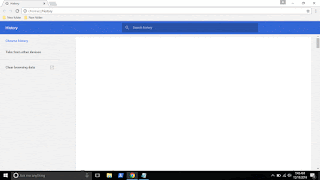
Recently if you had updated your google Chrome then, you may be aware of this. Google redesigned
the Chromes History tab as it replaced it with the complete material design. The chrome 55 update
also features some bug fixes, but the popular extensions and about tabs are missing in Chrome
version 55 and later in the history window.
So, in this post lets see how to access extensions tab, where extensions in chrome located and how to
access extensions in Chrome.
What is mean by extensions ?
As the name suggests, extensions are nothing but the additional things that help the user to add some
more facilities the browser lacks. For example : In Some btowsers, the translate of page is done by
the extensions.So they are simply the additional facility that can be downloaded and installed.
In Chrome, they are available in .crx files, Which means when you download chrome extension you
will see the filename .crx files downloading..
Where are my extensions in Chrome ?
They are located inside the Chrome folder which would be on many locations like AppData,
program files and so on.
How can i find extensions on Chrome ?
In the earlier versions of Chrome, you can see the Chrome extensions tab available on the history tab
which can be opened by simply pressing ctrl + H keys on keyboard. But in the update the extensions
tab was removed so, you cant open it using that method, you need to follow the main method...
1) Open Google Chrome.
2) On the top right corner, you will see the ? icon click on it..
3) It will display many options like New tab, New Windows,etc.. Find More tools option and click
on it.
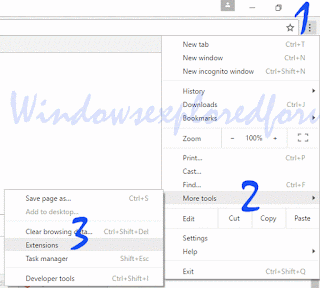
4) When you clicked it will open more options now like Save page as, Add to desktop, Clear browsing data, extensions, etc..
5) Click on Extensions
Thats it..
You will find all your Extensions there...
Thats the end of this post..
Click to read all basic tutorials..
searching in Chrome 55 which can be downloaded using official site google.com/chrome.
Recently if you had updated your google Chrome then, you may be aware of this. Google redesigned
the Chromes History tab as it replaced it with the complete material design. The chrome 55 update
also features some bug fixes, but the popular extensions and about tabs are missing in Chrome
version 55 and later in the history window.
So, in this post lets see how to access extensions tab, where extensions in chrome located and how to
access extensions in Chrome.
What is mean by extensions ?
As the name suggests, extensions are nothing but the additional things that help the user to add some
more facilities the browser lacks. For example : In Some btowsers, the translate of page is done by
the extensions.So they are simply the additional facility that can be downloaded and installed.
In Chrome, they are available in .crx files, Which means when you download chrome extension you
will see the filename .crx files downloading..
Where are my extensions in Chrome ?
They are located inside the Chrome folder which would be on many locations like AppData,
program files and so on.
How can i find extensions on Chrome ?
In the earlier versions of Chrome, you can see the Chrome extensions tab available on the history tab
which can be opened by simply pressing ctrl + H keys on keyboard. But in the update the extensions
tab was removed so, you cant open it using that method, you need to follow the main method...
1) Open Google Chrome.
2) On the top right corner, you will see the ? icon click on it..
3) It will display many options like New tab, New Windows,etc.. Find More tools option and click
on it.
4) When you clicked it will open more options now like Save page as, Add to desktop, Clear browsing data, extensions, etc..
5) Click on Extensions
Thats it..
You will find all your Extensions there...
Thats the end of this post..
Click to read all basic tutorials..
Available link for download
Subscribe to:
Posts (Atom)