Showing posts with label files. Show all posts
Showing posts with label files. Show all posts
Tuesday, March 14, 2017
How do i show hidden files in windows 10 Updated
How do i show hidden files in windows 10 Updated
Show hidden files in windows 10- Thats what we gonna see in this post -Works on Windows 10
Creators Update, Windows 10 Anniversary Update, and other editions of Windows like Windows 10
earlier builds like Aug 2015 and Nov 2015 builds.
In our last post, we had seen how to show libraries in windows 10 , in this post lets see how to view
hidden files in Windows 10.
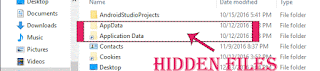
How to show hidden files in Windows 10 - Method 1
Creators Update, Windows 10 Anniversary Update, and other editions of Windows like Windows 10
earlier builds like Aug 2015 and Nov 2015 builds.
In our last post, we had seen how to show libraries in windows 10 , in this post lets see how to view
hidden files in Windows 10.
Do you need any software ??
No, you dont require any software to show hidden files in pen drive or to show hidden files on
windows 10 PC.
windows 10 PC.
Then, how to do it..?
Just follow the below steps..
Note : There are different steps we can use to show the hidden folder or item, like using Powershell, Registry, Command prompt and so on.
Listed, here are the basic steps that doesnt require any knowledge of using Command prompt
commands or powershell commands,
Note : There are different steps we can use to show the hidden folder or item, like using Powershell, Registry, Command prompt and so on.
Listed, here are the basic steps that doesnt require any knowledge of using Command prompt
commands or powershell commands,
1) First, Open your File explorer
If you dont know, how it is , then dont worry, just click on the below helpful link (what is file...)
[Helpful link : What is file explorer and how to open it]
2) When you have opened the file explorer you can find various tabs on the top of the pane
like File, Home, Share, View..
3) Click on the view tab.
4) It will display the Navigation pane and other related options like layout,current view, show or hide, etc..
5) Check the box "Hidden items"
Thats it, it will show the hidden folders located on the drive..
How to view hidden files in Windows 10 - Method 2
The problem with the above method is, it wont show files that were protected or faked to look like
Protected operating system files, which can be done by using command like attrib -s -h,etc.. Commands
So, we need to enable another option to view protected operating system files or the file that was
converted to look like protected file.
1) Just follow the steps 1 to 4 from the previous step..
2) When you are on the step 4, click on the options option
3)Select Change Folder and Search Options.
4) it Will open a New Window named folder options,on that find Click items as follows Which Will be on
View tab.
5) Under Advanced settings, scroll down and find the option "Files and folders" expand it,if it is not already expanded..
![How do i show hidden files in windows 10 [Updated]](https://blogger.googleusercontent.com/img/b/R29vZ2xl/AVvXsEhAqWfDgcybiPvJIlTBPFBvelmV_KjhfdyQWQW4Uhzq5tFJ4L2X_d6pK91qRWH1sW-OA2Wmsb29STSYGxsnFsQqX20yNLVwdyWMtN2RqgsIDNsS2TBKU4FGp-1ISzl1WZe_z1zEgaWXCI0/s320/hidden-files-2.gif "How do i show hidden files in windows 10 [Updated]")
6) When you expanded/ scrolled down you will find options like Hidden files and folders.
Below that, there will be 2 Options..
Dont show hidden files ,folders or drives.
and Show hidden files, folders or drives
7) Click on the Show hidden files, folders or drives option (radial button)
8) And again scroll down and Uncheck the box "Hide Protected Operating system files"
9) Click on Apply
10) Click on OK.
Close the window.
Thats it..
Warning : Try the Step 8 of method 2 only if you know the difference between operating system files and normal files, i dont recommend this if you are beginner or novice. As deleting or altering such files will result in your system crash. So, just skip 8 and follow the steps 9 and 10 after step 7.
Like, in the above you can show or view the hidden folders, files and drives in Windows 10 desktop , Windows 10 laptop and so on.
Remember you dont need to download software to open hidden files in windows 10 as it is inbuilt
in windows 10, and you need to change some options like above??.
Hope it is helpful
Thats the end of this post...
Click to read all basic tutorials..
5) Check the box "Hidden items"
Thats it, it will show the hidden folders located on the drive..
How to view hidden files in Windows 10 - Method 2
The problem with the above method is, it wont show files that were protected or faked to look like
Protected operating system files, which can be done by using command like attrib -s -h,etc.. Commands
So, we need to enable another option to view protected operating system files or the file that was
converted to look like protected file.
1) Just follow the steps 1 to 4 from the previous step..
2) When you are on the step 4, click on the options option
3)Select Change Folder and Search Options.
4) it Will open a New Window named folder options,on that find Click items as follows Which Will be on
View tab.
5) Under Advanced settings, scroll down and find the option "Files and folders" expand it,if it is not already expanded..
6) When you expanded/ scrolled down you will find options like Hidden files and folders.
Below that, there will be 2 Options..
Dont show hidden files ,folders or drives.
and Show hidden files, folders or drives
7) Click on the Show hidden files, folders or drives option (radial button)
8) And again scroll down and Uncheck the box "Hide Protected Operating system files"
9) Click on Apply
10) Click on OK.
Close the window.
Thats it..
Warning : Try the Step 8 of method 2 only if you know the difference between operating system files and normal files, i dont recommend this if you are beginner or novice. As deleting or altering such files will result in your system crash. So, just skip 8 and follow the steps 9 and 10 after step 7.
Like, in the above you can show or view the hidden folders, files and drives in Windows 10 desktop , Windows 10 laptop and so on.
Remember you dont need to download software to open hidden files in windows 10 as it is inbuilt
in windows 10, and you need to change some options like above??.
Hope it is helpful
Thats the end of this post...
Click to read all basic tutorials..
Available link for download

Monday, March 13, 2017
abylon BACKUP TUBE Backup and Sync Files Manually and Automatically 100 Off 0 29 51
abylon BACKUP TUBE Backup and Sync Files Manually and Automatically 100 Off 0 29 51
The computer serves as a huge data store for documents, pictures and videos. These documents often typify an enormous sentimental value. Through accidental deletion, hard drive crash or a malicious software that data can be irretrievably lost. But the annoyance by such data loss can be avoided. The software abylon
 BACKUP TUBE creates exact copies of all files and directories. The backup or synchronization job can be done automatically or start manually. Intelligent routines speed up the backup process and reducing the amount of data. Only changed or new files are copied to the backup store. In the case of sync-jobs also deleted or renamed files in the source directory will be changed in the destination directory. This leaves the data backup always up to date and simplify the file restoring in the worst case.
Features:
- Data backup and synchronization of directories
- Automatic or manual backup files
- Starts the backup automatically in case of available destination directory on network or external data memory
- Simple usage with easy user interface and wizard
- Optional creation of log files
- Purchased
11/16/2016 10:00:46 AM Order Number BDJ-ggt3wB Total $0.00 - Free Purchase Purchased By selmath klm pkselmathjaleel@gmail.com  abylon BACKUP-TUBE - Personal use only, must be installed within 1 month and has paid upgrades v2016 - PC
Qty: 1 $0 Registration Code
Your Registration Code will arrive soon by email, if you cannot find it you can Resend it.Download Your Software
Choose your download by clicking on the link and install the correct version. Use your registration code to unlock the software when prompted.Thats Not All!
Today you can also get:
abylon BACKUP-TUBE - 1 license at a 50% discount
abylon BACKUP-TUBE - 3 licenses at a 70% discount
App-Bundle at a 75% discount
Available link for download
Saturday, March 11, 2017
Guide compress files with WinRAR smallest
Guide compress files with WinRAR smallest
The compressed file is very important and the fact that, especially when we have many files you want for them into one single file for easy sharing via email, or to store intenet. Often if we copied to the drive, USB or uploaded onto the internet, for obvious when compressed into one file and then will be much faster as compared to multiple files, so how the smallest file compression is essential . Now I will guide you to those unknown to the general public can be done easily.
Smallest file compression is how much?
This is absolutely no exact figures, but you can see through the compression ratio parameter called thecompression ratio . The lower this ratio, the more capacity reduction, we simply understand% this is the percentage of capacity after completion will be compressed.
 |
| Guide compress files with WinRAR smallest |
Read more »
Available link for download
Wednesday, March 8, 2017
How to copy files from your computer to your Android phone without a cable
How to copy files from your computer to your Android phone without a cable
How to copy files from your computer to your Android phone or from phone filel copy via computer without cables. In fact in some devices also support our work to share and manage files via the intranet via wifi. But not all phone can do it.
Now I show you a way to copy music, pictures, files, types of ostriches from the computer to the phone or vice versa via Wifi or Internet, 3G is simple. Also following the application also allows you to manage phone always, includes management messages, calls, applications, libraries ... ..
First you download and install the application AirDroid here , plus you do not need to install anything.However you need a wifi or 3G connection.
How to copy files from your computer to your phone when you use Wifi
You note that computer and telephone network must share the internal one, that is the first modem, or the last 1 1 Department discovered where wifi or play offline.
Step 1: Open the downloaded AirDroid
In the open web addresses, and you'll see the web address. Please access from the browser computer IP address shows up on the screen, his example here is 192.168.100.100:8888
 |
| How to copy files from your computer to your Android phone without a cable |
Read more »
Available link for download
Thursday, March 2, 2017
Wednesday, March 1, 2017
Windows 10 build 15002 ISO Offline Images download Here is how you can download Windows 15002 build ISO files
Windows 10 build 15002 ISO Offline Images download Here is how you can download Windows 15002 build ISO files
Windows 10 build 15002 ISO Offline images ? you may think im just joking, because we wont get

15002.1001.170102-1700.rs_prerelease_CLIENTCORE_RET_x86fre_en-us_73d31d2d35a7591305a2aad400292d2357afb174.esd
the offline images when it was released for Fast ring.,its pretty common!. Since most of us being
Windows lovers and expecting to test What they have included in this Windows Insider preview
build 15002, we cant leave it as it is right .? So here is an solution for you to taste the build..
I got a link for that when i was searching a way to download this Windows 10 creators update
preview 15002 ISO, which was finally released after it was leaked.
This link was in a public domain Cloud mail an Russian site,So we are free to use those files..
[Note : I dont know who uploaded those files, i guess it was WZTCAT because, that name was
inside that drive.. Anyway, i like to thank those persons who uploaded this files..Thanks friends!]
But, there is an limitation??,all those files are in the form on ESD.
ESD in windows is nothing but the file that was much similar to .Wim files. I dont like to confuse
with those detailed stuff..
Just assume that, ESD files are just a compressed version of Wim file( Ofcourse, they are!) Microsoft
will deliver those files for insiders via update, just because of they are compressed, encrypted and
more faster to transmit to client systems..
OK,Enough intro
here is the main stuff..
1) First, visit the below link..
[Link to ESD FILE]
2) There will be a lot of files there, download your language esd file.
for example :
There, en-us represents US English version, and x86 represents the 32-bit of Windows 10.
3) Like that, find the ESD file you wish to download. (just click on the item it will popup the items full name)
4) Now, after downloading, you need to build that into ISO File..
For that follow the below steps..
5) Download the ESD Decryptor tool
It was just a tool that is free, thanks to the developers of that github team????.
6) Now, after downloading the decryptor tool, extract it to any folder.
7) Now, move the downloaded ESD file to the same location (just cut/copy paste)
8) There will be a software called Rebuild bat file inside that ESD decryptors extracted
folder..
9) Run it as administrator
10) Press 1 on your keyboard to create ISO file.
Wait, for sometime and enjoy your ISO file..
You can use this ISO file to install Windows from beginning / clean install windows 10 on
your machine.
Thats it..
Click to read whats new in Windows 10 Insider preview 15002 [link]
Available link for download
Tuesday, February 28, 2017
How to recognize the text from pdf files images scanned image
How to recognize the text from pdf files images scanned image
Tag: How to recognize the text from pdf files, images, scanned image full keygen, full key, full crack, portable, full serial key, lastest, 32 & 64 bit, for windows 7 8 10, free download
Guidelines on how to identify letters from pdf files, images, scanned image, identity or character from image files can not be copied. Someday you get a thick tangle of documents with scanned PDF or image documents or pdf files can not be copied, nor a problem if you only have a few questions to be copied but will be very extreme pain if you need to copy the material up to several or several dozen pages. Sit and retype sure ... .chot.
Guidelines on how to identify letters from pdf files, images, scanned image, identity or character from image files can not be copied. Someday you get a thick tangle of documents with scanned PDF or image documents or pdf files can not be copied, nor a problem if you only have a few questions to be copied but will be very extreme pain if you need to copy the material up to several or several dozen pages. Sit and retype sure ... .chot.
Fortunately, we have invented the character recognition algorithm called "optical character recognition", English is Optical Character Recognition , abbreviated to OCR, currently being studied algorithm is (Intelligent Character Recognition - intelligent Character Recognition ICR). You can refer to here
Drilling length about the many complex algorithms, there are now plenty of software identified as Nitro PDF, ABBYY or Vietnam we also have projects funded by Google VietOCR to develop. However, not to mention the most famous ABBYY software. So here we will use ABBYY software to identify famous characters.Personally I found the software very efficient operation and accurate detection rates are very high, especially supports handwriting recognition Vietnamese very well. However this is the copyrighted software so you can try it out by downloading and installing here . The software can be exported to many popular formats such as Word, Excel, Power Point ....
Identify letters from pdf files, images, scanned picture of how
See video how:

Step 1: Open up the program and then open the PDF or image files (If you run a trial, then click on the Run Program at startup)
Once opened, the program will scan and automatically identify the word for you. Depending on the number of pages and the difficulty of the document and your computer configuration that identifies the time will be different, but we also take some time, if you just want to use the first few pages or a piece, then we recommend you should cut the pages to be identified by means of: How to cut by Foxit PDF Reader, Acrobat PDF
Often with 10 pages and relative configuration takes about 1p.
Step 2: Once complete identity system for ease of use, we should output file format we want, convenient to copy the file to export to .doc (Microsoft Word Document)
By clicking File> Save Document As> Microsoft Word Document
 |
| How to recognize the text from pdf files, images, scanned image |
Available link for download
Sunday, February 26, 2017
How To Make Your Pc Faster Remove All Temp Files
How To Make Your Pc Faster Remove All Temp Files
Make your technology work around you!
on Facebook - https://www.facebook.com/kamalgrd Like our Facebook page to be the first to hear about new updates.
how to make your pc faster,how to,how to make your pc run faster,how to make your pc look cool,Windows 7 (Operating System),mac,apple,better computer,faster computer,how to optimize,Mac OS (Operating System),make your pc,make your,make your make,laptop run faster,pc computer,best pc,desktop pc,pc games,music pc,online pc,technology,it technology,information technology,help,it help,it,it jobs,ict,fast,increase,to increase,increases
http://kamalgrd.blogspot.com/
http://www.dailymotion.com/kamalgrd
https://www.facebook.com/kamalgrd/
Available link for download
Tuesday, February 14, 2017
How to Open Rar Files in Windows 10 Tutorial
How to Open Rar Files in Windows 10 Tutorial
Though Majority of software and tools are served as an update on Windows 10, we still need an third
party software for doing some tasks, especially when we are in low bandwidth internet connection.
When our download speed is low or when we have only less volume of data left, we cant
download the great softwares on the internet as it is on original size. Most of us will recommend to
download an Highly compressed rar file to save our bandwidth, but the problem is we never said,
how to open those files.. And particularly if you are new to computer then it would be very difficult
for you. So in this post im gonna show how to open .rar files in Windows 10
What is a Rar file in Windows 10 ?
.Rar is just a format or extension that was made to convert or compress a large file for sending from
place to place like internet. Though there are ultra compressors like kgb compressor to compress
files for Windows 10, .Rar files are best compressor used till now.
How to open .Rar files in Windows 10?
First, you must know the thing that Windows 10 doesnt have the Rar file opener( Microsoft Rar
File Opener) by default. Though it has .Zip opener by default, we dont know why they hadnt
included such option may be they may include in future builds.
Then, how to open .Rar files?
To open .rar files we need some help from free Rar file Openers or .rar file opener for Windows 10 like 7zip or Winrar on our
Windows 10 PC.
1) First download any of the following software by clicking on the below link..
7Zip or Winrar or Some Opensource if you have idea
Visit the above link and click download on the website ( follow the Onscreen instructions)
2) Install the program, if you dont know how to do it, just click Next , Next, Next, Next
Warning : Disconnect your Internet when you install. this is because, most of the above softwares
are open source they would trick you to download some additional third party software from the
internet ( We cant assure they will always download the useful software) so its better to look before
we leap( Prevention is better than cure,isnt it ?).
3) Now, after installing it will ask you to Select the Formats it want to integrate..
For example : If you are installing Winrar then it will ask you to choose some options like ISO, Rar,
Zip,etc..
Check all the boxes and click Finish.
4) Now, go to the file location you wish to open.
5) Right click on the .Rar file, it will display open, open with, sent to, Cut, copy and some other options, Click on Properties.

6) It will open the properties window, On that click on General tab( which will be the default tab when it opens,so dont worry).
7) You will see an option Opens With : and some text like Winrar or 7zip depending on the software you installed.
if you dont see any of those options, then you need to follow the below steps..
i) Click on Change
ii) It will display the list of apps that support .Rar opener in your Windows 10 select the app you
just installed on your PC
iii) Click on Apply -> OK.
8) If you already see the .Rar file opener like Winrar or 7Zip then simply close the properties
window and follow the below steps.
How to extract the .Rar files in Windows 10
1) Right click on the Rar file.
2) You can see options like Extract Files or Extract Files using 7zip/Winrar or Extract files to "File name here"
3) click any one of the option for example "Extract files to "file name""

4) Wait,for sometime, you can see the new folder " On the name of the file" appearing on the same area.
5) After sometime, like 2 minutes open the folder that you see on step 4 and there you can find the extracted content there..
Note : The extraction time only depends on the size of the file, so it will take less than 10 seconds or
it can even take more than 1 hour, you can check its status anytime you want by simply clicking on
the application that performs extraction for example : you can view by clicking Winrar icon on the
taskbar.
Thats it..
You had done.!????
Hope it is helpful
party software for doing some tasks, especially when we are in low bandwidth internet connection.
When our download speed is low or when we have only less volume of data left, we cant
download the great softwares on the internet as it is on original size. Most of us will recommend to
download an Highly compressed rar file to save our bandwidth, but the problem is we never said,
how to open those files.. And particularly if you are new to computer then it would be very difficult
for you. So in this post im gonna show how to open .rar files in Windows 10
What is a Rar file in Windows 10 ?
.Rar is just a format or extension that was made to convert or compress a large file for sending from
place to place like internet. Though there are ultra compressors like kgb compressor to compress
files for Windows 10, .Rar files are best compressor used till now.
How to open .Rar files in Windows 10?
First, you must know the thing that Windows 10 doesnt have the Rar file opener( Microsoft Rar
File Opener) by default. Though it has .Zip opener by default, we dont know why they hadnt
included such option may be they may include in future builds.
Then, how to open .Rar files?
To open .rar files we need some help from free Rar file Openers or .rar file opener for Windows 10 like 7zip or Winrar on our
Windows 10 PC.
1) First download any of the following software by clicking on the below link..
7Zip or Winrar or Some Opensource if you have idea
Visit the above link and click download on the website ( follow the Onscreen instructions)
2) Install the program, if you dont know how to do it, just click Next , Next, Next, Next
Warning : Disconnect your Internet when you install. this is because, most of the above softwares
are open source they would trick you to download some additional third party software from the
internet ( We cant assure they will always download the useful software) so its better to look before
we leap( Prevention is better than cure,isnt it ?).
3) Now, after installing it will ask you to Select the Formats it want to integrate..
For example : If you are installing Winrar then it will ask you to choose some options like ISO, Rar,
Zip,etc..
Check all the boxes and click Finish.
4) Now, go to the file location you wish to open.
5) Right click on the .Rar file, it will display open, open with, sent to, Cut, copy and some other options, Click on Properties.
6) It will open the properties window, On that click on General tab( which will be the default tab when it opens,so dont worry).
7) You will see an option Opens With : and some text like Winrar or 7zip depending on the software you installed.
if you dont see any of those options, then you need to follow the below steps..
i) Click on Change
ii) It will display the list of apps that support .Rar opener in your Windows 10 select the app you
just installed on your PC
iii) Click on Apply -> OK.
8) If you already see the .Rar file opener like Winrar or 7Zip then simply close the properties
window and follow the below steps.
How to extract the .Rar files in Windows 10
1) Right click on the Rar file.
2) You can see options like Extract Files or Extract Files using 7zip/Winrar or Extract files to "File name here"
3) click any one of the option for example "Extract files to "file name""
4) Wait,for sometime, you can see the new folder " On the name of the file" appearing on the same area.
5) After sometime, like 2 minutes open the folder that you see on step 4 and there you can find the extracted content there..
Note : The extraction time only depends on the size of the file, so it will take less than 10 seconds or
it can even take more than 1 hour, you can check its status anytime you want by simply clicking on
the application that performs extraction for example : you can view by clicking Winrar icon on the
taskbar.
Thats it..
You had done.!????
Hope it is helpful
Available link for download
Sunday, February 5, 2017
Guide splicing mp3 files with MP3 Cutter Joiner Free
Guide splicing mp3 files with MP3 Cutter Joiner Free
Tag: Guide splicing mp3 files with MP3 Cutter Joiner Free full keygen, full key, full crack, portable, full serial key, lastest, 32 & 64 bit, for windows 7 8 10, free download
You have one piece of music and you want to cut a passage connecting mp3 files that song, or you want to include multiple tracks, the tracks together to form one single file. It's easy to do it with free software Free MP3 Cutter Joiner
You have one piece of music and you want to cut a passage connecting mp3 files that song, or you want to include multiple tracks, the tracks together to form one single file. It's easy to do it with free software Free MP3 Cutter Joiner
MP3 Cutter Joiner can do?
- Trim any part from a large audio file to use as ringtones, background music, etc. welcome.
- Merge multiple MP3 files into a single file.
- Convert audio files in batch to play on all devices.
- The simple interface, intuitive. Time accurate to milliseconds.
- Supports up to 50 audio formats.
- Possible options the quality of mp3 files can also be file storage units
- Completely free and compact
The software cuts MP3 Cutter Joiner mp3 joiner Free How to use?
First you need to download software splicing Free MP3 Cutter Joiner mp3 file here
You also need to prepare in advance mp3 file. If you want to grab splicing mp3 from youtube videos then you can separate the music according to the article How to download mp3 from Youtube online high quality .
 |
| Guide splicing mp3 files with MP3 Cutter Joiner Free |
Read more »
Available link for download
Subscribe to:
Posts (Atom)