Showing posts with label guide. Show all posts
Showing posts with label guide. Show all posts
Wednesday, March 22, 2017
Remove Bluetooth device in Windows 10 PC How to GUIDE
Remove Bluetooth device in Windows 10 PC How to GUIDE
Remove Bluetooth device in Windows 10 - Thats what we gonna see in this post...
Works on Windows 10
Creators Update, Windows 10 Anniversary Update, and other editions of Windows like Windows 10
earlier builds like Aug 2015 and Nov 2015 builds.

Dont know, how ?? Dont worry, let me help you. Follow the instructions shown in the below link..
[Helpful link : How to Open Device Manager in Windows 10 [Guide]]
2) Now, you are on device manager, Expand Bluetooth
3) You will find the list of devices there.. Right click on the device you want to remove
4) Click on disable
Thats it..
Note : You need to re-enable the device if you want to pair it later, (follow the same steps to re-enable)..
Thats the end of this post..
Click to read all basic tutorials..
Works on Windows 10
Creators Update, Windows 10 Anniversary Update, and other editions of Windows like Windows 10
earlier builds like Aug 2015 and Nov 2015 builds.
When you cant remove bluetooth in Windows 10 or dont know how to remove bluetooth device in
Windows 10, then you can use this guide to remove bluetooth device in Windows 10.
Do you need any software ?
No, you dont need to download software disable or limit bluetooth in Windows 10, just follow
the below steps..
1) Press Windows + I keys.
2) Click on devices
the below steps..
1) Press Windows + I keys.
2) Click on devices
3) Click on Bluetooth
4) On your right pane, you can see some options and the bluetooth devices, select the device you
want to remove device or unpair and select unpair,
5) It will ask for you confirmation, click yes..
Thats it..
If that doesnt worked, which means you cannot unpair bluetooth device or cant remove bluetooth
device then you can disable or unpair the bluetooth device using the following method.
How to remove bluetooth when you cannot remove the bluetooth device in Windows 10
1) Open Device Manager.
Dont know, how ?? Dont worry, let me help you. Follow the instructions shown in the below link..
[Helpful link : How to Open Device Manager in Windows 10 [Guide]]
2) Now, you are on device manager, Expand Bluetooth
3) You will find the list of devices there.. Right click on the device you want to remove
4) Click on disable
Thats it..
Note : You need to re-enable the device if you want to pair it later, (follow the same steps to re-enable)..
It will fix your problem..
Thats the end of this post..
Click to read all basic tutorials..
Available link for download

Tuesday, March 21, 2017
Scan my computer for Virus Schedule automatic System Scan in Windows Defender Guide
Scan my computer for Virus Schedule automatic System Scan in Windows Defender Guide
Schedule a scan in Windows defender on Windows 10 - Thats what we gonna see in this post...
Works on Windows 10
Creators Update, Windows 10 Anniversary Update, and other editions of Windows like Windows 10
earlier builds like Aug 2015 and Nov 2015 builds.
Do you need any third party Software?
No,we dont need an additional software to do this schedule a scan on Windows 10 PC as such
options are inbuilt inside our PC, we dont need an auto scan app for Windows 10, Also you
dont need to know scan commands to schedule a scan on Windows 10 PC and execute on cmd,
as i had explained the easiest way in this post.
How to do it ?
Just follow the below steps..
1) Press Windows Key
2) Type scheduled tasks
3) Select the top most result scheduled tasks
4) Expand Task scheduler Library on left pane
5) Expand Microsoft
6) Expand Windows

7) Scroll down and double click on Windows Defender folder
8) On your right pane, you can see some options changing now..
double click or single Click on Windows defender scheduled Scan
9) It will open Windows defender Scheduled Scan properties
10) On that, click on Triggers tab

11) Click on New ( which would be on the bottom of the window)
12) Now, it will open New trigger window
13) Now, configure the time you wish to perform scan for on the settings, like start time and end
time..
and click OK.
Thats it..
Like these, you can scan your computer for virus on a schedule on any Windows 10 laptop and
windows 10 desktops.
Works on Windows 10
Creators Update, Windows 10 Anniversary Update, and other editions of Windows like Windows 10
earlier builds like Aug 2015 and Nov 2015 builds.
Do you need any third party Software?
No,we dont need an additional software to do this schedule a scan on Windows 10 PC as such
options are inbuilt inside our PC, we dont need an auto scan app for Windows 10, Also you
dont need to know scan commands to schedule a scan on Windows 10 PC and execute on cmd,
as i had explained the easiest way in this post.
How to do it ?
Just follow the below steps..
1) Press Windows Key
2) Type scheduled tasks
3) Select the top most result scheduled tasks
4) Expand Task scheduler Library on left pane
5) Expand Microsoft
6) Expand Windows
7) Scroll down and double click on Windows Defender folder
8) On your right pane, you can see some options changing now..
double click or single Click on Windows defender scheduled Scan
9) It will open Windows defender Scheduled Scan properties
10) On that, click on Triggers tab
11) Click on New ( which would be on the bottom of the window)
12) Now, it will open New trigger window
13) Now, configure the time you wish to perform scan for on the settings, like start time and end
time..
and click OK.
Thats it..
Like these, you can scan your computer for virus on a schedule on any Windows 10 laptop and
windows 10 desktops.
Available link for download
Wednesday, March 15, 2017
New OBDSTAR X300 DP real pictures program key adjust mileage guide
New OBDSTAR X300 DP real pictures program key adjust mileage guide
Hi there! This blog tell you good news: OBDSTAR X300 DP is now available at diyobd2.fr! (Ready to send) And below are X300 DP real pictures and operating guides for key programming and mileage adjustment.
OBDSTAR X300 DP standard package: $929.25 free shipping
Immobilizer + odometer adjustment + EEPROM/PIC adapter + OBDII
OBDSTAR X300 DP full package: $719.25 free shipping
Immobilizer+ odometer adjustment+ EEPROM/PIC adapter+ OBDII+ ABS+ TPS+ SRS reset+ TPMS(low tire)reset+ Steering angle reset+ CVT learning/Value reset+ EPB+ Oil/service reset+ Battery matching+ Diagnosis for Japanese and Korean serials (extra bonus function)
OBDSTAR X300 DP tablet key programmer real pictures (took by diyobd.fr stuff):
OBDSTAR X300 DP main unit
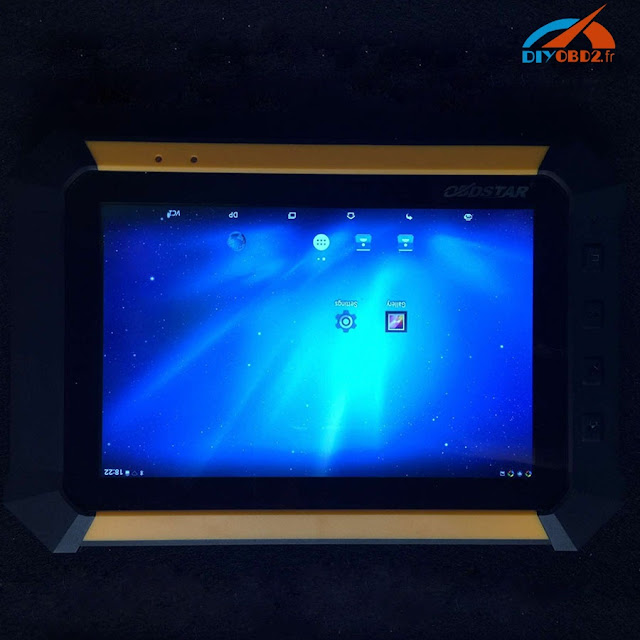
OBDSTAR X300 DP IMMOBILIZER function

OBDSTAR X300 DP Diag Program function

OBDSTAR X300 DP other reset functions

OBDSTAR X300 DP entire package


OBDSTAR X300 DP box

How OBDSTAR X300 DP adjust mileage for 2016 Cadillac ATS-L?
http://blog.diyobd2.fr/2016/12/07/nouvelle-arrivee-obdstar-x300-dp-adjust-mileage-pour-2016-cadillac-ats-l/
How OBDSTAR X300 DP program keys for Hyundai Elantra 2011?
First insert the new key into cylinder and turn ignition to ON position.

Now you will find the immobilizer light keep on at dashboard.
Power up OBDSTAR X300 DP tablet key programmer, click “Diag Program” then “Immobilizer”. Choose “Hyundai” then “Hyundai V30.24”

Choose “Read ID46 chip password”

Wait a second and it will read out the chip password as 963701.
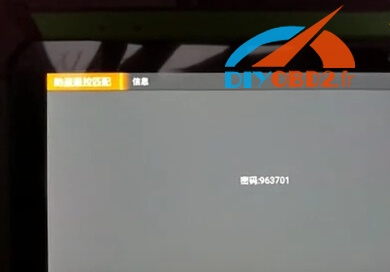
Then choose “Beijing Hyundai” (There is Korean Hyundai as well).
Choose program key by car model.
Select “Elantra 08-11” then “Immobilizer” click “Yes”.

Choose “key programming” click “Yes”. Enter password 963701.

Wait a while and it will show “Program success, whether to program next one?” Click “No” to complete program. Pull out the new key and wait 5 seconds.
Now OBDSTAR X300 DP program Hyundai Elantra 2011 successfully! The new key start car as expected!

Original - from diyobd2.fr obd2 francais:New OBDSTAR X300 DP real pictures+ program key+ adjust mileage guide
Available link for download
Tuesday, March 14, 2017
Set default printer in Windows 10 Guide
Set default printer in Windows 10 Guide
Set default printer in Windows 10 - Thats what we gonna see in this post. if you wish to set default
printer in Windows 10, then here is an guide that may help you.
Do you need to download software to set default printer in Windows 10 ..?
No, you dont need to download software to set default printer in Windows 10.

then, how to do it..?
just follow the steps below..
How to set default printer in Windows 10
1) Open settings
[Helpful link : How to open settings using different methods in Windows 10]
2) Click on Devices.
3) On your right pane,you can find many options,
4) Click on the device, you wish to set default printer and
set it as default.
Thats it..
You can also set default printer using ..
Open devices control panel, and find your printer device and select set it as default.
Are you a beginner ? then here is a link to find all the beginner articles, just click on the below link..
Click to read all basic tutorials..
printer in Windows 10, then here is an guide that may help you.
Do you need to download software to set default printer in Windows 10 ..?
No, you dont need to download software to set default printer in Windows 10.
just follow the steps below..
How to set default printer in Windows 10
1) Open settings
[Helpful link : How to open settings using different methods in Windows 10]
2) Click on Devices.
3) On your right pane,you can find many options,
4) Click on the device, you wish to set default printer and
set it as default.
Thats it..
You can also set default printer using ..
Open devices control panel, and find your printer device and select set it as default.
Are you a beginner ? then here is a link to find all the beginner articles, just click on the below link..
Available link for download
Saturday, March 11, 2017
Guide compress files with WinRAR smallest
Guide compress files with WinRAR smallest
The compressed file is very important and the fact that, especially when we have many files you want for them into one single file for easy sharing via email, or to store intenet. Often if we copied to the drive, USB or uploaded onto the internet, for obvious when compressed into one file and then will be much faster as compared to multiple files, so how the smallest file compression is essential . Now I will guide you to those unknown to the general public can be done easily.
Smallest file compression is how much?
This is absolutely no exact figures, but you can see through the compression ratio parameter called thecompression ratio . The lower this ratio, the more capacity reduction, we simply understand% this is the percentage of capacity after completion will be compressed.
 |
| Guide compress files with WinRAR smallest |
Read more »
Available link for download
Thursday, March 9, 2017
Free download renault can clip software and get installation guide and video
Free download renault can clip software and get installation guide and video
1.Renault can clip software free:
1.Renault CAN CLiP v163 software Download on Mega
2.Download can clip v162 software
3. renault can clip v160.rar - CLIP 157 torrent - Renault-CAN-CLIP-156.rar - Renault Clip V155.iso
2.Renault can clip installation guide:
1.How to install Renault CAN CLIP v163 on Windows xp
2.How to install Can Clip V162 for Renault on the XP system
3.How to install Can Clip V160 for Renault on the XP system
Renault can clip youtube:
https://www.youtube.com/user/diyobd2/search?query=can+clip
Renault can clip install on windows 7 64 bit ?
Renault Clip software is always tested ok in Windows XP system 32 bit. But XP system is kind of out of date. Nowadays, most use Windows 7 64 bit. To run CLIP on WIN 7 or not, that’s a question of luck.
Here are users feedback on can clip windows 7 64 bit, some successful & some failed:
– Works fine on win7 x86.
– Yes, Can Clip runs on Windows 7-x64 and Windows 8….8.1-x64 m because use x-86 files from the system.
– If your version of Windows 7 Home Basic or Home Premium x64 it is normally not work, try Enterprise or Ultimate , I use Win 7 Ultimate x64 and canclip works very well
– Automatically detect a driver in both win7 and in win7-x86-x64, a kind can clip ALIANCE driver, bosch automotive … etc..
is absolutely necessary to have all updates made?to the operating system before installation canclip
– i try install in win 7 x64 pc but the driver of VCI not work
– It is NOT working in my Win7 64-bit
– same issue, not working W7 64bit
*** why some Renault CLIP cannot work on Widows 7 64bit?
– The Clip software itself works with 64bit version of Windows 7 but the hardware won’t.. Simply because the there are no 64bit drivers for SONDE can clip..
– I think there are no drivers made for 64bit windows…
it works only with 32bit windows
*** What to do if Renault CAN CLIP cannot work on Windows 64 bit?
-Try disable driver signature enforsment in win 64bit..that help many times
– Or just RIGHT CLICK the .inf File and click INSTALL
Then if you get certificate error you can fix that in device manager/
by right click and install certificate even if invalid
– You need to know your can clip is probe (sonde) or alliance.
alliance = works both on 32 and 64 bit os
probe (sonde) = works only on 32 bit os
i think sonde is better than alliance
You can disassemble your CAN Clip and check it on PCB
real CAN CLIP PROBE clone – RLT2002
3.Renault can clip change language:
During the installation, some users will be confused about language changing. For example, how to change English into French? You should select French at the installation step of selecting application language.

If you want to select another language after installation, the only way is to uninstall and then reinstall the software.
Available link for download
Sunday, March 5, 2017
Notification Center in Windows 10 How to turn off Notifications for particular group in Windows 10 Guide
Notification Center in Windows 10 How to turn off Notifications for particular group in Windows 10 Guide
Notification Center in Windows 10 - How to turn off notifications for a particular group in Windows
10. If you are tired of Windows 10 notification center that appear on action center, then you can
manage notifications of Windows 10. If you are in a mind that you dont want to turn off all
notifications, and wish to know how to turn off notifications for a particular program or application
then, here is an guide to turn off notification for a particular group.
-Works best on Windows 10 Anniversary update and other latest builds of Windows 10.
Do you need any software ?
No, you dont need an software to turn off notifications or action center in windows 10, just follow
the below steps..
How to turn off notifications in Windows 10
1) First, when a notification appears, open action center.
[ Helpful link : What is Action center and where it is located on windows 10 ]
2) When you opened action center, you will find your that notification or various notifications (if you
hadnt cleared them, depends on the system) that appeared on your System.
3) If you have touch screen,
then press and hold the notification, it will display options like turn off notification for this group, Go
to notification settings, and make this group high priority.
4) Click on the turn off notifications for this group option.
![Notification Center in Windows 10 - How to turn off Notifications for particular group in Windows 10 [Guide]](https://blogger.googleusercontent.com/img/b/R29vZ2xl/AVvXsEizplQ4C9SFAAhSXHhm6s4q6Vpphfv8YhmI6xuQEaBdLSYEP0fbCOAZkMQcfghPL18f5bJUMVFytcZ9FsrKr5DU6KpAqsDRUHq2i-K_PlXhAolhljkbux4lg7pZ1rgcm2UwGX_TV7nXA7A/s320/turn-off-notificaiton.gif "Notification Center in Windows 10 - How to turn off Notifications for particular group in Windows 10 [Guide]")
Thats it..
Hope it is helpful.
Are you a beginner ? then below is a link to find all the beginner articles that may help you in
various stages and in mastering basics of Windows 10, just click on the below link to view..
Click to read all basic tutorials..
10. If you are tired of Windows 10 notification center that appear on action center, then you can
manage notifications of Windows 10. If you are in a mind that you dont want to turn off all
notifications, and wish to know how to turn off notifications for a particular program or application
then, here is an guide to turn off notification for a particular group.
-Works best on Windows 10 Anniversary update and other latest builds of Windows 10.
Do you need any software ?
No, you dont need an software to turn off notifications or action center in windows 10, just follow
the below steps..
How to turn off notifications in Windows 10
1) First, when a notification appears, open action center.
[ Helpful link : What is Action center and where it is located on windows 10 ]
2) When you opened action center, you will find your that notification or various notifications (if you
hadnt cleared them, depends on the system) that appeared on your System.
3) If you have touch screen,
then press and hold the notification, it will display options like turn off notification for this group, Go
to notification settings, and make this group high priority.
4) Click on the turn off notifications for this group option.
Thats it..
Hope it is helpful.
Are you a beginner ? then below is a link to find all the beginner articles that may help you in
various stages and in mastering basics of Windows 10, just click on the below link to view..
Available link for download
Friday, March 3, 2017
Where is C drive in Windows 10 Solved Beginners Guide
Where is C drive in Windows 10 Solved Beginners Guide
Where is C drive in Windows 10 - Thats the question i was asked by our blog reader. Though i
answered the question lot of folks are asking the same question..So i created a separate post on
where is c drive located in Windows 10. So,if you too have question like how to find c drive on my
windows 10 PC, then i hope this guide may be helpful for you .
First, Normally, windows 10 being a User friendly Operating System allows us to make our job more
than one way. So, to open c drive there are variety of methods available like using powershell and
start typing set-location c: , dir commands will display the information on that drive.
However, those things wont help beginners, what help is using the traditional way which is using
windows explorer or File Explorer.
1) First, Open file explorer
Dont know know how to open file explorer ?, dont worry, check the below link
[Helpful link : What is file explorer ? and how to open in Windows 10]
2) There, you will find the list of drives that were available on your System

3) Find the "Local disk C" , you can find it easier by looking for windows (logo) icon in the drive, which is your C drive..
Thats it..
Hope it is helpful.
Click to read all basic tutorials..
answered the question lot of folks are asking the same question..So i created a separate post on
where is c drive located in Windows 10. So,if you too have question like how to find c drive on my
windows 10 PC, then i hope this guide may be helpful for you .
First, Normally, windows 10 being a User friendly Operating System allows us to make our job more
than one way. So, to open c drive there are variety of methods available like using powershell and
start typing set-location c: , dir commands will display the information on that drive.
However, those things wont help beginners, what help is using the traditional way which is using
windows explorer or File Explorer.
1) First, Open file explorer
Dont know know how to open file explorer ?, dont worry, check the below link
[Helpful link : What is file explorer ? and how to open in Windows 10]
2) There, you will find the list of drives that were available on your System
3) Find the "Local disk C" , you can find it easier by looking for windows (logo) icon in the drive, which is your C drive..
Thats it..
Hope it is helpful.
Click to read all basic tutorials..
Available link for download
Tuesday, February 28, 2017
Windows Defender version update download How to find windows defender version on Windows 10 Guide
Windows Defender version update download How to find windows defender version on Windows 10 Guide
Windows Defender version update - How to check or find the current version of windows 10 you are
using in your windows 10 desktop or laptop. Updated to Windows 10 Anniversary update build of
Windows 10.
In our last post, we had see what is windows defender offline and how to launch it on Windows 10.
in this post, lets see how to find the installed version of Windows Defender, so that you can
download the latest version of Windows defender when needed.
Do you need any software ?
Windows defender is an inbuilt antivirus / malware protector so we dont need any software to find
the Windows defender version.
then, how to find it ?
just follow the below steps...
How to find version of Windows defender im using right now...
1) Open settings
[Helpful link : How to open settings using different methods in Windows 10]
2) Click on Update & security
3) It will open a a new window,Select Windows defender on the left pane
4) Now, after you clicked you can see many options on the right pane..
5) Scroll down till you find Windows defender Offline.
Below, to that you will find version info,,
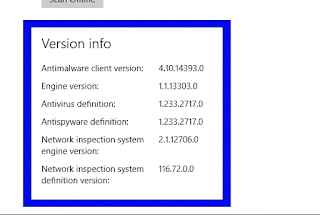
under that, you will see the version of Windows defender you are using now..
Thats it..
Hope it is helpful.
Are you a beginner ? then here are all posts that deals with mastering basics of Windows 10.
Click to see all the basic tutorials
using in your windows 10 desktop or laptop. Updated to Windows 10 Anniversary update build of
Windows 10.
In our last post, we had see what is windows defender offline and how to launch it on Windows 10.
in this post, lets see how to find the installed version of Windows Defender, so that you can
download the latest version of Windows defender when needed.
Do you need any software ?
Windows defender is an inbuilt antivirus / malware protector so we dont need any software to find
the Windows defender version.
then, how to find it ?
just follow the below steps...
How to find version of Windows defender im using right now...
1) Open settings
[Helpful link : How to open settings using different methods in Windows 10]
2) Click on Update & security
3) It will open a a new window,Select Windows defender on the left pane
4) Now, after you clicked you can see many options on the right pane..
5) Scroll down till you find Windows defender Offline.
under that, you will see the version of Windows defender you are using now..
Thats it..
Hope it is helpful.
Are you a beginner ? then here are all posts that deals with mastering basics of Windows 10.
Click to see all the basic tutorials
Available link for download
Wednesday, February 15, 2017
Reset Firewall in Windows 10 How to guide
Reset Firewall in Windows 10 How to guide
Reset Firewall in Windows 10 - Thats what we gonna see in this post...
Works on Windows 10
Creators Update, Windows 10 Anniversary Update, and other editions of Windows like Windows 10
earlier builds like Aug 2015 and Nov 2015 builds..
If you are using Firewall then, chances are you must be a little bit computerized user, so i think you
dont need an intro to Firewall..
So, lets take it to the direct post of resetting firewall in Windows 10..
How to reset firewall to default rules in Windows 10...
1) First press windows key
2) Type firewall
3) Select the top most result
4) Click on Advanced settings on the left pane..
5) It will open Firewall settings
6) Click on Action tab
7) Now, it will display some Options like Import Policy, Export Policy,etc
8 ) On that select, Restore default rules.
9 ) It will ask you for confirmation, by displaying a dialog box, Click on Yes.
Thats it..
Your Firewall will be restored to default rules in Windows 10.
How to restore default settings for firewall in Windows 10
1) First press windows key
2) Type firewall
3) Select the top most result
4) Click on Restore defaults on the left pane..

5) It will display a new window, stating "Restoring defaults will remove all windows Firewall settings that you have configured for all network locations.
That might take some apps to stop working."
6) Click on Restore defaults..
Thats it..
It will reset firewall settings in Windows 10.
Enjoy.
Click to find latest articles
Works on Windows 10
Creators Update, Windows 10 Anniversary Update, and other editions of Windows like Windows 10
earlier builds like Aug 2015 and Nov 2015 builds..
If you are using Firewall then, chances are you must be a little bit computerized user, so i think you
dont need an intro to Firewall..
So, lets take it to the direct post of resetting firewall in Windows 10..
How to reset firewall to default rules in Windows 10...
1) First press windows key
2) Type firewall
3) Select the top most result
4) Click on Advanced settings on the left pane..
5) It will open Firewall settings
6) Click on Action tab
7) Now, it will display some Options like Import Policy, Export Policy,etc
8 ) On that select, Restore default rules.
9 ) It will ask you for confirmation, by displaying a dialog box, Click on Yes.
Thats it..
Your Firewall will be restored to default rules in Windows 10.
How to restore default settings for firewall in Windows 10
1) First press windows key
2) Type firewall
3) Select the top most result
4) Click on Restore defaults on the left pane..
5) It will display a new window, stating "Restoring defaults will remove all windows Firewall settings that you have configured for all network locations.
That might take some apps to stop working."
6) Click on Restore defaults..
Thats it..
It will reset firewall settings in Windows 10.
Enjoy.
Click to find latest articles
Available link for download
Sunday, February 12, 2017
How to Open Device Manager in Windows 10 Guide
How to Open Device Manager in Windows 10 Guide
Open device manager and update your drivers, thats what we suggest when we have errors related to
drivers, but we fail to say how to open device manager. While Opening device manager is like
turning on light switch for most of the regular users( that much simple). there are still people who
find difficulty in accessing device manager. Whether if you are novice or new to Windows dont
worry, here are some easiest ways to
open device manager in windows 10.
What is device manager in windows 10 ?
Device manager is the place where all our devices components will be registered, which means its the link for executing the program codes ( thats we call drivers), Windows will use the device manager feature (an application) to check the available devices inside the PC.
If you insert a USB to copy or transfer files, then it would first get regsistered on this device manager,then only we are notified like " a new device was detected,scan to fix,etc.. message"
Ok,Where is device manager located in Windows 10 ?
Device manager and other components are located inside the Windows directory usually System32 folder.
How to access or open device manager in Windows 10 ?
there are many ways available as said earlier, but here in this post lets see the easiest ways to open device manager in windows 10.

Method 1 : Using Run Command
1) Press Windows + R Keys simultaneously
2) Type devmgmt.msc
3) Hit enter
It will Open device manager,
Pretty simple huh ?
Method 2 : Using search
1) press Windows Key
2) type device manager
3) select the top most result
It will Open device manager,
If you wish to open device manager only through CMD,then here is the way.
1) First, open CMD.
[See : How to open cmd in different ways]
2) type devmgmt.msc
3) Hit enter.
Thats it,,
This are the easiest ways to open device manager in Windows 10 ,and the great thing is this method
will work on any edition of Windows 10 and also in previous version of Windows like Windows 8.1
and Windows 8.
Incoming search terms :
open device manager from run, open device manager in windows 10, open device manager from cmd in windows 10, open device manager in windows 10,Where do you find the device manager, windows 10 device manager shortcut, windows 10 device manager not working, what is device manager windows 10, cannot access device manager windows 10
drivers, but we fail to say how to open device manager. While Opening device manager is like
turning on light switch for most of the regular users( that much simple). there are still people who
find difficulty in accessing device manager. Whether if you are novice or new to Windows dont
worry, here are some easiest ways to
open device manager in windows 10.
What is device manager in windows 10 ?
Device manager is the place where all our devices components will be registered, which means its the link for executing the program codes ( thats we call drivers), Windows will use the device manager feature (an application) to check the available devices inside the PC.
If you insert a USB to copy or transfer files, then it would first get regsistered on this device manager,then only we are notified like " a new device was detected,scan to fix,etc.. message"
Ok,Where is device manager located in Windows 10 ?
Device manager and other components are located inside the Windows directory usually System32 folder.
How to access or open device manager in Windows 10 ?
there are many ways available as said earlier, but here in this post lets see the easiest ways to open device manager in windows 10.
Method 1 : Using Run Command
1) Press Windows + R Keys simultaneously
2) Type devmgmt.msc
3) Hit enter
It will Open device manager,
Pretty simple huh ?
Method 2 : Using search
1) press Windows Key
2) type device manager
3) select the top most result
It will Open device manager,
If you wish to open device manager only through CMD,then here is the way.
1) First, open CMD.
[See : How to open cmd in different ways]
2) type devmgmt.msc
3) Hit enter.
Thats it,,
This are the easiest ways to open device manager in Windows 10 ,and the great thing is this method
will work on any edition of Windows 10 and also in previous version of Windows like Windows 8.1
and Windows 8.
Incoming search terms :
open device manager from run, open device manager in windows 10, open device manager from cmd in windows 10, open device manager in windows 10,Where do you find the device manager, windows 10 device manager shortcut, windows 10 device manager not working, what is device manager windows 10, cannot access device manager windows 10
Available link for download
Wednesday, February 8, 2017
Android rooting simple guide
Android rooting simple guide
Android rooting guide is very simple types, only one click is done root your Android phone. Why root and plant and root for?
Root machines sort we can add a number of features and the right to use something like:
- Customizable deep into the operating system, system interference in the region -> View: Save battery by freezing applications with Android Greenify
- Running the software requires root (admin rights required)
- rather recovery
- Up rom cook
- Overclocking, reduced pulse
- Remove excess software
There are ways to root the machine, before you yourself have noticed some one dozen software root user to step around, so lucky to have software all in one Kingo Root. Kingo root root Android software is the best free, supports almost all Android phones and versions of it.
Guide rooting Android kinds
Step 1: You need to prepare for what follows to be able to root.
- Kingo Android Root software. Download and install here
- Driver for your phone
- Phone with battery> 80%
With the driver, you can find and download from here, depending on your machine you choose to download and install the offline case
Update: ~~ KingoRoot can manually install the drivers for your device! if not, then you download manually get you down
| Sony | http://esupport.sony.com/perl/select-system.pl?DIRECTOR=DRIVER |
| Samsung | http://www.samsung.com/us/support/downloads |
| Lenovo | http://developer.lenovomm.com/developer/download.jsp |
| ZTE | http://support.zte.com.cn/support/news/NewsDetail.aspx?newsId=1000442 |
| Google Nexus | http://developer.android.com/sdk/win-usb.html |
| Motorola | http://developer.motorola.com/docstools/USB_Drivers/ |
| LGE | http://www.lg.com/us/mobile-phones/mobile-support/mobile-lg-mobile-phone-support.jsp |
| Huawei | http://www.huaweidevice.com/worldwide/downloadCenter.do?method=index |
| HTC | http://www.htc.com |
| Alcatel One Touch | http://www.alcatelonetouch.com/global-en/support/download.html |
| Asus | http://support.asus.com/download/ |
| Acer | http://www.acer.com/worldwide/support/mobile.html |
Step 2:
Enable USB Debugging
You can refer to how to turn it here
Step 3.
Connect the cable from the phone to the computer and wait software will identify the device, it will display the information on your phone. Have root or not, as shown below your phone is Sony LT29i and not root status.
 |
| Android rooting simple guide |
Read more »
Available link for download
Tuesday, February 7, 2017
Disable or enable data Roaming in Windows 10 guide
Disable or enable data Roaming in Windows 10 guide
Turn off or turn on data roaming for cellular network in Windows 10 - Thats what we gonna see in
this post.
If you are using data connection in Windows 10 on a cellular network or mobile network, then you
need to disable or turn off data roaming on your device to prevent the extra charges that comes when
we make connection to internet.
in this post how it can be done..
How to disable Data roaming for Cellular network in Windows 10 or
How to enable data roaming in windows 10 -

1) Press Windows Key
(or) Click on Start button
2) Click settings
3) It will open the settings window, on that click on the Network & Internet
4) Select Cellular
If cellular doesnt appeared then you hadnt connected your PC using cellular connection.
Connect your PC using cellular connection, then follow the steps..
5) When you clicked Cellular, you will asked to select cellular network
6) Select the cellular connection name
7) Select Allow roaming
if you wish to disable data roaming, then simply click Disable roaming
Thats it..
Are you a beginner ? then here are all posts that deals with mastering basics of Windows 10.
Click to see all the basic tutorials
this post.
If you are using data connection in Windows 10 on a cellular network or mobile network, then you
need to disable or turn off data roaming on your device to prevent the extra charges that comes when
we make connection to internet.
in this post how it can be done..
How to disable Data roaming for Cellular network in Windows 10 or
How to enable data roaming in windows 10 -
1) Press Windows Key
(or) Click on Start button
2) Click settings
3) It will open the settings window, on that click on the Network & Internet
4) Select Cellular
If cellular doesnt appeared then you hadnt connected your PC using cellular connection.
Connect your PC using cellular connection, then follow the steps..
5) When you clicked Cellular, you will asked to select cellular network
6) Select the cellular connection name
7) Select Allow roaming
if you wish to disable data roaming, then simply click Disable roaming
Thats it..
Are you a beginner ? then here are all posts that deals with mastering basics of Windows 10.
Click to see all the basic tutorials
Available link for download
Sunday, February 5, 2017
Guide splicing mp3 files with MP3 Cutter Joiner Free
Guide splicing mp3 files with MP3 Cutter Joiner Free
Tag: Guide splicing mp3 files with MP3 Cutter Joiner Free full keygen, full key, full crack, portable, full serial key, lastest, 32 & 64 bit, for windows 7 8 10, free download
You have one piece of music and you want to cut a passage connecting mp3 files that song, or you want to include multiple tracks, the tracks together to form one single file. It's easy to do it with free software Free MP3 Cutter Joiner
You have one piece of music and you want to cut a passage connecting mp3 files that song, or you want to include multiple tracks, the tracks together to form one single file. It's easy to do it with free software Free MP3 Cutter Joiner
MP3 Cutter Joiner can do?
- Trim any part from a large audio file to use as ringtones, background music, etc. welcome.
- Merge multiple MP3 files into a single file.
- Convert audio files in batch to play on all devices.
- The simple interface, intuitive. Time accurate to milliseconds.
- Supports up to 50 audio formats.
- Possible options the quality of mp3 files can also be file storage units
- Completely free and compact
The software cuts MP3 Cutter Joiner mp3 joiner Free How to use?
First you need to download software splicing Free MP3 Cutter Joiner mp3 file here
You also need to prepare in advance mp3 file. If you want to grab splicing mp3 from youtube videos then you can separate the music according to the article How to download mp3 from Youtube online high quality .
 |
| Guide splicing mp3 files with MP3 Cutter Joiner Free |
Read more »
Available link for download
Friday, February 3, 2017
Print Queue in Windows 10 How to see whats printing in Windows 10 Guide
Print Queue in Windows 10 How to see whats printing in Windows 10 Guide
Print Queue in Windows 10 - How to see whats printing..- Thats what we gonna see in this post..
In our last post, we had seen how to add a printer in windows 10, in this post lets see how to view
the print queue in Windows 10.
If you wish to know how to find whats printing or Whats next going to print (in queue) then, i hope
this guide may be useful for you..
Do we need any software ?
No, we dont need an software to find print queue in windows 10..
then, how can if find it ..?
Just follow the upcoming steps..
1) Press Windows Key
2) Type devices and printers

3) Select the top most result, Devices and printers (Control panel)
4) It will open the devices connected to your PC.
5) Right Click on your printer device.
6) You will see different options, like Open, open in new window, See whats printing, set as default,etc..
7) Click on See whats printing..
You can find the print queue there..
Thats it..
Hope it is helpful.
Are you a beginner ? then below is a link to find all the beginner articles that may help you in
various stages and in mastering basics of Windows 10, just click on the below link to view..
Click to read all basic tutorials..
In our last post, we had seen how to add a printer in windows 10, in this post lets see how to view
the print queue in Windows 10.
If you wish to know how to find whats printing or Whats next going to print (in queue) then, i hope
this guide may be useful for you..
Do we need any software ?
No, we dont need an software to find print queue in windows 10..
then, how can if find it ..?
Just follow the upcoming steps..
1) Press Windows Key
2) Type devices and printers
3) Select the top most result, Devices and printers (Control panel)
4) It will open the devices connected to your PC.
5) Right Click on your printer device.
6) You will see different options, like Open, open in new window, See whats printing, set as default,etc..
7) Click on See whats printing..
You can find the print queue there..
Thats it..
Hope it is helpful.
Are you a beginner ? then below is a link to find all the beginner articles that may help you in
various stages and in mastering basics of Windows 10, just click on the below link to view..
Available link for download
Thursday, February 2, 2017
Guide maps stored offline on Android Google Map
Guide maps stored offline on Android Google Map
How to save Google maps to use offline. Google Maps is a useful application for directions, map navigation and viewing areas, view satellite imagery ...
And when we were on the road, they will surely have to use 3G to see a map, with expensive 3G charges today, it will cost you a lot of money.
Following her instructions you save a map offline, used when there is no network. By default, the map application will be installed in the operating system, if you do not have to download here offline
How to store maps offline Google Map
- Turn on the Internet
- Open the Google Maps app, other names are directions or a map, something.
- Search for a place that you want, for example, you want to save the map Phu Nhuan District, Phu Nhuan, I'll type in search
- Click on the bottom bar, where you find out the search area.
- Click the Menu icon on the right, select Save offline maps
- You can zoom to a small, rotated, custom map, if necessary, and then click Save
- Enter a name for the map you saved and click Save
- Wait a minute to download a map of Google Maps that's it.
 |
| Guide maps stored offline on Android Google Map |
Available link for download
Monday, January 30, 2017
Open task manager in Windows 10 How to open taskmanager in Windows 10 Beginners guide
Open task manager in Windows 10 How to open taskmanager in Windows 10 Beginners guide
Open task manager in Windows 10 - How to open task manager in Windows 10 using shortcuts -
Thats what we gonna see in this post. We can open task manager using cmd, We can open task
manager using powershell, We can open task manager using search box, which clearly shows there
are lot of ways to open task manager in Windows 10.
Do you need to download Task manager for Windows 10 ?
No, you dont need to download task manager in Windows 10, as it inbuilt..
then, how to open it..
As, said earlier there are many ways, we can open task manager in windows 10.
However, i like to show only the basic method which is very helpful if you are beginner.
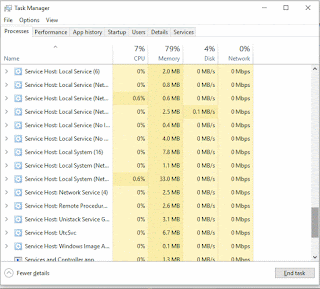
Method 1 :
How to open task manager using shortcut in Windows 10
1) Press Ctrl + Shift + Esc Keys on your keyboard.
You will get the task manager
Method 2 :
How to Open task manager using search in Windows 10
1) Press Windows key
2) Type task manager
3) Select the top most result
Method 3 : using powershell
How to open task manager using Powershell in Windows 10
1) Open Powershell
[See : How to open powershell in Windows 10]
2) Type the following command
taskmgr
3) Hit enter
Method 4 : Using CMD
How to open task manager using cmd in Windows 10
1) Open cmd
[See : How to open cmd]
2) Type the following command
taskmgr
3) Hit enter
Thats it..
This are the easiest ways you can open task manager in Windows 10.
Hope it helps..
Are you a beginner ? then below is a link to find all the beginner articles that may help you in
various stages and in mastering basics of Windows 10, just click on the below link to view..
Click to read all basic tutorials..
Thats what we gonna see in this post. We can open task manager using cmd, We can open task
manager using powershell, We can open task manager using search box, which clearly shows there
are lot of ways to open task manager in Windows 10.
Do you need to download Task manager for Windows 10 ?
No, you dont need to download task manager in Windows 10, as it inbuilt..
then, how to open it..
As, said earlier there are many ways, we can open task manager in windows 10.
However, i like to show only the basic method which is very helpful if you are beginner.
Method 1 :
How to open task manager using shortcut in Windows 10
1) Press Ctrl + Shift + Esc Keys on your keyboard.
You will get the task manager
Method 2 :
How to Open task manager using search in Windows 10
1) Press Windows key
2) Type task manager
3) Select the top most result
Method 3 : using powershell
How to open task manager using Powershell in Windows 10
1) Open Powershell
[See : How to open powershell in Windows 10]
2) Type the following command
taskmgr
3) Hit enter
Method 4 : Using CMD
How to open task manager using cmd in Windows 10
1) Open cmd
[See : How to open cmd]
2) Type the following command
taskmgr
3) Hit enter
Thats it..
This are the easiest ways you can open task manager in Windows 10.
Hope it helps..
Are you a beginner ? then below is a link to find all the beginner articles that may help you in
various stages and in mastering basics of Windows 10, just click on the below link to view..
Available link for download
Thursday, January 26, 2017
Open Action Center in Windows 10 What is action center and How to open action center in Windows 10 Guide
Open Action Center in Windows 10 What is action center and How to open action center in Windows 10 Guide
Open Action Center in Windows 10 - What is action center ? and How to open action
center in Windows 10 ? - Thats what we going to see in this post..
If you are new to Windows 10, then probably you may see some things differently than in your
previous Operating system. This is because Microsoft replaced things in order to provide and design
a new user interface, one of such things that were altered or changed is Action Center.
So, if you are asking where is action center or if you think action center in Windows 10 missing..
then here is a guide that may help you...
What is Action Center in Windows 10 ?
Action center is the one that is designed to notify users, so that they can take respective action.
The notifications will appear on the action center.
The flag like action center icon is now replaced with Message box like icon, and you can find them
on the right corner of taskbar.
How to open action center in Windows 10..
There are many methods to open action center in Windows 10, but here i like to share only the
easiest method to open action center in Windows 10.
1) Sign-in to your Windows 10 PC
2) On your right end corner of the taskbar, you will find the message box like icon, click on it..

3) It will open action center
Method 2 : Using Action center of Windows 10 Shortcut
4) Simply, Press Windows (logo) key + A keys on your keyboard
it will open action center.
Thats it..
Enjoy.
Remember you dont need to download action center for Windows 10 ,as it is inbuilt in Windows
10.
Hope it is helpful.
Are you a beginner ? then here is a link to find all the beginner articles, just click on the below
link,you will find all the basic or beginners articles on windows 10..
Click to read all basic tutorials..
center in Windows 10 ? - Thats what we going to see in this post..
If you are new to Windows 10, then probably you may see some things differently than in your
previous Operating system. This is because Microsoft replaced things in order to provide and design
a new user interface, one of such things that were altered or changed is Action Center.
So, if you are asking where is action center or if you think action center in Windows 10 missing..
then here is a guide that may help you...
What is Action Center in Windows 10 ?
Action center is the one that is designed to notify users, so that they can take respective action.
The notifications will appear on the action center.
The flag like action center icon is now replaced with Message box like icon, and you can find them
on the right corner of taskbar.
How to open action center in Windows 10..
There are many methods to open action center in Windows 10, but here i like to share only the
easiest method to open action center in Windows 10.
1) Sign-in to your Windows 10 PC
2) On your right end corner of the taskbar, you will find the message box like icon, click on it..
3) It will open action center
Method 2 : Using Action center of Windows 10 Shortcut
4) Simply, Press Windows (logo) key + A keys on your keyboard
it will open action center.
Thats it..
Enjoy.
Remember you dont need to download action center for Windows 10 ,as it is inbuilt in Windows
10.
Hope it is helpful.
Are you a beginner ? then here is a link to find all the beginner articles, just click on the below
link,you will find all the basic or beginners articles on windows 10..
Available link for download
Tuesday, January 24, 2017
Real time protection in Windows defender How to turn on or turn off real time protection in Windows 10 Guide
Real time protection in Windows defender How to turn on or turn off real time protection in Windows 10 Guide
Real time protection in Windows defender : How to turn on or turn off real time protection in
Windows 10 - Thats what we gonna see in this post..
If you are looking for the antivirus or malware protector that comes with windows 10 then, likely it
is called Windows defender. When you install an application you will be prompted to enable real
time protection if windows defender real time protection is turned off, the agent that turned off may
be you are some malware.. Whoever it may be here is an guide to show how to turn on real time
protection back again or disable real time protection in Windows 10.
Do you need to turn off or turn on real time protection on windows 10 ?
No, you dont need to download an software to turn off or turn on Windows defender real time
protection on Windows 10.
then, where to find it?
just follow the steps below..
How to turn off real time protection of Windows defender in Windows 10 :
Note : Turning off real protection is not recommended as some harmful applications in the name of
Crack for software will affect your PC health, So think before you do..
If you are searching for a way to disable real time protection, then
simply
1) Open settings
[Helpful link : How to open settings using different methods in Windows 10]
2) Click on Update & security
3) It will open a a new window,Select Windows defender on the left pane
4) Now, you will see the Windows defender settings on the right pane, Find Real time protection
and click on the left side of the option.
So that it looks OFF.
Thats it, you had turned off real time protection of Windows 10..
If your Windows defender keeps turning on Automatically, then it is not your fault, it is
programmed to turn on automatically??.
How to turn on real time protection in Windows 10 ..

Just follow the above steps 1 to 4
While on step 4, simply tap/click on the right side of the option,so that it looks on.
Note : If real time protection is grayed out, then there it is more likely some other antivirus
programs running on your Windows 10, uninstall it and follow the same steps
Thats it..
Windows defender will run even though some other antivirus is running on your PC, click to see about it [Link]
Hope it is helpful
Enjoy.
Click to find latest articles
Windows 10 - Thats what we gonna see in this post..
If you are looking for the antivirus or malware protector that comes with windows 10 then, likely it
is called Windows defender. When you install an application you will be prompted to enable real
time protection if windows defender real time protection is turned off, the agent that turned off may
be you are some malware.. Whoever it may be here is an guide to show how to turn on real time
protection back again or disable real time protection in Windows 10.
Do you need to turn off or turn on real time protection on windows 10 ?
No, you dont need to download an software to turn off or turn on Windows defender real time
protection on Windows 10.
then, where to find it?
just follow the steps below..
How to turn off real time protection of Windows defender in Windows 10 :
Note : Turning off real protection is not recommended as some harmful applications in the name of
Crack for software will affect your PC health, So think before you do..
If you are searching for a way to disable real time protection, then
simply
1) Open settings
[Helpful link : How to open settings using different methods in Windows 10]
2) Click on Update & security
3) It will open a a new window,Select Windows defender on the left pane
and click on the left side of the option.
So that it looks OFF.
Thats it, you had turned off real time protection of Windows 10..
If your Windows defender keeps turning on Automatically, then it is not your fault, it is
programmed to turn on automatically??.
How to turn on real time protection in Windows 10 ..
Just follow the above steps 1 to 4
While on step 4, simply tap/click on the right side of the option,so that it looks on.
Note : If real time protection is grayed out, then there it is more likely some other antivirus
programs running on your Windows 10, uninstall it and follow the same steps
Thats it..
Windows defender will run even though some other antivirus is running on your PC, click to see about it [Link]
Hope it is helpful
Enjoy.
Click to find latest articles
Available link for download
Subscribe to:
Posts (Atom)