Showing posts with label find. Show all posts
Showing posts with label find. Show all posts
Tuesday, February 28, 2017
Windows Defender version update download How to find windows defender version on Windows 10 Guide
Windows Defender version update download How to find windows defender version on Windows 10 Guide
Windows Defender version update - How to check or find the current version of windows 10 you are
using in your windows 10 desktop or laptop. Updated to Windows 10 Anniversary update build of
Windows 10.
In our last post, we had see what is windows defender offline and how to launch it on Windows 10.
in this post, lets see how to find the installed version of Windows Defender, so that you can
download the latest version of Windows defender when needed.
Do you need any software ?
Windows defender is an inbuilt antivirus / malware protector so we dont need any software to find
the Windows defender version.
then, how to find it ?
just follow the below steps...
How to find version of Windows defender im using right now...
1) Open settings
[Helpful link : How to open settings using different methods in Windows 10]
2) Click on Update & security
3) It will open a a new window,Select Windows defender on the left pane
4) Now, after you clicked you can see many options on the right pane..
5) Scroll down till you find Windows defender Offline.
Below, to that you will find version info,,
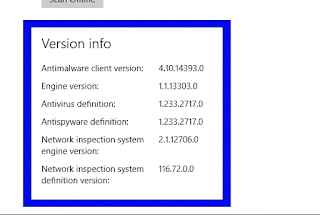
under that, you will see the version of Windows defender you are using now..
Thats it..
Hope it is helpful.
Are you a beginner ? then here are all posts that deals with mastering basics of Windows 10.
Click to see all the basic tutorials
using in your windows 10 desktop or laptop. Updated to Windows 10 Anniversary update build of
Windows 10.
In our last post, we had see what is windows defender offline and how to launch it on Windows 10.
in this post, lets see how to find the installed version of Windows Defender, so that you can
download the latest version of Windows defender when needed.
Do you need any software ?
Windows defender is an inbuilt antivirus / malware protector so we dont need any software to find
the Windows defender version.
then, how to find it ?
just follow the below steps...
How to find version of Windows defender im using right now...
1) Open settings
[Helpful link : How to open settings using different methods in Windows 10]
2) Click on Update & security
3) It will open a a new window,Select Windows defender on the left pane
4) Now, after you clicked you can see many options on the right pane..
5) Scroll down till you find Windows defender Offline.
under that, you will see the version of Windows defender you are using now..
Thats it..
Hope it is helpful.
Are you a beginner ? then here are all posts that deals with mastering basics of Windows 10.
Click to see all the basic tutorials
Available link for download

Friday, February 24, 2017
How to find or Check the Powershell version in Windows 10 Updated
How to find or Check the Powershell version in Windows 10 Updated
Powershell the common tool that gonna replace our Command Prompt in Windows 10 Creators
Update have several features. I had already said, what is Powershell, how it is different from the
Command prompt in our earlier post [ you can check it here]. As far as my Knowledge it is
important to check latest version of Powershell and to update Powershell, because they constantly
making some changes like inclusion of Some Commands and finding easier way to run the script.
So, its very important to download or update powershell to enjoy coolest features. Though third
party tools provides great look its still a safe place to stick with the one that comes with our
Operating System Windows 10.
How to Check Powershell version in Windows 10
We can check version of Powershell using Command or cmdlets, Which means we can check the
version of Powershell using Command Prompt, also we can check the version of Powershell using
Powershell command.
How to check it?
Just follow the Below steps..
1) First Open Powershell
[Helpful link : What is the difference between Powershell and Powershell ISE]
2) After opening, type the following command on the box
$PSVersiontable

(or) $PSVersiontable.PSVersion
You will find the PSVersion text, on its straight right hand side you can find the version.
Since Powershell version in Windows 10 is 5 by default, you dont need to install powershell latest version( Which is 5 while writing this post).
Thats it..
Related links..
Powershell Commands for beginners
Windows 10 Creators Update : How to Replace Powershell with Command Prompt in Windows + X menu
How to change or clear Clipboard text in Windows 10 Using Powershell
Update have several features. I had already said, what is Powershell, how it is different from the
Command prompt in our earlier post [ you can check it here]. As far as my Knowledge it is
important to check latest version of Powershell and to update Powershell, because they constantly
making some changes like inclusion of Some Commands and finding easier way to run the script.
So, its very important to download or update powershell to enjoy coolest features. Though third
party tools provides great look its still a safe place to stick with the one that comes with our
Operating System Windows 10.
How to Check Powershell version in Windows 10
We can check version of Powershell using Command or cmdlets, Which means we can check the
version of Powershell using Command Prompt, also we can check the version of Powershell using
Powershell command.
[You can check the above Video Tutorial,if you have any doubts..]
How to check it?
Just follow the Below steps..
1) First Open Powershell
[Helpful link : What is the difference between Powershell and Powershell ISE]
2) After opening, type the following command on the box
$PSVersiontable
(or) $PSVersiontable.PSVersion
You will find the PSVersion text, on its straight right hand side you can find the version.
Since Powershell version in Windows 10 is 5 by default, you dont need to install powershell latest version( Which is 5 while writing this post).
Thats it..
Related links..
Powershell Commands for beginners
Windows 10 Creators Update : How to Replace Powershell with Command Prompt in Windows + X menu
How to change or clear Clipboard text in Windows 10 Using Powershell
Available link for download
Saturday, February 4, 2017
How to find whether your device have some process which wakes up your Windows 10 PC automatically Wake up timer
How to find whether your device have some process which wakes up your Windows 10 PC automatically Wake up timer
Recently, my friend had a strange issue on his PC. His Windows 10 PC had automatically wakes
itself from sleep and after shutdown. At some point, he became lament and started saying things like
Machines have developed intelligence and they are gonna kill us( like in the movie i,Robot) i had
similar issue in the past,so i suggested him a solution that worked and to decide why Windows 10
Wakes from sleep by itself
if you are experiencing similar problem like as said earlier, then i recommend you to first check
whether some service wakes your PC from sleep or Shutdown like automatic maintanenace.
You need to understand the main thing responsible for waking Windows 10 from Sleep happens
because of several reasons like Improper power management for devices, and some options like
"Allow this device to wake up from device" is checked( you can find the option using device
manager). Normally, such operations are performed by devices like Keyboard and mouse but
sometimes our Windows 10 device will wake up even when we hadnt touched any device( no
physical contact??)
So,my first recommendation( based on my experience) is to run the following command on your
Command prompt or Powershell, based on the result, you can decide whether you have some
problems with the software ( You can view or change that in task scheduler library. when you
think updateorchestrator wakes your computer or Svchost waking Windows 10 computer )
Do we need any software ?
No, you just need a working PC
How to find the service that wakes Windows 10 Computer from Sleep Automatically
1) Open CMD
[Helpful link : How to Open CMD in windows 10]
( or) Powershell
[Helpful link 2 : How to open Powershell in Windows 10]
2) Type the following command
Powercfg -waketimers
3) Hit enter
It should display the result "There are no active wake timers in the System" which shows, no
service is waking your System from Sleep
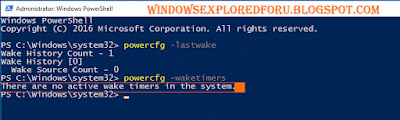
On the Other hand, if you have a different result like [Timer set by [Service]........etc ] message then its confirm that your Windows 10 PC automatically wakes from Sleep because of that service
you can undo the task by visiting the task scheduler - > Properties ->Conditions tab ->
Uncheck the Wake the computer to run this task option -> Apply -> OK
Hope it is helpful.
itself from sleep and after shutdown. At some point, he became lament and started saying things like
Machines have developed intelligence and they are gonna kill us( like in the movie i,Robot) i had
similar issue in the past,so i suggested him a solution that worked and to decide why Windows 10
Wakes from sleep by itself
if you are experiencing similar problem like as said earlier, then i recommend you to first check
whether some service wakes your PC from sleep or Shutdown like automatic maintanenace.
You need to understand the main thing responsible for waking Windows 10 from Sleep happens
because of several reasons like Improper power management for devices, and some options like
"Allow this device to wake up from device" is checked( you can find the option using device
manager). Normally, such operations are performed by devices like Keyboard and mouse but
sometimes our Windows 10 device will wake up even when we hadnt touched any device( no
physical contact??)
So,my first recommendation( based on my experience) is to run the following command on your
Command prompt or Powershell, based on the result, you can decide whether you have some
problems with the software ( You can view or change that in task scheduler library. when you
think updateorchestrator wakes your computer or Svchost waking Windows 10 computer )
Do we need any software ?
No, you just need a working PC
How to find the service that wakes Windows 10 Computer from Sleep Automatically
1) Open CMD
[Helpful link : How to Open CMD in windows 10]
( or) Powershell
[Helpful link 2 : How to open Powershell in Windows 10]
2) Type the following command
Powercfg -waketimers
3) Hit enter
It should display the result "There are no active wake timers in the System" which shows, no
service is waking your System from Sleep
On the Other hand, if you have a different result like [Timer set by [Service]........etc ] message then its confirm that your Windows 10 PC automatically wakes from Sleep because of that service
you can undo the task by visiting the task scheduler - > Properties ->Conditions tab ->
Uncheck the Wake the computer to run this task option -> Apply -> OK
Hope it is helpful.
Available link for download
Wednesday, January 25, 2017
What is My IP Address How to Find IP Address of your Computer in Windows 10 Updated
What is My IP Address How to Find IP Address of your Computer in Windows 10 Updated
What is My IP Address in Windows 10 - How to Find IP Address of computer in Windows 10
If you dont know what is your IP Address or if you think it would be better if to someone helps me
on how to find your IP Address on windows 10, you dont
need it anymore because from now on, you can find your IP Address yourself.
Works on Windows 10
Creators Update, Windows 10 Anniversary Update, and other editions of Windows like Windows 10
earlier builds like Aug 2015 and Nov 2015 builds...
How can i find IP Address of a Computer in Windows 10
There are lot of ways to find IP Address of a machine like using cmd, powershell, registry and so on..
But, you can find it out in just 3 steps here..
How to find IP Address of a computer connected through WiFi in Windows 10
1) Click on the WiFi icon that appear on the taskbar
2) It will display the list of WiFi networks available and the one you are connected to..
3) Click on the WiFi network you are connected to..
4 ) Click on Properties

5) It will open Settings App and will display WiFi Properties.
6) Scroll down and find IPV4 the text next to it is your WiFi IP Address
Thats it..
How to find IP Address of a computer connected through WiFi in Windows 10
1) Click on the Ethernet icon that appear on taskbar
2) select the ethernet connection
3) Click on Properties
4) Scroll down and find IPV4 the text next to it is your IP Address.
Thats it...
If you dont know what is your IP Address or if you think it would be better if to someone helps me
on how to find your IP Address on windows 10, you dont
need it anymore because from now on, you can find your IP Address yourself.
Works on Windows 10
Creators Update, Windows 10 Anniversary Update, and other editions of Windows like Windows 10
earlier builds like Aug 2015 and Nov 2015 builds...
How can i find IP Address of a Computer in Windows 10
There are lot of ways to find IP Address of a machine like using cmd, powershell, registry and so on..
But, you can find it out in just 3 steps here..
How to find IP Address of a computer connected through WiFi in Windows 10
1) Click on the WiFi
2) It will display the list of WiFi networks available and the one you are connected to..
3) Click on the WiFi network you are connected to..
4 ) Click on Properties
5) It will open Settings App and will display WiFi Properties.
6) Scroll down and find IPV4 the text next to it is your WiFi IP Address
Thats it..
How to find IP Address of a computer connected through WiFi in Windows 10
1) Click on the Ethernet icon
2) select the ethernet connection
3) Click on Properties
4) Scroll down and find IPV4 the text next to it is your IP Address.
Thats it...
Are you a beginner ? then here are all posts that deals with mastering basics of Windows 10.
Click to see all the basic tutorials
Click to see all the basic tutorials
Available link for download
Wednesday, January 18, 2017
What is Windows Defender Offline and where to find it in Windows 10 Guide
What is Windows Defender Offline and where to find it in Windows 10 Guide
Windows Defender Offline is the new feature that was introduced in Windows 10 [Since i was on my
insider build ,I dont remember the exact build version] but i think it is on anniversary build of
Windows 10.
Ok, Coming to the point, in this post lets see what is windows defender Offline and how to use
windows defender offline in Windows 10.
What is Windows defender Offline ?

Windows defender offline is an option that was like a rescue cd (if you are aware of third party
softwares like Bitdefender rescue cd, then it is similar to it ) It when started will program itself to
start right before the Windows Installation start booting, and will begin to start to start scanning your
PC.
To say in a single sentence, its like a Rescue cd that can be used to clean malware and virus threats
in your PC.
Do you need to download Windows Defender Offline on windows 10 ?
No, it is an inbuilt tool, so you dont need to download Windows defender offline on Windows 10.
then, where to find it?
just follow the steps below..
How to find Windows defender offline in my Windows 10 PC
1) Open settings
[Helpful link : How to open settings using different methods in Windows 10]
2) Click on Update & security
3) It will open a a new window,Select Windows defender on the left pane
4) Now, after you clicked you can see many options on the right pane..
5) Scroll down till you find Windows defender Offline.

6) You Will find the Scan Offline option.
7) Click on it.
It will immediately restart your PC
Wait, for sometime.. It will load Windows logo and Please wait text..
After that it will open windows defender offline where the scan process will begin.
After scan results, you can close the window, which will restart your PC..
Wait for sometime, as it will take sometime for windows to boot into desktop (experienced??????)
Thats it..
insider build ,I dont remember the exact build version] but i think it is on anniversary build of
Windows 10.
Ok, Coming to the point, in this post lets see what is windows defender Offline and how to use
windows defender offline in Windows 10.
What is Windows defender Offline ?
Windows defender offline is an option that was like a rescue cd (if you are aware of third party
softwares like Bitdefender rescue cd, then it is similar to it ) It when started will program itself to
start right before the Windows Installation start booting, and will begin to start to start scanning your
PC.
To say in a single sentence, its like a Rescue cd that can be used to clean malware and virus threats
in your PC.
Do you need to download Windows Defender Offline on windows 10 ?
No, it is an inbuilt tool, so you dont need to download Windows defender offline on Windows 10.
then, where to find it?
just follow the steps below..
How to find Windows defender offline in my Windows 10 PC
1) Open settings
[Helpful link : How to open settings using different methods in Windows 10]
2) Click on Update & security
3) It will open a a new window,Select Windows defender on the left pane
4) Now, after you clicked you can see many options on the right pane..
5) Scroll down till you find Windows defender Offline.
6) You Will find the Scan Offline option.
7) Click on it.
It will immediately restart your PC
Wait, for sometime.. It will load Windows logo and Please wait text..
After that it will open windows defender offline where the scan process will begin.
After scan results, you can close the window, which will restart your PC..
Wait for sometime, as it will take sometime for windows to boot into desktop (experienced??????)
Thats it..
Available link for download
Subscribe to:
Posts (Atom)