Showing posts with label device. Show all posts
Showing posts with label device. Show all posts
Wednesday, March 22, 2017
Remove Bluetooth device in Windows 10 PC How to GUIDE
Remove Bluetooth device in Windows 10 PC How to GUIDE
Remove Bluetooth device in Windows 10 - Thats what we gonna see in this post...
Works on Windows 10
Creators Update, Windows 10 Anniversary Update, and other editions of Windows like Windows 10
earlier builds like Aug 2015 and Nov 2015 builds.

Dont know, how ?? Dont worry, let me help you. Follow the instructions shown in the below link..
[Helpful link : How to Open Device Manager in Windows 10 [Guide]]
2) Now, you are on device manager, Expand Bluetooth
3) You will find the list of devices there.. Right click on the device you want to remove
4) Click on disable
Thats it..
Note : You need to re-enable the device if you want to pair it later, (follow the same steps to re-enable)..
Thats the end of this post..
Click to read all basic tutorials..
Works on Windows 10
Creators Update, Windows 10 Anniversary Update, and other editions of Windows like Windows 10
earlier builds like Aug 2015 and Nov 2015 builds.
When you cant remove bluetooth in Windows 10 or dont know how to remove bluetooth device in
Windows 10, then you can use this guide to remove bluetooth device in Windows 10.
Do you need any software ?
No, you dont need to download software disable or limit bluetooth in Windows 10, just follow
the below steps..
1) Press Windows + I keys.
2) Click on devices
the below steps..
1) Press Windows + I keys.
2) Click on devices
3) Click on Bluetooth
4) On your right pane, you can see some options and the bluetooth devices, select the device you
want to remove device or unpair and select unpair,
5) It will ask for you confirmation, click yes..
Thats it..
If that doesnt worked, which means you cannot unpair bluetooth device or cant remove bluetooth
device then you can disable or unpair the bluetooth device using the following method.
How to remove bluetooth when you cannot remove the bluetooth device in Windows 10
1) Open Device Manager.
Dont know, how ?? Dont worry, let me help you. Follow the instructions shown in the below link..
[Helpful link : How to Open Device Manager in Windows 10 [Guide]]
2) Now, you are on device manager, Expand Bluetooth
3) You will find the list of devices there.. Right click on the device you want to remove
4) Click on disable
Thats it..
Note : You need to re-enable the device if you want to pair it later, (follow the same steps to re-enable)..
It will fix your problem..
Thats the end of this post..
Click to read all basic tutorials..
Available link for download

Tuesday, March 21, 2017
Bitdefender Total Security Multi Device 2017 Licence Key
Bitdefender Total Security Multi Device 2017 Licence Key

Pourquoi utiliser plusieurs produits de sécurité quand vous pouvez avoir la solution tout-en-un ultime ? Bitdefender Total Security Multi-Device 2017 est le choix idéal pour protéger vos appareils sous Windows, macOS et Android.Bitdefender Total Security Multi-Device 2017 protège contre toutes les formes de menaces, même inconnues et fournit des fonctionnalités conçues pour protéger votre vie privée sur plusieurs plateformes - tout cela sans ralentir vos appareils. Basé sur les meilleures technologies de protection, il reste simple à utiliser. Protégez jusquà 10 appareils avec un seul compte.Avec Bitdefender Total Security Multi-Device 2017, bénéficiez de la meilleure protection sur tous vos appareils, sans ralentissement.
Pourquoi utiliser plusieurs produits de sécurité quand vous pouvez avoir la solution tout-en-un ultime ? Bitdefender Total Security Multi-Device 2017 est le choix idéal pour protéger vos appareils sous Windows, macOS et Android.

Link
Bitdefender Total Security Multi-Device 2017 /32 Bit
Bitdefender Total Security Multi-Device 2017 /64 Bit
Licence Key
Available link for download
Friday, March 10, 2017
Remove Printer in Windows 10 How to remove printer device and driver in Windows 10
Remove Printer in Windows 10 How to remove printer device and driver in Windows 10
Remove printer on windows 10 - How to remove printer device or delete printer driver on your
Windows 10 PC, thats what we gonna
see in this post. In our last we had seen how to cancel printer queque in windows 10 in 2 steps , in
this post lets see how to remove printer in windows 10. We can remove printer using registry, using
powershell and many more methods..
However, in this post lets see how to remove printer using device manager..
2) Type devices
3) Select devices and Printer on the top most result.
4) Click on the device you wish to remove.
5) When you clicked you will see the Remove device option appearing on the bar.
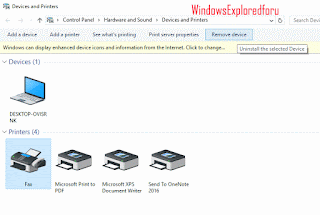
"Remove device option will be next to Printer server properites."
6) Click on the Remove device option.
Method 2 : Using device manager
How to remove printer driver in windows 10..
1) Open device manager
[See : How to open device manager in windows 10]
2) It will display some text links like Audio, input and outputs, Batteries, Computer,Keyboards,
Monitors,and many other things..
3) Expand your Printers ( Which will be under Printer queue option) by clicking on > icon that
displayed near that.
4) When you expanded, you can see many items, right click on the printer you wish to remove..
you will see different options like Update driver software, disable, Uninstall,etc..
5) Click on Uninstall
There will be an option "delete drivers" makesure the box is checked.
6) Close and restart your PC.
If it appears again, select disable while on step 4.
This will fix your problem.
Hope it is helpful.
Are you a beginner ? then below is a link to find all the beginner articles that may help you in
various stages and in mastering basics of Windows 10, just click on the below link to view..
Click to read all basic tutorials..
Windows 10 PC, thats what we gonna
see in this post. In our last we had seen how to cancel printer queque in windows 10 in 2 steps , in
this post lets see how to remove printer in windows 10. We can remove printer using registry, using
powershell and many more methods..
However, in this post lets see how to remove printer using device manager..
How to delete printer device in windows 10 PC.
1) Press Windows (logo) Key on your keyboard.2) Type devices
3) Select devices and Printer on the top most result.
4) Click on the device you wish to remove.
5) When you clicked you will see the Remove device option appearing on the bar.
"Remove device option will be next to Printer server properites."
6) Click on the Remove device option.
Method 2 : Using device manager
How to remove printer driver in windows 10..
1) Open device manager
[See : How to open device manager in windows 10]
2) It will display some text links like Audio, input and outputs, Batteries, Computer,Keyboards,
Monitors,and many other things..
3) Expand your Printers ( Which will be under Printer queue option) by clicking on > icon that
displayed near that.
4) When you expanded, you can see many items, right click on the printer you wish to remove..
you will see different options like Update driver software, disable, Uninstall,etc..
5) Click on Uninstall
There will be an option "delete drivers" makesure the box is checked.
6) Close and restart your PC.
If it appears again, select disable while on step 4.
This will fix your problem.
Hope it is helpful.
Are you a beginner ? then below is a link to find all the beginner articles that may help you in
various stages and in mastering basics of Windows 10, just click on the below link to view..
Available link for download
Sunday, February 12, 2017
How to Open Device Manager in Windows 10 Guide
How to Open Device Manager in Windows 10 Guide
Open device manager and update your drivers, thats what we suggest when we have errors related to
drivers, but we fail to say how to open device manager. While Opening device manager is like
turning on light switch for most of the regular users( that much simple). there are still people who
find difficulty in accessing device manager. Whether if you are novice or new to Windows dont
worry, here are some easiest ways to
open device manager in windows 10.
What is device manager in windows 10 ?
Device manager is the place where all our devices components will be registered, which means its the link for executing the program codes ( thats we call drivers), Windows will use the device manager feature (an application) to check the available devices inside the PC.
If you insert a USB to copy or transfer files, then it would first get regsistered on this device manager,then only we are notified like " a new device was detected,scan to fix,etc.. message"
Ok,Where is device manager located in Windows 10 ?
Device manager and other components are located inside the Windows directory usually System32 folder.
How to access or open device manager in Windows 10 ?
there are many ways available as said earlier, but here in this post lets see the easiest ways to open device manager in windows 10.

Method 1 : Using Run Command
1) Press Windows + R Keys simultaneously
2) Type devmgmt.msc
3) Hit enter
It will Open device manager,
Pretty simple huh ?
Method 2 : Using search
1) press Windows Key
2) type device manager
3) select the top most result
It will Open device manager,
If you wish to open device manager only through CMD,then here is the way.
1) First, open CMD.
[See : How to open cmd in different ways]
2) type devmgmt.msc
3) Hit enter.
Thats it,,
This are the easiest ways to open device manager in Windows 10 ,and the great thing is this method
will work on any edition of Windows 10 and also in previous version of Windows like Windows 8.1
and Windows 8.
Incoming search terms :
open device manager from run, open device manager in windows 10, open device manager from cmd in windows 10, open device manager in windows 10,Where do you find the device manager, windows 10 device manager shortcut, windows 10 device manager not working, what is device manager windows 10, cannot access device manager windows 10
drivers, but we fail to say how to open device manager. While Opening device manager is like
turning on light switch for most of the regular users( that much simple). there are still people who
find difficulty in accessing device manager. Whether if you are novice or new to Windows dont
worry, here are some easiest ways to
open device manager in windows 10.
What is device manager in windows 10 ?
Device manager is the place where all our devices components will be registered, which means its the link for executing the program codes ( thats we call drivers), Windows will use the device manager feature (an application) to check the available devices inside the PC.
If you insert a USB to copy or transfer files, then it would first get regsistered on this device manager,then only we are notified like " a new device was detected,scan to fix,etc.. message"
Ok,Where is device manager located in Windows 10 ?
Device manager and other components are located inside the Windows directory usually System32 folder.
How to access or open device manager in Windows 10 ?
there are many ways available as said earlier, but here in this post lets see the easiest ways to open device manager in windows 10.
Method 1 : Using Run Command
1) Press Windows + R Keys simultaneously
2) Type devmgmt.msc
3) Hit enter
It will Open device manager,
Pretty simple huh ?
Method 2 : Using search
1) press Windows Key
2) type device manager
3) select the top most result
It will Open device manager,
If you wish to open device manager only through CMD,then here is the way.
1) First, open CMD.
[See : How to open cmd in different ways]
2) type devmgmt.msc
3) Hit enter.
Thats it,,
This are the easiest ways to open device manager in Windows 10 ,and the great thing is this method
will work on any edition of Windows 10 and also in previous version of Windows like Windows 8.1
and Windows 8.
Incoming search terms :
open device manager from run, open device manager in windows 10, open device manager from cmd in windows 10, open device manager in windows 10,Where do you find the device manager, windows 10 device manager shortcut, windows 10 device manager not working, what is device manager windows 10, cannot access device manager windows 10
Available link for download
Saturday, February 4, 2017
How to find whether your device have some process which wakes up your Windows 10 PC automatically Wake up timer
How to find whether your device have some process which wakes up your Windows 10 PC automatically Wake up timer
Recently, my friend had a strange issue on his PC. His Windows 10 PC had automatically wakes
itself from sleep and after shutdown. At some point, he became lament and started saying things like
Machines have developed intelligence and they are gonna kill us( like in the movie i,Robot) i had
similar issue in the past,so i suggested him a solution that worked and to decide why Windows 10
Wakes from sleep by itself
if you are experiencing similar problem like as said earlier, then i recommend you to first check
whether some service wakes your PC from sleep or Shutdown like automatic maintanenace.
You need to understand the main thing responsible for waking Windows 10 from Sleep happens
because of several reasons like Improper power management for devices, and some options like
"Allow this device to wake up from device" is checked( you can find the option using device
manager). Normally, such operations are performed by devices like Keyboard and mouse but
sometimes our Windows 10 device will wake up even when we hadnt touched any device( no
physical contact??)
So,my first recommendation( based on my experience) is to run the following command on your
Command prompt or Powershell, based on the result, you can decide whether you have some
problems with the software ( You can view or change that in task scheduler library. when you
think updateorchestrator wakes your computer or Svchost waking Windows 10 computer )
Do we need any software ?
No, you just need a working PC
How to find the service that wakes Windows 10 Computer from Sleep Automatically
1) Open CMD
[Helpful link : How to Open CMD in windows 10]
( or) Powershell
[Helpful link 2 : How to open Powershell in Windows 10]
2) Type the following command
Powercfg -waketimers
3) Hit enter
It should display the result "There are no active wake timers in the System" which shows, no
service is waking your System from Sleep
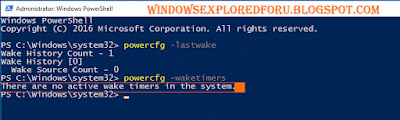
On the Other hand, if you have a different result like [Timer set by [Service]........etc ] message then its confirm that your Windows 10 PC automatically wakes from Sleep because of that service
you can undo the task by visiting the task scheduler - > Properties ->Conditions tab ->
Uncheck the Wake the computer to run this task option -> Apply -> OK
Hope it is helpful.
itself from sleep and after shutdown. At some point, he became lament and started saying things like
Machines have developed intelligence and they are gonna kill us( like in the movie i,Robot) i had
similar issue in the past,so i suggested him a solution that worked and to decide why Windows 10
Wakes from sleep by itself
if you are experiencing similar problem like as said earlier, then i recommend you to first check
whether some service wakes your PC from sleep or Shutdown like automatic maintanenace.
You need to understand the main thing responsible for waking Windows 10 from Sleep happens
because of several reasons like Improper power management for devices, and some options like
"Allow this device to wake up from device" is checked( you can find the option using device
manager). Normally, such operations are performed by devices like Keyboard and mouse but
sometimes our Windows 10 device will wake up even when we hadnt touched any device( no
physical contact??)
So,my first recommendation( based on my experience) is to run the following command on your
Command prompt or Powershell, based on the result, you can decide whether you have some
problems with the software ( You can view or change that in task scheduler library. when you
think updateorchestrator wakes your computer or Svchost waking Windows 10 computer )
Do we need any software ?
No, you just need a working PC
How to find the service that wakes Windows 10 Computer from Sleep Automatically
1) Open CMD
[Helpful link : How to Open CMD in windows 10]
( or) Powershell
[Helpful link 2 : How to open Powershell in Windows 10]
2) Type the following command
Powercfg -waketimers
3) Hit enter
It should display the result "There are no active wake timers in the System" which shows, no
service is waking your System from Sleep
On the Other hand, if you have a different result like [Timer set by [Service]........etc ] message then its confirm that your Windows 10 PC automatically wakes from Sleep because of that service
you can undo the task by visiting the task scheduler - > Properties ->Conditions tab ->
Uncheck the Wake the computer to run this task option -> Apply -> OK
Hope it is helpful.
Available link for download
Subscribe to:
Posts (Atom)