Showing posts with label open. Show all posts
Showing posts with label open. Show all posts
Monday, February 20, 2017
solved PSA Diagbox processes always open in memory
solved PSA Diagbox processes always open in memory
In order to not having all Diagbox processes open in memory until the moment i start Diagbox software, i have disabled its windows start commands, stopped and changed its services to manual and made a .cmd file to start the PSA diagbox, this way:
1. run > msconfig > start tab > disable ediagstart + psaagent + simbat > accept > dont restart yet
2. run > services.msc > stop these services and change them to manual: Firebird Guardian + Firebird Server + Serial Port Splitter service
3. run > notepad > copy/paste next lines and save file as .cmd so that you can start it all:
C:APPfirebird infbguard.exe -s
C:APPfirebird infbserver.exe -s
C:WINDOWSsystem32ftspssrv.exe
C:APPediageDiagStart.lnk
C:APPddc inpsastart.exe C:APPddc inpsaagent.exe
C:APPSIMSIMBat.lnk
C:AWRoot inlauncherLctPOLUX.exe
alternatively you can move the created .cmd file to c: and create a shortcut to it in the desktop, rename it to Diagbox and then change its icon taking it from the file at c:AWRoot inlauncherLctPOLUX.exe
restart computer and try, not responsible if Diagbox gets corrupted and need reinstall, for me it is working great.
1. run > msconfig > start tab > disable ediagstart + psaagent + simbat > accept > dont restart yet
2. run > services.msc > stop these services and change them to manual: Firebird Guardian + Firebird Server + Serial Port Splitter service
3. run > notepad > copy/paste next lines and save file as .cmd so that you can start it all:
C:APPfirebird infbguard.exe -s
C:APPfirebird infbserver.exe -s
C:WINDOWSsystem32ftspssrv.exe
C:APPediageDiagStart.lnk
C:APPddc inpsastart.exe C:APPddc inpsaagent.exe
C:APPSIMSIMBat.lnk
C:AWRoot inlauncherLctPOLUX.exe
alternatively you can move the created .cmd file to c: and create a shortcut to it in the desktop, rename it to Diagbox and then change its icon taking it from the file at c:AWRoot inlauncherLctPOLUX.exe
restart computer and try, not responsible if Diagbox gets corrupted and need reinstall, for me it is working great.
(Big thanks to manocao shares the info at http://cartechnology.co.uk/)
Available link for download

Tuesday, February 14, 2017
How to Open Rar Files in Windows 10 Tutorial
How to Open Rar Files in Windows 10 Tutorial
Though Majority of software and tools are served as an update on Windows 10, we still need an third
party software for doing some tasks, especially when we are in low bandwidth internet connection.
When our download speed is low or when we have only less volume of data left, we cant
download the great softwares on the internet as it is on original size. Most of us will recommend to
download an Highly compressed rar file to save our bandwidth, but the problem is we never said,
how to open those files.. And particularly if you are new to computer then it would be very difficult
for you. So in this post im gonna show how to open .rar files in Windows 10
What is a Rar file in Windows 10 ?
.Rar is just a format or extension that was made to convert or compress a large file for sending from
place to place like internet. Though there are ultra compressors like kgb compressor to compress
files for Windows 10, .Rar files are best compressor used till now.
How to open .Rar files in Windows 10?
First, you must know the thing that Windows 10 doesnt have the Rar file opener( Microsoft Rar
File Opener) by default. Though it has .Zip opener by default, we dont know why they hadnt
included such option may be they may include in future builds.
Then, how to open .Rar files?
To open .rar files we need some help from free Rar file Openers or .rar file opener for Windows 10 like 7zip or Winrar on our
Windows 10 PC.
1) First download any of the following software by clicking on the below link..
7Zip or Winrar or Some Opensource if you have idea
Visit the above link and click download on the website ( follow the Onscreen instructions)
2) Install the program, if you dont know how to do it, just click Next , Next, Next, Next
Warning : Disconnect your Internet when you install. this is because, most of the above softwares
are open source they would trick you to download some additional third party software from the
internet ( We cant assure they will always download the useful software) so its better to look before
we leap( Prevention is better than cure,isnt it ?).
3) Now, after installing it will ask you to Select the Formats it want to integrate..
For example : If you are installing Winrar then it will ask you to choose some options like ISO, Rar,
Zip,etc..
Check all the boxes and click Finish.
4) Now, go to the file location you wish to open.
5) Right click on the .Rar file, it will display open, open with, sent to, Cut, copy and some other options, Click on Properties.

6) It will open the properties window, On that click on General tab( which will be the default tab when it opens,so dont worry).
7) You will see an option Opens With : and some text like Winrar or 7zip depending on the software you installed.
if you dont see any of those options, then you need to follow the below steps..
i) Click on Change
ii) It will display the list of apps that support .Rar opener in your Windows 10 select the app you
just installed on your PC
iii) Click on Apply -> OK.
8) If you already see the .Rar file opener like Winrar or 7Zip then simply close the properties
window and follow the below steps.
How to extract the .Rar files in Windows 10
1) Right click on the Rar file.
2) You can see options like Extract Files or Extract Files using 7zip/Winrar or Extract files to "File name here"
3) click any one of the option for example "Extract files to "file name""

4) Wait,for sometime, you can see the new folder " On the name of the file" appearing on the same area.
5) After sometime, like 2 minutes open the folder that you see on step 4 and there you can find the extracted content there..
Note : The extraction time only depends on the size of the file, so it will take less than 10 seconds or
it can even take more than 1 hour, you can check its status anytime you want by simply clicking on
the application that performs extraction for example : you can view by clicking Winrar icon on the
taskbar.
Thats it..
You had done.!????
Hope it is helpful
party software for doing some tasks, especially when we are in low bandwidth internet connection.
When our download speed is low or when we have only less volume of data left, we cant
download the great softwares on the internet as it is on original size. Most of us will recommend to
download an Highly compressed rar file to save our bandwidth, but the problem is we never said,
how to open those files.. And particularly if you are new to computer then it would be very difficult
for you. So in this post im gonna show how to open .rar files in Windows 10
What is a Rar file in Windows 10 ?
.Rar is just a format or extension that was made to convert or compress a large file for sending from
place to place like internet. Though there are ultra compressors like kgb compressor to compress
files for Windows 10, .Rar files are best compressor used till now.
How to open .Rar files in Windows 10?
First, you must know the thing that Windows 10 doesnt have the Rar file opener( Microsoft Rar
File Opener) by default. Though it has .Zip opener by default, we dont know why they hadnt
included such option may be they may include in future builds.
Then, how to open .Rar files?
To open .rar files we need some help from free Rar file Openers or .rar file opener for Windows 10 like 7zip or Winrar on our
Windows 10 PC.
1) First download any of the following software by clicking on the below link..
7Zip or Winrar or Some Opensource if you have idea
Visit the above link and click download on the website ( follow the Onscreen instructions)
2) Install the program, if you dont know how to do it, just click Next , Next, Next, Next
Warning : Disconnect your Internet when you install. this is because, most of the above softwares
are open source they would trick you to download some additional third party software from the
internet ( We cant assure they will always download the useful software) so its better to look before
we leap( Prevention is better than cure,isnt it ?).
3) Now, after installing it will ask you to Select the Formats it want to integrate..
For example : If you are installing Winrar then it will ask you to choose some options like ISO, Rar,
Zip,etc..
Check all the boxes and click Finish.
4) Now, go to the file location you wish to open.
5) Right click on the .Rar file, it will display open, open with, sent to, Cut, copy and some other options, Click on Properties.
6) It will open the properties window, On that click on General tab( which will be the default tab when it opens,so dont worry).
7) You will see an option Opens With : and some text like Winrar or 7zip depending on the software you installed.
if you dont see any of those options, then you need to follow the below steps..
i) Click on Change
ii) It will display the list of apps that support .Rar opener in your Windows 10 select the app you
just installed on your PC
iii) Click on Apply -> OK.
8) If you already see the .Rar file opener like Winrar or 7Zip then simply close the properties
window and follow the below steps.
How to extract the .Rar files in Windows 10
1) Right click on the Rar file.
2) You can see options like Extract Files or Extract Files using 7zip/Winrar or Extract files to "File name here"
3) click any one of the option for example "Extract files to "file name""
4) Wait,for sometime, you can see the new folder " On the name of the file" appearing on the same area.
5) After sometime, like 2 minutes open the folder that you see on step 4 and there you can find the extracted content there..
Note : The extraction time only depends on the size of the file, so it will take less than 10 seconds or
it can even take more than 1 hour, you can check its status anytime you want by simply clicking on
the application that performs extraction for example : you can view by clicking Winrar icon on the
taskbar.
Thats it..
You had done.!????
Hope it is helpful
Available link for download
Sunday, February 12, 2017
How to Open Device Manager in Windows 10 Guide
How to Open Device Manager in Windows 10 Guide
Open device manager and update your drivers, thats what we suggest when we have errors related to
drivers, but we fail to say how to open device manager. While Opening device manager is like
turning on light switch for most of the regular users( that much simple). there are still people who
find difficulty in accessing device manager. Whether if you are novice or new to Windows dont
worry, here are some easiest ways to
open device manager in windows 10.
What is device manager in windows 10 ?
Device manager is the place where all our devices components will be registered, which means its the link for executing the program codes ( thats we call drivers), Windows will use the device manager feature (an application) to check the available devices inside the PC.
If you insert a USB to copy or transfer files, then it would first get regsistered on this device manager,then only we are notified like " a new device was detected,scan to fix,etc.. message"
Ok,Where is device manager located in Windows 10 ?
Device manager and other components are located inside the Windows directory usually System32 folder.
How to access or open device manager in Windows 10 ?
there are many ways available as said earlier, but here in this post lets see the easiest ways to open device manager in windows 10.

Method 1 : Using Run Command
1) Press Windows + R Keys simultaneously
2) Type devmgmt.msc
3) Hit enter
It will Open device manager,
Pretty simple huh ?
Method 2 : Using search
1) press Windows Key
2) type device manager
3) select the top most result
It will Open device manager,
If you wish to open device manager only through CMD,then here is the way.
1) First, open CMD.
[See : How to open cmd in different ways]
2) type devmgmt.msc
3) Hit enter.
Thats it,,
This are the easiest ways to open device manager in Windows 10 ,and the great thing is this method
will work on any edition of Windows 10 and also in previous version of Windows like Windows 8.1
and Windows 8.
Incoming search terms :
open device manager from run, open device manager in windows 10, open device manager from cmd in windows 10, open device manager in windows 10,Where do you find the device manager, windows 10 device manager shortcut, windows 10 device manager not working, what is device manager windows 10, cannot access device manager windows 10
drivers, but we fail to say how to open device manager. While Opening device manager is like
turning on light switch for most of the regular users( that much simple). there are still people who
find difficulty in accessing device manager. Whether if you are novice or new to Windows dont
worry, here are some easiest ways to
open device manager in windows 10.
What is device manager in windows 10 ?
Device manager is the place where all our devices components will be registered, which means its the link for executing the program codes ( thats we call drivers), Windows will use the device manager feature (an application) to check the available devices inside the PC.
If you insert a USB to copy or transfer files, then it would first get regsistered on this device manager,then only we are notified like " a new device was detected,scan to fix,etc.. message"
Ok,Where is device manager located in Windows 10 ?
Device manager and other components are located inside the Windows directory usually System32 folder.
How to access or open device manager in Windows 10 ?
there are many ways available as said earlier, but here in this post lets see the easiest ways to open device manager in windows 10.
Method 1 : Using Run Command
1) Press Windows + R Keys simultaneously
2) Type devmgmt.msc
3) Hit enter
It will Open device manager,
Pretty simple huh ?
Method 2 : Using search
1) press Windows Key
2) type device manager
3) select the top most result
It will Open device manager,
If you wish to open device manager only through CMD,then here is the way.
1) First, open CMD.
[See : How to open cmd in different ways]
2) type devmgmt.msc
3) Hit enter.
Thats it,,
This are the easiest ways to open device manager in Windows 10 ,and the great thing is this method
will work on any edition of Windows 10 and also in previous version of Windows like Windows 8.1
and Windows 8.
Incoming search terms :
open device manager from run, open device manager in windows 10, open device manager from cmd in windows 10, open device manager in windows 10,Where do you find the device manager, windows 10 device manager shortcut, windows 10 device manager not working, what is device manager windows 10, cannot access device manager windows 10
Available link for download
Monday, January 30, 2017
Open task manager in Windows 10 How to open taskmanager in Windows 10 Beginners guide
Open task manager in Windows 10 How to open taskmanager in Windows 10 Beginners guide
Open task manager in Windows 10 - How to open task manager in Windows 10 using shortcuts -
Thats what we gonna see in this post. We can open task manager using cmd, We can open task
manager using powershell, We can open task manager using search box, which clearly shows there
are lot of ways to open task manager in Windows 10.
Do you need to download Task manager for Windows 10 ?
No, you dont need to download task manager in Windows 10, as it inbuilt..
then, how to open it..
As, said earlier there are many ways, we can open task manager in windows 10.
However, i like to show only the basic method which is very helpful if you are beginner.
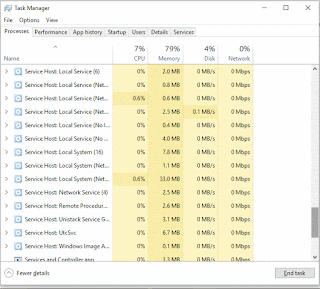
Method 1 :
How to open task manager using shortcut in Windows 10
1) Press Ctrl + Shift + Esc Keys on your keyboard.
You will get the task manager
Method 2 :
How to Open task manager using search in Windows 10
1) Press Windows key
2) Type task manager
3) Select the top most result
Method 3 : using powershell
How to open task manager using Powershell in Windows 10
1) Open Powershell
[See : How to open powershell in Windows 10]
2) Type the following command
taskmgr
3) Hit enter
Method 4 : Using CMD
How to open task manager using cmd in Windows 10
1) Open cmd
[See : How to open cmd]
2) Type the following command
taskmgr
3) Hit enter
Thats it..
This are the easiest ways you can open task manager in Windows 10.
Hope it helps..
Are you a beginner ? then below is a link to find all the beginner articles that may help you in
various stages and in mastering basics of Windows 10, just click on the below link to view..
Click to read all basic tutorials..
Thats what we gonna see in this post. We can open task manager using cmd, We can open task
manager using powershell, We can open task manager using search box, which clearly shows there
are lot of ways to open task manager in Windows 10.
Do you need to download Task manager for Windows 10 ?
No, you dont need to download task manager in Windows 10, as it inbuilt..
then, how to open it..
As, said earlier there are many ways, we can open task manager in windows 10.
However, i like to show only the basic method which is very helpful if you are beginner.
Method 1 :
How to open task manager using shortcut in Windows 10
1) Press Ctrl + Shift + Esc Keys on your keyboard.
You will get the task manager
Method 2 :
How to Open task manager using search in Windows 10
1) Press Windows key
2) Type task manager
3) Select the top most result
Method 3 : using powershell
How to open task manager using Powershell in Windows 10
1) Open Powershell
[See : How to open powershell in Windows 10]
2) Type the following command
taskmgr
3) Hit enter
Method 4 : Using CMD
How to open task manager using cmd in Windows 10
1) Open cmd
[See : How to open cmd]
2) Type the following command
taskmgr
3) Hit enter
Thats it..
This are the easiest ways you can open task manager in Windows 10.
Hope it helps..
Are you a beginner ? then below is a link to find all the beginner articles that may help you in
various stages and in mastering basics of Windows 10, just click on the below link to view..
Available link for download
Thursday, January 26, 2017
Open Action Center in Windows 10 What is action center and How to open action center in Windows 10 Guide
Open Action Center in Windows 10 What is action center and How to open action center in Windows 10 Guide
Open Action Center in Windows 10 - What is action center ? and How to open action
center in Windows 10 ? - Thats what we going to see in this post..
If you are new to Windows 10, then probably you may see some things differently than in your
previous Operating system. This is because Microsoft replaced things in order to provide and design
a new user interface, one of such things that were altered or changed is Action Center.
So, if you are asking where is action center or if you think action center in Windows 10 missing..
then here is a guide that may help you...
What is Action Center in Windows 10 ?
Action center is the one that is designed to notify users, so that they can take respective action.
The notifications will appear on the action center.
The flag like action center icon is now replaced with Message box like icon, and you can find them
on the right corner of taskbar.
How to open action center in Windows 10..
There are many methods to open action center in Windows 10, but here i like to share only the
easiest method to open action center in Windows 10.
1) Sign-in to your Windows 10 PC
2) On your right end corner of the taskbar, you will find the message box like icon, click on it..

3) It will open action center
Method 2 : Using Action center of Windows 10 Shortcut
4) Simply, Press Windows (logo) key + A keys on your keyboard
it will open action center.
Thats it..
Enjoy.
Remember you dont need to download action center for Windows 10 ,as it is inbuilt in Windows
10.
Hope it is helpful.
Are you a beginner ? then here is a link to find all the beginner articles, just click on the below
link,you will find all the basic or beginners articles on windows 10..
Click to read all basic tutorials..
center in Windows 10 ? - Thats what we going to see in this post..
If you are new to Windows 10, then probably you may see some things differently than in your
previous Operating system. This is because Microsoft replaced things in order to provide and design
a new user interface, one of such things that were altered or changed is Action Center.
So, if you are asking where is action center or if you think action center in Windows 10 missing..
then here is a guide that may help you...
What is Action Center in Windows 10 ?
Action center is the one that is designed to notify users, so that they can take respective action.
The notifications will appear on the action center.
The flag like action center icon is now replaced with Message box like icon, and you can find them
on the right corner of taskbar.
How to open action center in Windows 10..
There are many methods to open action center in Windows 10, but here i like to share only the
easiest method to open action center in Windows 10.
1) Sign-in to your Windows 10 PC
2) On your right end corner of the taskbar, you will find the message box like icon, click on it..
3) It will open action center
Method 2 : Using Action center of Windows 10 Shortcut
4) Simply, Press Windows (logo) key + A keys on your keyboard
it will open action center.
Thats it..
Enjoy.
Remember you dont need to download action center for Windows 10 ,as it is inbuilt in Windows
10.
Hope it is helpful.
Are you a beginner ? then here is a link to find all the beginner articles, just click on the below
link,you will find all the basic or beginners articles on windows 10..
Available link for download
Monday, January 23, 2017
Where is OneDrive App What it is and How to open it in Windows 10 Updated
Where is OneDrive App What it is and How to open it in Windows 10 Updated
Where is OneDrive app and How to Open OneDrive application in Windows 10 - Thats what we
gonna see in this post. If you are new
to windows 10 then the first thing you will notice apart from my computer icon missing in desktop.
is the OneDrive app. You
may think about it like what is OneDrive on this windows 10, and it would be better if someone
explain OneDrive to Me. So here is an post to show what is OneDrive and how to open it in
Windows 10.
What is OneDrive in Windows 10 ?
It would be very much big concept.. But i like to explain that in a short note..
OneDrive is an cloud storage facility. You can backup all your files, folders and everything Online..
When your PC is in trouble or if your system fails, then you can use this OneDrive to download the
backup copy of that file anytime, anywhere for example : You can download the file in your Friend/
relative system.

Which would be the best feature if you have a very good internet connection because your Files will
be uploaded online, this concept is known as Syncing.
How to open OneDrive in Windows 10 ?
if you wish to open OneDrive then you dont need to download OneDrive desktop app, because in
Windows 10 OneDrive is inbuilt.
1) Press Windows Key
2) Type OneDrive
3) Select the top most result OneDrive on the Apps section.
![Where is OneDrive App and How to open it in Windows 10 [Updated]](https://blogger.googleusercontent.com/img/b/R29vZ2xl/AVvXsEi1RMU_nkZpp12wBVBtHC3A2Xb6h6I-XWPlsl5i52b6bloiNiO7B1BMbB5q0YE8iBLvfeSeN1dy2-6e2bOGk4G8UpnFYhCrwG2-tDy0jS5QUEJCcqKttz6i0BqQqwt7zSMW4Svg6wo-VWQ/s320/one-drive.gif "Where is OneDrive App and How to open it in Windows 10 [Updated]")
It will open OneDrive in your PC.
Thats it..
Using the steps shown in the post, you can Open OneDrive desktop app in any desktop and laptops..
Hope it is helpful.
Are you a beginner ? then here are all posts that deals with mastering basics of Windows 10.
Click to see all the basic tutorials
OTHER RELATED ARTICLES..
How to Stop OneDrive Sync in Windows 10 [Updated]
Hide or Remove OneDrive icon from file explorer in Windows 10 [Updated]
gonna see in this post. If you are new
to windows 10 then the first thing you will notice apart from my computer icon missing in desktop.
is the OneDrive app. You
may think about it like what is OneDrive on this windows 10, and it would be better if someone
explain OneDrive to Me. So here is an post to show what is OneDrive and how to open it in
Windows 10.
What is OneDrive in Windows 10 ?
It would be very much big concept.. But i like to explain that in a short note..
OneDrive is an cloud storage facility. You can backup all your files, folders and everything Online..
When your PC is in trouble or if your system fails, then you can use this OneDrive to download the
backup copy of that file anytime, anywhere for example : You can download the file in your Friend/
relative system.
Which would be the best feature if you have a very good internet connection because your Files will
be uploaded online, this concept is known as Syncing.
How to open OneDrive in Windows 10 ?
if you wish to open OneDrive then you dont need to download OneDrive desktop app, because in
Windows 10 OneDrive is inbuilt.
1) Press Windows Key
2) Type OneDrive
3) Select the top most result OneDrive on the Apps section.
It will open OneDrive in your PC.
Thats it..
Using the steps shown in the post, you can Open OneDrive desktop app in any desktop and laptops..
Hope it is helpful.
Are you a beginner ? then here are all posts that deals with mastering basics of Windows 10.
Click to see all the basic tutorials
OTHER RELATED ARTICLES..
How to Stop OneDrive Sync in Windows 10 [Updated]
Hide or Remove OneDrive icon from file explorer in Windows 10 [Updated]
Available link for download
Subscribe to:
Posts (Atom)