Showing posts with label app. Show all posts
Showing posts with label app. Show all posts
Sunday, March 19, 2017
Pin app to taskbar in Windows 10 How to Updated
Pin app to taskbar in Windows 10 How to Updated
Whether you are looking for how to pin app to taskbar or how to solve the problem cannot pin to
taskbar,(which means pin to taskbar is not working) here is an guide on how to do in windows 10.
In our last post, i had explained how to pin an app to start menu [Check it here], in this post i like to
show how to pin apps to taskbar in Windows 10.
Of course, there are many ways available to pin an app to taskbar or pin an app to desktop in
windows 10. But, some of it are complicated so i like to show only the couple of Ways you can use it.
How to Pin an App to taskbar in Windows 10
![Pin app to taskbar in Windows 10 - How to [Updated]](https://blogger.googleusercontent.com/img/b/R29vZ2xl/AVvXsEjp_jKmPAPS00mdUiP1qqF5lWHPZFipeaOq4HZOow4v_ItYs6fhG06-dhhVWc_85E69zT_FGHjCZ1CdxusRBg5RH3J_CIYtjpFQ0CMdCmIFownl2kPzK8jDFI4hr3rmwC1isB4n4yMdI5Y/s320/pin-to-taskbar.gif "Pin app to taskbar in Windows 10 - How to [Updated]")
taskbar,(which means pin to taskbar is not working) here is an guide on how to do in windows 10.
In our last post, i had explained how to pin an app to start menu [Check it here], in this post i like to
show how to pin apps to taskbar in Windows 10.
Of course, there are many ways available to pin an app to taskbar or pin an app to desktop in
windows 10. But, some of it are complicated so i like to show only the couple of Ways you can use it.
How to Pin an App to taskbar in Windows 10
1) First decide the App you wish to pin it to start..
2) Press Windows( logo) key on the keyboard or Click on the start button.
3) You will see some apps displayed there..
i) Scroll down and find the App you wish to Pin to taskbar
ii) Right click on that app, you will see many options like Pin to start, More, uninstall..
iii) Select more, you will see some options like Pin to taskbar , Run as Administrator, Uninstall.
iv) Click on Pin to taskbar.
Thats it..
You will see your App pinned to taskbar.
Cannot Pin an App to taskbar or Pin to taskbar is not working
If you came up with the above problem like cant pin app to taskbar, then you can follow some of the
oldest methods that you may had worked while pinning an item to taskbar like in windows 7.
OK, here is my solution...
1) Open the item or app you wish to pin to taskbar
2) When it opened, you will see its icon on the taskbar, for example if you wish to pin chrome to
taskbar in Windows 10, then you can pin it by..
i) First Open chrome browser..
ii) you will see the globe like icon (the logo) on your taskbar..
3) Right click on the icon
4) Select Pin to taskbar
Thats youre done..
Let me tell you a secret??, probably you may had already known..
You can pin the app or folder to taskbar by simply dragging it to taskbar.
Which means, just click on the folder or app on your desktop or shortcut, hold your mouse and drag
it to the taskbar, you will see the app or folder now pinned.????
Like this, you can pin an app whether it is windows 10 laptop or desktop.. You can pin it to taskbar.
Thats it..
Other Posts..
Click to see all tutorials of windows 10...
Available link for download

Monday, February 27, 2017
Screen flickering in Windows 10 How to check whether display flash occurs because of driver or app in Windows 10
Screen flickering in Windows 10 How to check whether display flash occurs because of driver or app in Windows 10
Screen flickering in Windows 10 - How to check whether display flash occurs because of driver or app in Windows 10 thats what we gonna see in this post..
In our last post, we had seen how to open task manager in windows 10 in this post,lets see how to
check screen flashing in windows 10 happens whether due to an incompatible app or the driver issue.
What are the causes for screen flickering in Windows 10 ?
Microsoft, says the Screen flickering in windows 10 usually occurs only because of two ways..
One is Incompatible app and the other is due to display driver problem.
OK, How to check it ?
If you think your windows 10 screen flashing occurs randomly or if you wish to fix laptop flickering
screen in windows 10. then the first step you need to do is to check whether it is because of windows issue or app issue.
So, in this post lets see how to determine the Screen flickering occurs because of Windows or incompatible app.
Do You need an software ?
No, you dont need an application to fix screen flickering in windows 10. That is , you dont need to
an software to check screen flickering in windows 10
then, how to do ...?
Just follow the steps below..
1) Login to your windows 10 PC
2) Open taskmanager
[See : How to open task manager in windows 10]
Does, your task manager flickers ? then it is because of driver problem. you need to update your display drivers.
[Helpful link : How to update display driver in windows 10
How to Update drivers in windows 10 ]

If your task manager doesnt flickers, then it is due to incompatible app, and you have no problem in
your PC.. just try closing and opening the app again,or reinstall the app it will fix the problem..
Thats it..
Using the above method, you can fix windows 10 screen flickering on any windows 10 laptop and
windows 10 desktop.
Are you a beginner ? then here is a link to find all the beginner articles, just click on the below link..
Click to read all basic tutorials..
In our last post, we had seen how to open task manager in windows 10 in this post,lets see how to
check screen flashing in windows 10 happens whether due to an incompatible app or the driver issue.
What are the causes for screen flickering in Windows 10 ?
Microsoft, says the Screen flickering in windows 10 usually occurs only because of two ways..
One is Incompatible app and the other is due to display driver problem.
OK, How to check it ?
If you think your windows 10 screen flashing occurs randomly or if you wish to fix laptop flickering
screen in windows 10. then the first step you need to do is to check whether it is because of windows issue or app issue.
So, in this post lets see how to determine the Screen flickering occurs because of Windows or incompatible app.
Do You need an software ?
No, you dont need an application to fix screen flickering in windows 10. That is , you dont need to
an software to check screen flickering in windows 10
then, how to do ...?
Just follow the steps below..
1) Login to your windows 10 PC
2) Open taskmanager
[See : How to open task manager in windows 10]
Does, your task manager flickers ? then it is because of driver problem. you need to update your display drivers.
[Helpful link : How to update display driver in windows 10
How to Update drivers in windows 10 ]
If your task manager doesnt flickers, then it is due to incompatible app, and you have no problem in
your PC.. just try closing and opening the app again,or reinstall the app it will fix the problem..
Thats it..
Using the above method, you can fix windows 10 screen flickering on any windows 10 laptop and
windows 10 desktop.
Are you a beginner ? then here is a link to find all the beginner articles, just click on the below link..
Available link for download
Tuesday, February 21, 2017
How to Unpin an App from start menu or Taskbar in Windows 10 Updated
How to Unpin an App from start menu or Taskbar in Windows 10 Updated
Unpin an program or icon from start and taskbar - How to do in Windows 10 Creators update and so
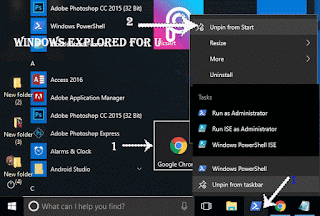
on..
In our last post, we had seen how to pin an app to start menu in windows 10, how to pin an app to
taskbar in Windows 10 ( including an hidden trick??) . Thanks to our reader Michael for notifying
me to post how to unpin an app, program or in simple language the icon. What he did was pinned an
app to taskbar and start menu, he did everything right, except one thing, he pinned the wrong
program(which he doesnt want to do).Since he was a beginner, he asked me to post how to unpin an
app from taskbar, which he thought could help many fellow users like us..
So, in this post lets see how to unpin an app from start menu and taskbar, unpin an program from
start menu and taskbar, unpin an icon from start menu and taskbar ( Yup, they all are same terms and
follows same procedure????)
I like to say one thing, you dont need an software to unpin app from start. Also you dont need
registry or group policy to unpin program/icon from start or taskbar.
Just follow the below steps..
How to Unpin an program or icon or Application from taskbar in Windows 10
1) look for the app you wish to unpin from taskbar. on taskbar.
2) Right click on the item (apps icon) you wish to unpin on taskbar
3) You will see the Apps name, Unpin from taskbar , Close window Option,
4) Click on the Unpin from taskbar Option.
Fact ! if you see Pin to taskbar instead of Unpin from taskbar, then you dont need to do anything, because your app is either already unpinned from taskbar or yet to be pinned.
Thats it..
How to Unpin an program or icon or Application from start menu in Windows 10
1) Press Windows( logo) key on the keyboard or Click on the start button.
2) You will see some apps displayed there..
i) Scroll down and find the App you wish to Unpin from start menu
ii) Right click on that app
iii) It will display options like Unpin from start, Move, uninstall
iv) click on unpin from start.
Thats it..
You have done..???
like these, you can unpin any app from start menu in Windows 10 laptop or desktop...
Hope it is helpful.
Available link for download
Wednesday, February 1, 2017
Windows Maps app in Windows 10 Where it is and how to launch it in Windows 10 Updated
Windows Maps app in Windows 10 Where it is and how to launch it in Windows 10 Updated
Microsofts Windows 10 have a default Maps App, but many of us dont know about this thing.. So
in this post, lets see how to open windows maps app in Windows 10. Works on Windows 10
Creators Update, Windows 10
Anniversary Update, and other editions of Windows like Windows 10 earlier builds like Aug 2015
and Nov 2015 builds.
Google Maps vs Microsoft Windows Map which is better ?
Comparing those two is very difficult, because they both provide the same function, same features
most of the time. However, some features depend on your location. For example : Though, they both
provide traffic update the update time will be lesser in Windows maps App when it comes to non
popular areas or for a particular location. In the same way, google Maps which worked great on the area will fail on some other area.
So, we cant say this is best and that is best. Its you who want to test it..
OK,then
how to download Maps app for windows 10?
Actually, we dont need to download an separate map for windows 10, because such app already
exists on our system, all we need to do is find it.
if your windows 10 maps app is not working then try restarting your PC and open it..
How to open windows Maps ?
just follow the below steps...
1) Press Windows (logo) Key on your keyboard or press start button
2) Type Maps
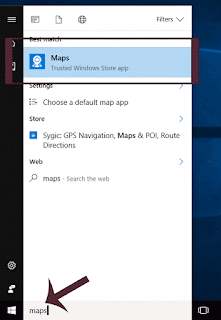
3) Select the top most result... "Maps" trusted windows store app
Thats it..
It will open maps app in windows 10.
If you think windows 10 maps app is missing, then you can find it using the above method..
Click to read all basic tutorials..
in this post, lets see how to open windows maps app in Windows 10. Works on Windows 10
Creators Update, Windows 10
Anniversary Update, and other editions of Windows like Windows 10 earlier builds like Aug 2015
and Nov 2015 builds.
Google Maps vs Microsoft Windows Map which is better ?
Comparing those two is very difficult, because they both provide the same function, same features
most of the time. However, some features depend on your location. For example : Though, they both
provide traffic update the update time will be lesser in Windows maps App when it comes to non
popular areas or for a particular location. In the same way, google Maps which worked great on the area will fail on some other area.
So, we cant say this is best and that is best. Its you who want to test it..
OK,then
how to download Maps app for windows 10?
Actually, we dont need to download an separate map for windows 10, because such app already
exists on our system, all we need to do is find it.
if your windows 10 maps app is not working then try restarting your PC and open it..
How to open windows Maps ?
just follow the below steps...
1) Press Windows (logo) Key on your keyboard or press start button
2) Type Maps
3) Select the top most result... "Maps" trusted windows store app
Thats it..
It will open maps app in windows 10.
If you think windows 10 maps app is missing, then you can find it using the above method..
Click to read all basic tutorials..
Available link for download
Tuesday, January 24, 2017
How to turn off automatic updates in Android app
How to turn off automatic updates in Android app
Tag: How to turn off automatic updates in Android app full keygen, full key, full crack, portable, full serial key, lastest, 32 & 64 bit, for windows 7 8 10, free download
How to turn off the auto-update feature in the Android app, the app automatically updates regularly will cost a lot of mobile traffic, slow down your computer and cause a lot of nuisance. Developers usually always update the latest version for your application to increase performance, fix bugs, improve the interface or the new features to their apps. If you feel stable version here or you do not want Google Play update frenzy, we could shut down or update manually. Update manually whenever you want, especially if you are using 3G. With such expensive 3G price in VN, the update cause us a lot of money. Many people complain that the phone charges automatically deducted from the mobile traffic, this is one of the causes. Principle application update will download the installation materials 1 of the application, then overwriting old application, so cost is not small 3G. Moreover they can disrupt the program of our active. They will occupy the resources to cater for the installation process. This article will guide you how to turn off the details automatically update the app on your Android device. How to change the settings, you also do the same.
How to turn off the auto-update feature in the Android app, the app automatically updates regularly will cost a lot of mobile traffic, slow down your computer and cause a lot of nuisance. Developers usually always update the latest version for your application to increase performance, fix bugs, improve the interface or the new features to their apps. If you feel stable version here or you do not want Google Play update frenzy, we could shut down or update manually. Update manually whenever you want, especially if you are using 3G. With such expensive 3G price in VN, the update cause us a lot of money. Many people complain that the phone charges automatically deducted from the mobile traffic, this is one of the causes. Principle application update will download the installation materials 1 of the application, then overwriting old application, so cost is not small 3G. Moreover they can disrupt the program of our active. They will occupy the resources to cater for the installation process. This article will guide you how to turn off the details automatically update the app on your Android device. How to change the settings, you also do the same.
How to turn off automatic updates in the Google Play app (CH Play)
Step 1. Open the Play Store app, click on the icon menu or surf the screen to the right and select C installs.

Read more »
Available link for download
Monday, January 23, 2017
Where is OneDrive App What it is and How to open it in Windows 10 Updated
Where is OneDrive App What it is and How to open it in Windows 10 Updated
Where is OneDrive app and How to Open OneDrive application in Windows 10 - Thats what we
gonna see in this post. If you are new
to windows 10 then the first thing you will notice apart from my computer icon missing in desktop.
is the OneDrive app. You
may think about it like what is OneDrive on this windows 10, and it would be better if someone
explain OneDrive to Me. So here is an post to show what is OneDrive and how to open it in
Windows 10.
What is OneDrive in Windows 10 ?
It would be very much big concept.. But i like to explain that in a short note..
OneDrive is an cloud storage facility. You can backup all your files, folders and everything Online..
When your PC is in trouble or if your system fails, then you can use this OneDrive to download the
backup copy of that file anytime, anywhere for example : You can download the file in your Friend/
relative system.

Which would be the best feature if you have a very good internet connection because your Files will
be uploaded online, this concept is known as Syncing.
How to open OneDrive in Windows 10 ?
if you wish to open OneDrive then you dont need to download OneDrive desktop app, because in
Windows 10 OneDrive is inbuilt.
1) Press Windows Key
2) Type OneDrive
3) Select the top most result OneDrive on the Apps section.
![Where is OneDrive App and How to open it in Windows 10 [Updated]](https://blogger.googleusercontent.com/img/b/R29vZ2xl/AVvXsEi1RMU_nkZpp12wBVBtHC3A2Xb6h6I-XWPlsl5i52b6bloiNiO7B1BMbB5q0YE8iBLvfeSeN1dy2-6e2bOGk4G8UpnFYhCrwG2-tDy0jS5QUEJCcqKttz6i0BqQqwt7zSMW4Svg6wo-VWQ/s320/one-drive.gif "Where is OneDrive App and How to open it in Windows 10 [Updated]")
It will open OneDrive in your PC.
Thats it..
Using the steps shown in the post, you can Open OneDrive desktop app in any desktop and laptops..
Hope it is helpful.
Are you a beginner ? then here are all posts that deals with mastering basics of Windows 10.
Click to see all the basic tutorials
OTHER RELATED ARTICLES..
How to Stop OneDrive Sync in Windows 10 [Updated]
Hide or Remove OneDrive icon from file explorer in Windows 10 [Updated]
gonna see in this post. If you are new
to windows 10 then the first thing you will notice apart from my computer icon missing in desktop.
is the OneDrive app. You
may think about it like what is OneDrive on this windows 10, and it would be better if someone
explain OneDrive to Me. So here is an post to show what is OneDrive and how to open it in
Windows 10.
What is OneDrive in Windows 10 ?
It would be very much big concept.. But i like to explain that in a short note..
OneDrive is an cloud storage facility. You can backup all your files, folders and everything Online..
When your PC is in trouble or if your system fails, then you can use this OneDrive to download the
backup copy of that file anytime, anywhere for example : You can download the file in your Friend/
relative system.
Which would be the best feature if you have a very good internet connection because your Files will
be uploaded online, this concept is known as Syncing.
How to open OneDrive in Windows 10 ?
if you wish to open OneDrive then you dont need to download OneDrive desktop app, because in
Windows 10 OneDrive is inbuilt.
1) Press Windows Key
2) Type OneDrive
3) Select the top most result OneDrive on the Apps section.
It will open OneDrive in your PC.
Thats it..
Using the steps shown in the post, you can Open OneDrive desktop app in any desktop and laptops..
Hope it is helpful.
Are you a beginner ? then here are all posts that deals with mastering basics of Windows 10.
Click to see all the basic tutorials
OTHER RELATED ARTICLES..
How to Stop OneDrive Sync in Windows 10 [Updated]
Hide or Remove OneDrive icon from file explorer in Windows 10 [Updated]
Available link for download
Subscribe to:
Posts (Atom)