Showing posts with label display. Show all posts
Showing posts with label display. Show all posts
Monday, February 27, 2017
Screen flickering in Windows 10 How to check whether display flash occurs because of driver or app in Windows 10
Screen flickering in Windows 10 How to check whether display flash occurs because of driver or app in Windows 10
Screen flickering in Windows 10 - How to check whether display flash occurs because of driver or app in Windows 10 thats what we gonna see in this post..
In our last post, we had seen how to open task manager in windows 10 in this post,lets see how to
check screen flashing in windows 10 happens whether due to an incompatible app or the driver issue.
What are the causes for screen flickering in Windows 10 ?
Microsoft, says the Screen flickering in windows 10 usually occurs only because of two ways..
One is Incompatible app and the other is due to display driver problem.
OK, How to check it ?
If you think your windows 10 screen flashing occurs randomly or if you wish to fix laptop flickering
screen in windows 10. then the first step you need to do is to check whether it is because of windows issue or app issue.
So, in this post lets see how to determine the Screen flickering occurs because of Windows or incompatible app.
Do You need an software ?
No, you dont need an application to fix screen flickering in windows 10. That is , you dont need to
an software to check screen flickering in windows 10
then, how to do ...?
Just follow the steps below..
1) Login to your windows 10 PC
2) Open taskmanager
[See : How to open task manager in windows 10]
Does, your task manager flickers ? then it is because of driver problem. you need to update your display drivers.
[Helpful link : How to update display driver in windows 10
How to Update drivers in windows 10 ]

If your task manager doesnt flickers, then it is due to incompatible app, and you have no problem in
your PC.. just try closing and opening the app again,or reinstall the app it will fix the problem..
Thats it..
Using the above method, you can fix windows 10 screen flickering on any windows 10 laptop and
windows 10 desktop.
Are you a beginner ? then here is a link to find all the beginner articles, just click on the below link..
Click to read all basic tutorials..
In our last post, we had seen how to open task manager in windows 10 in this post,lets see how to
check screen flashing in windows 10 happens whether due to an incompatible app or the driver issue.
What are the causes for screen flickering in Windows 10 ?
Microsoft, says the Screen flickering in windows 10 usually occurs only because of two ways..
One is Incompatible app and the other is due to display driver problem.
OK, How to check it ?
If you think your windows 10 screen flashing occurs randomly or if you wish to fix laptop flickering
screen in windows 10. then the first step you need to do is to check whether it is because of windows issue or app issue.
So, in this post lets see how to determine the Screen flickering occurs because of Windows or incompatible app.
Do You need an software ?
No, you dont need an application to fix screen flickering in windows 10. That is , you dont need to
an software to check screen flickering in windows 10
then, how to do ...?
Just follow the steps below..
1) Login to your windows 10 PC
2) Open taskmanager
[See : How to open task manager in windows 10]
Does, your task manager flickers ? then it is because of driver problem. you need to update your display drivers.
[Helpful link : How to update display driver in windows 10
How to Update drivers in windows 10 ]
If your task manager doesnt flickers, then it is due to incompatible app, and you have no problem in
your PC.. just try closing and opening the app again,or reinstall the app it will fix the problem..
Thats it..
Using the above method, you can fix windows 10 screen flickering on any windows 10 laptop and
windows 10 desktop.
Are you a beginner ? then here is a link to find all the beginner articles, just click on the below link..
Available link for download

Friday, February 10, 2017
Display driver has stopped Responding and has recovered error in Windows 10 Fixed
Display driver has stopped Responding and has recovered error in Windows 10 Fixed
Whenever we play high graphic games or use that kind of softwares,our PC will produce a strange
error Stating "Display driver has stopped responding and has recovered" this error message also
suitable when your PC hangs temporarily or become unresponsive for a moment.
So,if your PC does such tasks,then here is your guide on how to fix it..
Follow the steps below..
First,update your display drivers of our PC
Step 1 : Login to Your Windows 10 PC.
Step 2 : Press Windows + R Key simultaneously.
Step 3 : Type devmgmt.msc
Step 5 : Click on Display adapters.
Step 6 : Under that you Will find display driver installed on your PC.
Step 7 : Right Click on it and Select "Update driver Software".
Software" option.
Step 2 : Open Control Panel.
[See : How to Open Control Panel Easily]
![How to Fix video tdr Failure error in Windows 10 [ Solved]](https://blogger.googleusercontent.com/img/b/R29vZ2xl/AVvXsEi3oiWGgiYP_3GQ_3EY0XQq0afvVPH4uylgJXCkqsTBMPT8X2KuvRSSHDXPSpjXKgLf9YNp3TXobBm1pKsN7Hk199IA9U_7VdWa0cAlIdJ44wTaiyp4n5oIZ6LZ_QW0gL494bxIpvGS5wM/s320/grapgics.gif "How to Fix video tdr Failure error in Windows 10 [ Solved]")
Collapse,New,Find,Delete,etc.. on that
error Stating "Display driver has stopped responding and has recovered" this error message also
suitable when your PC hangs temporarily or become unresponsive for a moment.
So,if your PC does such tasks,then here is your guide on how to fix it..
Follow the steps below..
First,update your display drivers of our PC
Step 1 : Login to Your Windows 10 PC.
Step 2 : Press Windows + R Key simultaneously.
Step 3 : Type devmgmt.msc
Step 4 : Hit Enter.
Step 5 : Click on Display adapters.
Step 6 : Under that you Will find display driver installed on your PC.
Step 7 : Right Click on it and Select "Update driver Software".
Step 8 : Connect to internet and Select "Search automatically for updated driver
Software" option.
Step 9 : Restart after installation.
If it says,the driver is in already updated, then try Roll back driver option, which will be on Properties tab ( Click on Properties,instead of Update driver software while on Step 7)
Check whether Graphic card performance is set to Maximum..
Step 1 : Login to Your Windows 10 PC.
Step 2 : Open Control Panel.
[See : How to Open Control Panel Easily]
Step 3 : Click on Hardware and Sound.
Step 4 : Click on Power Options on the right pane.
Step 5 : Click on Change Plan settings,on the right pane.
Step 6: Click on change advanced Power settings.
Step 7 : Scroll down and you can find your graphic card there,click on it..
Step 8 : Expand it, and set it to Maximum Performance -> from balanced.
Step 9 : Click on Apply -> OK
Step 10 : Restart your PC.
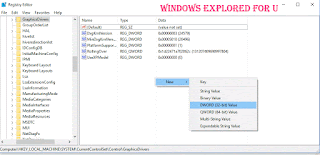
Do the following registry tweak..
1) Press Windows + R keys -> type regedit
2) Navigate to following directory..
HKEY_LOCAL_MACHINESYSTEMCurrentControlSetControlGraphicsDrivers
3) Now,right click on the empty area of right pane it will display options like
Collapse,New,Find,Delete,etc.. on that
select New - > DWORD(32-bit) Value..
4) Name it as TdrDelay
5) Double click on it and set its value data to 8 (or) 9.
6) Click OK.
7) Restart your PC.
Thats it..
Now,your problem will be fixed,if not then that game/software may had messed up with your computer, Uninstall and reinstall the program to fix the error.
The above solution works for following errors..
display drivers stopped working windows 10, display drivers stopped working and has recovered windows 10,display drivers stopped responding and has recovered error in windows 10,display driver has stopped working windows 10,display drivers stopped responding and has recovered error in windows 10 nvidia,display drivers stopped responding and has recovered error in windows 8,tdrdelay windows 10
Available link for download
Wednesday, January 25, 2017
Computer takes too long to boot after Intel display driver update in Windows 10 Solved
Computer takes too long to boot after Intel display driver update in Windows 10 Solved
Today, i faced with a problem. My Windows 10 laptop took some more time to boot into desktop
then its actual time. I decided to find out the reason so, i checked windows update and found there
was an update installed to my PC through windows update and it is for Display adapter by Intel
Corporation. So, i decided to fix it and fixed myself using the steps given below.. If you are facing
with such issue then i hope it might be helpful for you ..
Why this happens?
Normally, Updates are served to fix the bugs that resides in the previous version, Updating the driver
will give you a more control on your display like more accurate text display and scaling,
resolution,etc..
But, inorder to perform those our PC must start the driver right ? So, its the startup of driver that
makes our windows 10 laptop or Windows 10 desktop to took more time.
So, how to fix it ?
Just turn off the startup of Intel driver.
How to turn off or disable the startup of Intel driver in Windows 10
1) Press Ctrl + Shift + Esc
2) It will display the task manager, click on the Startup tab.
3) You will find list of programs that start on your Windows 10 computer.
4) Find "hkcmd Module, igfxTray Module ,Persistence Module or some other things that were
developed by Intel Corporation.
Important note : Some of them will be a core property of your display or some other devices driver,
so disabling those things will make your system unstable, so its better to leave it on, unless it really
slows your system..
![Computer takes too long to boot after Intel display driver update in Windows 10 [Solved]](https://blogger.googleusercontent.com/img/b/R29vZ2xl/AVvXsEjWNNjTTmG82Ucc-FpysKz9xSlw5G8QIYGgZt4PWAEZtE3ZBzjwjtctGaBCTdvIgHr-gcev7xBWuW1ucufHHwIXoysZFo3xc-ldxfHMIBvnPN1T8X3Hp9Eubj4fhsD_Gf0S-gj79tf1XzI/s320/persistance.gif "Computer takes too long to boot after Intel display driver update in Windows 10 [Solved]")
5) Right click on those items and select disable.
Thats it..
This fixed the problem of mine..
Click to find latest articles
then its actual time. I decided to find out the reason so, i checked windows update and found there
was an update installed to my PC through windows update and it is for Display adapter by Intel
Corporation. So, i decided to fix it and fixed myself using the steps given below.. If you are facing
with such issue then i hope it might be helpful for you ..
Why this happens?
Normally, Updates are served to fix the bugs that resides in the previous version, Updating the driver
will give you a more control on your display like more accurate text display and scaling,
resolution,etc..
But, inorder to perform those our PC must start the driver right ? So, its the startup of driver that
makes our windows 10 laptop or Windows 10 desktop to took more time.
So, how to fix it ?
Just turn off the startup of Intel driver.
How to turn off or disable the startup of Intel driver in Windows 10
1) Press Ctrl + Shift + Esc
2) It will display the task manager, click on the Startup tab.
3) You will find list of programs that start on your Windows 10 computer.
4) Find "hkcmd Module, igfxTray Module ,Persistence Module or some other things that were
developed by Intel Corporation.
Important note : Some of them will be a core property of your display or some other devices driver,
so disabling those things will make your system unstable, so its better to leave it on, unless it really
slows your system..
5) Right click on those items and select disable.
Thats it..
This fixed the problem of mine..
Click to find latest articles
Available link for download
Subscribe to:
Posts (Atom)