Showing posts with label taskbar. Show all posts
Showing posts with label taskbar. Show all posts
Sunday, March 19, 2017
Pin app to taskbar in Windows 10 How to Updated
Pin app to taskbar in Windows 10 How to Updated
Whether you are looking for how to pin app to taskbar or how to solve the problem cannot pin to
taskbar,(which means pin to taskbar is not working) here is an guide on how to do in windows 10.
In our last post, i had explained how to pin an app to start menu [Check it here], in this post i like to
show how to pin apps to taskbar in Windows 10.
Of course, there are many ways available to pin an app to taskbar or pin an app to desktop in
windows 10. But, some of it are complicated so i like to show only the couple of Ways you can use it.
How to Pin an App to taskbar in Windows 10
![Pin app to taskbar in Windows 10 - How to [Updated]](https://blogger.googleusercontent.com/img/b/R29vZ2xl/AVvXsEjp_jKmPAPS00mdUiP1qqF5lWHPZFipeaOq4HZOow4v_ItYs6fhG06-dhhVWc_85E69zT_FGHjCZ1CdxusRBg5RH3J_CIYtjpFQ0CMdCmIFownl2kPzK8jDFI4hr3rmwC1isB4n4yMdI5Y/s320/pin-to-taskbar.gif "Pin app to taskbar in Windows 10 - How to [Updated]")
taskbar,(which means pin to taskbar is not working) here is an guide on how to do in windows 10.
In our last post, i had explained how to pin an app to start menu [Check it here], in this post i like to
show how to pin apps to taskbar in Windows 10.
Of course, there are many ways available to pin an app to taskbar or pin an app to desktop in
windows 10. But, some of it are complicated so i like to show only the couple of Ways you can use it.
How to Pin an App to taskbar in Windows 10
1) First decide the App you wish to pin it to start..
2) Press Windows( logo) key on the keyboard or Click on the start button.
3) You will see some apps displayed there..
i) Scroll down and find the App you wish to Pin to taskbar
ii) Right click on that app, you will see many options like Pin to start, More, uninstall..
iii) Select more, you will see some options like Pin to taskbar , Run as Administrator, Uninstall.
iv) Click on Pin to taskbar.
Thats it..
You will see your App pinned to taskbar.
Cannot Pin an App to taskbar or Pin to taskbar is not working
If you came up with the above problem like cant pin app to taskbar, then you can follow some of the
oldest methods that you may had worked while pinning an item to taskbar like in windows 7.
OK, here is my solution...
1) Open the item or app you wish to pin to taskbar
2) When it opened, you will see its icon on the taskbar, for example if you wish to pin chrome to
taskbar in Windows 10, then you can pin it by..
i) First Open chrome browser..
ii) you will see the globe like icon (the logo) on your taskbar..
3) Right click on the icon
4) Select Pin to taskbar
Thats youre done..
Let me tell you a secret??, probably you may had already known..
You can pin the app or folder to taskbar by simply dragging it to taskbar.
Which means, just click on the folder or app on your desktop or shortcut, hold your mouse and drag
it to the taskbar, you will see the app or folder now pinned.????
Like this, you can pin an app whether it is windows 10 laptop or desktop.. You can pin it to taskbar.
Thats it..
Other Posts..
Click to see all tutorials of windows 10...
Available link for download

Tuesday, February 21, 2017
How to Unpin an App from start menu or Taskbar in Windows 10 Updated
How to Unpin an App from start menu or Taskbar in Windows 10 Updated
Unpin an program or icon from start and taskbar - How to do in Windows 10 Creators update and so
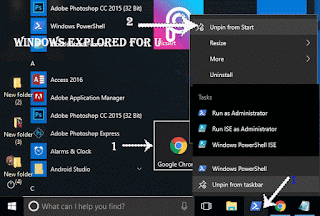
on..
In our last post, we had seen how to pin an app to start menu in windows 10, how to pin an app to
taskbar in Windows 10 ( including an hidden trick??) . Thanks to our reader Michael for notifying
me to post how to unpin an app, program or in simple language the icon. What he did was pinned an
app to taskbar and start menu, he did everything right, except one thing, he pinned the wrong
program(which he doesnt want to do).Since he was a beginner, he asked me to post how to unpin an
app from taskbar, which he thought could help many fellow users like us..
So, in this post lets see how to unpin an app from start menu and taskbar, unpin an program from
start menu and taskbar, unpin an icon from start menu and taskbar ( Yup, they all are same terms and
follows same procedure????)
I like to say one thing, you dont need an software to unpin app from start. Also you dont need
registry or group policy to unpin program/icon from start or taskbar.
Just follow the below steps..
How to Unpin an program or icon or Application from taskbar in Windows 10
1) look for the app you wish to unpin from taskbar. on taskbar.
2) Right click on the item (apps icon) you wish to unpin on taskbar
3) You will see the Apps name, Unpin from taskbar , Close window Option,
4) Click on the Unpin from taskbar Option.
Fact ! if you see Pin to taskbar instead of Unpin from taskbar, then you dont need to do anything, because your app is either already unpinned from taskbar or yet to be pinned.
Thats it..
How to Unpin an program or icon or Application from start menu in Windows 10
1) Press Windows( logo) key on the keyboard or Click on the start button.
2) You will see some apps displayed there..
i) Scroll down and find the App you wish to Unpin from start menu
ii) Right click on that app
iii) It will display options like Unpin from start, Move, uninstall
iv) click on unpin from start.
Thats it..
You have done..???
like these, you can unpin any app from start menu in Windows 10 laptop or desktop...
Hope it is helpful.
Available link for download
Subscribe to:
Posts (Atom)