Showing posts with label is. Show all posts
Showing posts with label is. Show all posts
Sunday, March 12, 2017
Recycle Bin in Windows 10 How to Restore missing Recycle bin icon where is it located
Recycle Bin in Windows 10 How to Restore missing Recycle bin icon where is it located
Recycle bin is an important component for most of Windows beginners, its also the area where our
deleted files are stored unless we used a shift+del combination, When we upgrade our PC from
previous edition,especially like Windows 7 most of us will naturally google or bing Recycle bin
missing in Windows 10 after upgrading.
So,here is a post i wrote to explain how to restore the missing recycle bin icon on windows 10
anniversary Update and where is it located.
Where is Recycle bin located in Windows 10 ?
If you are searching for recycle bin location, you need to understand the fact, that is there is no
particular location for recycle bin it exists in all drives, but mainly on your primary drive.
How to Restore recycle bin in Windows 10?
Generally, the recycle bin icon is enabled by default, but it was not available in your Windows 10 PC,then you can restore the missing recycle bin icon in Windows 10 using the below steps..
1) Open settings
[Helpful link : How to open settings in windows 10]
2) Click on personalization
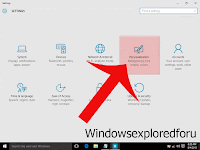
3) It will open a new window with options like Background,Colors, lockscreen,etc.. Find and click on Option called "Themes", which will be on the left pane.
4) When you clicked, you can change some changes in the right pane as new options like Theme settings, Related settings will appear.
5) Click on the Desktop icon Settings Option
6) Now, it will open Desktop icon settings window, find and check the "Recycle bin" box
7) Click on Apply
8) Click on OK.
9) Close the Window.
Now, go to your desktop you can find the missing recycle bin icon, you can use this to open recycle
bin in your Windows 10.
Thats it..
You have done..??
deleted files are stored unless we used a shift+del combination, When we upgrade our PC from
previous edition,especially like Windows 7 most of us will naturally google or bing Recycle bin
missing in Windows 10 after upgrading.
So,here is a post i wrote to explain how to restore the missing recycle bin icon on windows 10
anniversary Update and where is it located.
Where is Recycle bin located in Windows 10 ?
If you are searching for recycle bin location, you need to understand the fact, that is there is no
particular location for recycle bin it exists in all drives, but mainly on your primary drive.
How to Restore recycle bin in Windows 10?
Generally, the recycle bin icon is enabled by default, but it was not available in your Windows 10 PC,then you can restore the missing recycle bin icon in Windows 10 using the below steps..
1) Open settings
[Helpful link : How to open settings in windows 10]
2) Click on personalization
3) It will open a new window with options like Background,Colors, lockscreen,etc.. Find and click on Option called "Themes", which will be on the left pane.
 |
| Click on the image to view full size |
4) When you clicked, you can change some changes in the right pane as new options like Theme settings, Related settings will appear.
5) Click on the Desktop icon Settings Option
6) Now, it will open Desktop icon settings window, find and check the "Recycle bin" box
7) Click on Apply
8) Click on OK.
9) Close the Window.
Now, go to your desktop you can find the missing recycle bin icon, you can use this to open recycle
bin in your Windows 10.
Thats it..
You have done..??
Available link for download

Friday, March 3, 2017
Where is C drive in Windows 10 Solved Beginners Guide
Where is C drive in Windows 10 Solved Beginners Guide
Where is C drive in Windows 10 - Thats the question i was asked by our blog reader. Though i
answered the question lot of folks are asking the same question..So i created a separate post on
where is c drive located in Windows 10. So,if you too have question like how to find c drive on my
windows 10 PC, then i hope this guide may be helpful for you .
First, Normally, windows 10 being a User friendly Operating System allows us to make our job more
than one way. So, to open c drive there are variety of methods available like using powershell and
start typing set-location c: , dir commands will display the information on that drive.
However, those things wont help beginners, what help is using the traditional way which is using
windows explorer or File Explorer.
1) First, Open file explorer
Dont know know how to open file explorer ?, dont worry, check the below link
[Helpful link : What is file explorer ? and how to open in Windows 10]
2) There, you will find the list of drives that were available on your System

3) Find the "Local disk C" , you can find it easier by looking for windows (logo) icon in the drive, which is your C drive..
Thats it..
Hope it is helpful.
Click to read all basic tutorials..
answered the question lot of folks are asking the same question..So i created a separate post on
where is c drive located in Windows 10. So,if you too have question like how to find c drive on my
windows 10 PC, then i hope this guide may be helpful for you .
First, Normally, windows 10 being a User friendly Operating System allows us to make our job more
than one way. So, to open c drive there are variety of methods available like using powershell and
start typing set-location c: , dir commands will display the information on that drive.
However, those things wont help beginners, what help is using the traditional way which is using
windows explorer or File Explorer.
1) First, Open file explorer
Dont know know how to open file explorer ?, dont worry, check the below link
[Helpful link : What is file explorer ? and how to open in Windows 10]
2) There, you will find the list of drives that were available on your System
3) Find the "Local disk C" , you can find it easier by looking for windows (logo) icon in the drive, which is your C drive..
Thats it..
Hope it is helpful.
Click to read all basic tutorials..
Available link for download
Wednesday, March 1, 2017
Windows 10 build 15002 ISO Offline Images download Here is how you can download Windows 15002 build ISO files
Windows 10 build 15002 ISO Offline Images download Here is how you can download Windows 15002 build ISO files
Windows 10 build 15002 ISO Offline images ? you may think im just joking, because we wont get

15002.1001.170102-1700.rs_prerelease_CLIENTCORE_RET_x86fre_en-us_73d31d2d35a7591305a2aad400292d2357afb174.esd
the offline images when it was released for Fast ring.,its pretty common!. Since most of us being
Windows lovers and expecting to test What they have included in this Windows Insider preview
build 15002, we cant leave it as it is right .? So here is an solution for you to taste the build..
I got a link for that when i was searching a way to download this Windows 10 creators update
preview 15002 ISO, which was finally released after it was leaked.
This link was in a public domain Cloud mail an Russian site,So we are free to use those files..
[Note : I dont know who uploaded those files, i guess it was WZTCAT because, that name was
inside that drive.. Anyway, i like to thank those persons who uploaded this files..Thanks friends!]
But, there is an limitation??,all those files are in the form on ESD.
ESD in windows is nothing but the file that was much similar to .Wim files. I dont like to confuse
with those detailed stuff..
Just assume that, ESD files are just a compressed version of Wim file( Ofcourse, they are!) Microsoft
will deliver those files for insiders via update, just because of they are compressed, encrypted and
more faster to transmit to client systems..
OK,Enough intro
here is the main stuff..
1) First, visit the below link..
[Link to ESD FILE]
2) There will be a lot of files there, download your language esd file.
for example :
There, en-us represents US English version, and x86 represents the 32-bit of Windows 10.
3) Like that, find the ESD file you wish to download. (just click on the item it will popup the items full name)
4) Now, after downloading, you need to build that into ISO File..
For that follow the below steps..
5) Download the ESD Decryptor tool
It was just a tool that is free, thanks to the developers of that github team????.
6) Now, after downloading the decryptor tool, extract it to any folder.
7) Now, move the downloaded ESD file to the same location (just cut/copy paste)
8) There will be a software called Rebuild bat file inside that ESD decryptors extracted
folder..
9) Run it as administrator
10) Press 1 on your keyboard to create ISO file.
Wait, for sometime and enjoy your ISO file..
You can use this ISO file to install Windows from beginning / clean install windows 10 on
your machine.
Thats it..
Click to read whats new in Windows 10 Insider preview 15002 [link]
Available link for download
Tuesday, February 28, 2017
Fun Face Master 1 7x Activator Is Here
Fun Face Master 1 7x Activator Is Here
 |
| Fun Face Master 1.7 Activator |
un Face Master is a fun photo edit software. You can use it to replace face on any body. Just 3 clicks, you can put the Superman face replaced with your face. Or let your turned into Soldiers, Knight, Nuns, Mona lisa, Astronaut, President etc. The software include more than 390 high quality funny templates, or you can use the Mask Edit Tools to create your own template. Create a joke photo to shake your friends now!
Download Fun Face Master Activator Including Serial Key.
LINK:
Fun Face Master Activator | Mirror
Available link for download
Thursday, February 23, 2017
What is Windows Hello and How to create shortcut for Windows Hello in Windows 10 Updated
What is Windows Hello and How to create shortcut for Windows Hello in Windows 10 Updated
What is Windows Hello and How to create desktop shortcut for Windows Hello in Windows 10 -
thats what we gonna see in this post.. Updated to Windows 10 Anniversary update build of
Windows 10.
If you are new to windows 10 then, possibly you had heard about this word Windows Hello. even if
you dont know about, here is an guide that will make you understand..

What is Windows Hello in Windows 10..
In the mind of adding more security to your PC, Microsoft had introduced a new feature that will
cope up with the latest trending PCs. Explaining Windows Hello is a large process as it contains vast
amount of information working on the background.
So, to be simple and make you understand, i can say windows Hello is like a feature that was
introduced to make your device secure.. You can use this feature to unlock your PC using Biometrics
and if your device supports finger print sensor.
Like the above There are certain requirements to use Windows Hello in Windows 10.
So, if you receive an error like Windows Hello isnt available on this device, then you need to
understand that your device doesnt support for windows Hello.
Since, it is an inbuilt tool, you dont need to download windows hello for windows 10
How to set up windows hello (or)
How to create Desktop shortcut for Windows Hello..
1) login to your Windows PC.
5) Click Finish
Thats it..
Now, you click on the shortcut which will launch Windows Hello settings.
Are you a beginner ? then, you can check all our Windows 10 basic articles here [Link]
thats what we gonna see in this post.. Updated to Windows 10 Anniversary update build of
Windows 10.
If you are new to windows 10 then, possibly you had heard about this word Windows Hello. even if
you dont know about, here is an guide that will make you understand..
What is Windows Hello in Windows 10..
In the mind of adding more security to your PC, Microsoft had introduced a new feature that will
cope up with the latest trending PCs. Explaining Windows Hello is a large process as it contains vast
amount of information working on the background.
So, to be simple and make you understand, i can say windows Hello is like a feature that was
introduced to make your device secure.. You can use this feature to unlock your PC using Biometrics
and if your device supports finger print sensor.
Like the above There are certain requirements to use Windows Hello in Windows 10.
So, if you receive an error like Windows Hello isnt available on this device, then you need to
understand that your device doesnt support for windows Hello.
Since, it is an inbuilt tool, you dont need to download windows hello for windows 10
How to set up windows hello (or)
How to create Desktop shortcut for Windows Hello..
1) login to your Windows PC.
2) Right Click on your desktop and Select New -> Shortcut.
3) It will ask for location, type ms-settings:signinoptions
4) Click Next.
4) It will ask you to name it, You can name it as anything for examplee settings ...
5) Click Finish
Thats it..
Now, you click on the shortcut which will launch Windows Hello settings.
Are you a beginner ? then, you can check all our Windows 10 basic articles here [Link]
Available link for download
Monday, February 20, 2017
Why Digiprog 3 is good universal mileage correction tool Review
Why Digiprog 3 is good universal mileage correction tool Review
As to universal odometer correction tool, many people recommend Digiprog 3 mileage correction tool and say Digiprog 3 is good to choose. Why? This blog will show you what other users tested OK for you reference.
Mercedes Benz:
Mercedes W251 R350 2010 OBD ok
no sync problems no can filter needed!
no sync problems no can filter needed!
Mercedes Vito W638 2003 OBD ok
Mercedes B-Class W246 use direct in OBD ok
Mercedes w211 2003 read and Save cluster EEPROM via EEPROM / MCU ok
…
Volkswagen Group:
Digiprog do all Golf 4 without problem!!! And all golf 6 digiprog 3 clone work good for me till 2013 year
Golf 6 plus 2010 work ok
VW Caddy 2013 done throw menu Golf 6 2012>
VW Touareg 2004 OBD ok
VW Polo, Seat Ibiza 2007 Magneti Marelli Motorola ST48 by points OK
I have done Seat Leon 1M 2000 2002 and 2003 with digiprog3 4.94 via OBDII no problem
T5 2004 dash & ECU via OBD -read? /write ok 10 seconds. ECU EDC16 read write ok 7 minutes
Sharan 2001 via OBD- read? /write ok
Skoda Octavia 1z 2011 OBD ok
Skoda Fabia 2009 OBD read? /write OK
Skoda Fabia 2010 OBD, read? /write OK after second try
Audi A6 2010 dash via OBD, it takes a while to find code but successfully do it
Audi A3 2010 by OBD OK
Audi TT 2002 obd2 n8 is ok work
Audi S3 2002 obd2 is ok work
Audi A3 2002 obd2 is ok work
Audi A6 2002 ok after some effort.
Audi A4 2007 OBD dash read write ok
Audi A4 8e b6 2004 OK in 2 minutes
Audi Q7 2007 via OBD work
Audi Q72012 by OBD work ok
…
Others:
My Digiprog 3 unit works on 2017 BMW I8! Good luck!
Nissan Navara, Pathfinder Motorola ST48 by points OK
Fiat Ducato 2014 OBD dash ok
Mitsubishi galant 2006 93C46 ok
Saab 9-3 2009 HCS12 ok
Ford Mondeo 2010 Visteon dash with 9s12 read write ok via 4 wires on PCB
Peugeot 307 2002 ---> Work Dash ---> NEC (New ST59) BSI ---> HC12
Passat 2013 by OBD ok
2014 Porsche Panamera by EEPROM 95640 work ok
2011 Vauxhalls Vivaro... 93c76.... All good... read and write
Opel Astra G 2001 OBD read? / write ok 10 seconds.
Opel Astra H 2006 - m35080 - work
…
You can get high quality Digiprog 3 clone at http://www.diyobd2.fr
http://www.diyobd2.fr/wholesale/v494-digiprog-iii-digiprog3-odometer-master-programmer-entire-kit.html
Original:Why Digiprog 3 is good universal mileage correction tool? (Review)
Available link for download
Saturday, February 4, 2017
Extensions tab on history window missing in Chrome 55 and later Solved Here is a way to launch extensions again
Extensions tab on history window missing in Chrome 55 and later Solved Here is a way to launch extensions again
Where are my extensions in chrome, where is the about button in chrome - thats what people are
searching in Chrome 55 which can be downloaded using official site google.com/chrome.
Recently if you had updated your google Chrome then, you may be aware of this. Google redesigned
the Chromes History tab as it replaced it with the complete material design. The chrome 55 update
also features some bug fixes, but the popular extensions and about tabs are missing in Chrome
version 55 and later in the history window.
So, in this post lets see how to access extensions tab, where extensions in chrome located and how to
access extensions in Chrome.
What is mean by extensions ?
As the name suggests, extensions are nothing but the additional things that help the user to add some
more facilities the browser lacks. For example : In Some btowsers, the translate of page is done by
the extensions.So they are simply the additional facility that can be downloaded and installed.
In Chrome, they are available in .crx files, Which means when you download chrome extension you
will see the filename .crx files downloading..
Where are my extensions in Chrome ?
They are located inside the Chrome folder which would be on many locations like AppData,
program files and so on.
How can i find extensions on Chrome ?
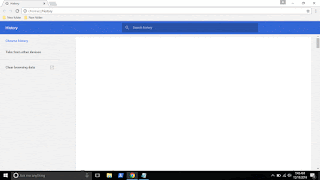
In the earlier versions of Chrome, you can see the Chrome extensions tab available on the history tab
which can be opened by simply pressing ctrl + H keys on keyboard. But in the update the extensions
tab was removed so, you cant open it using that method, you need to follow the main method...
1) Open Google Chrome.
2) On the top right corner, you will see the ? icon click on it..
3) It will display many options like New tab, New Windows,etc.. Find More tools option and click
on it.
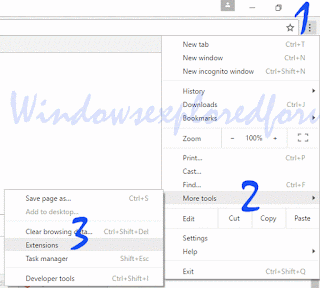
4) When you clicked it will open more options now like Save page as, Add to desktop, Clear browsing data, extensions, etc..
5) Click on Extensions
Thats it..
You will find all your Extensions there...
Thats the end of this post..
Click to read all basic tutorials..
searching in Chrome 55 which can be downloaded using official site google.com/chrome.
Recently if you had updated your google Chrome then, you may be aware of this. Google redesigned
the Chromes History tab as it replaced it with the complete material design. The chrome 55 update
also features some bug fixes, but the popular extensions and about tabs are missing in Chrome
version 55 and later in the history window.
So, in this post lets see how to access extensions tab, where extensions in chrome located and how to
access extensions in Chrome.
What is mean by extensions ?
As the name suggests, extensions are nothing but the additional things that help the user to add some
more facilities the browser lacks. For example : In Some btowsers, the translate of page is done by
the extensions.So they are simply the additional facility that can be downloaded and installed.
In Chrome, they are available in .crx files, Which means when you download chrome extension you
will see the filename .crx files downloading..
Where are my extensions in Chrome ?
They are located inside the Chrome folder which would be on many locations like AppData,
program files and so on.
How can i find extensions on Chrome ?
In the earlier versions of Chrome, you can see the Chrome extensions tab available on the history tab
which can be opened by simply pressing ctrl + H keys on keyboard. But in the update the extensions
tab was removed so, you cant open it using that method, you need to follow the main method...
1) Open Google Chrome.
2) On the top right corner, you will see the ? icon click on it..
3) It will display many options like New tab, New Windows,etc.. Find More tools option and click
on it.
4) When you clicked it will open more options now like Save page as, Add to desktop, Clear browsing data, extensions, etc..
5) Click on Extensions
Thats it..
You will find all your Extensions there...
Thats the end of this post..
Click to read all basic tutorials..
Available link for download
Wednesday, February 1, 2017
Windows Maps app in Windows 10 Where it is and how to launch it in Windows 10 Updated
Windows Maps app in Windows 10 Where it is and how to launch it in Windows 10 Updated
Microsofts Windows 10 have a default Maps App, but many of us dont know about this thing.. So
in this post, lets see how to open windows maps app in Windows 10. Works on Windows 10
Creators Update, Windows 10
Anniversary Update, and other editions of Windows like Windows 10 earlier builds like Aug 2015
and Nov 2015 builds.
Google Maps vs Microsoft Windows Map which is better ?
Comparing those two is very difficult, because they both provide the same function, same features
most of the time. However, some features depend on your location. For example : Though, they both
provide traffic update the update time will be lesser in Windows maps App when it comes to non
popular areas or for a particular location. In the same way, google Maps which worked great on the area will fail on some other area.
So, we cant say this is best and that is best. Its you who want to test it..
OK,then
how to download Maps app for windows 10?
Actually, we dont need to download an separate map for windows 10, because such app already
exists on our system, all we need to do is find it.
if your windows 10 maps app is not working then try restarting your PC and open it..
How to open windows Maps ?
just follow the below steps...
1) Press Windows (logo) Key on your keyboard or press start button
2) Type Maps
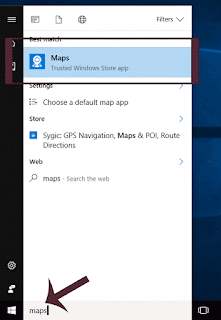
3) Select the top most result... "Maps" trusted windows store app
Thats it..
It will open maps app in windows 10.
If you think windows 10 maps app is missing, then you can find it using the above method..
Click to read all basic tutorials..
in this post, lets see how to open windows maps app in Windows 10. Works on Windows 10
Creators Update, Windows 10
Anniversary Update, and other editions of Windows like Windows 10 earlier builds like Aug 2015
and Nov 2015 builds.
Google Maps vs Microsoft Windows Map which is better ?
Comparing those two is very difficult, because they both provide the same function, same features
most of the time. However, some features depend on your location. For example : Though, they both
provide traffic update the update time will be lesser in Windows maps App when it comes to non
popular areas or for a particular location. In the same way, google Maps which worked great on the area will fail on some other area.
So, we cant say this is best and that is best. Its you who want to test it..
OK,then
how to download Maps app for windows 10?
Actually, we dont need to download an separate map for windows 10, because such app already
exists on our system, all we need to do is find it.
if your windows 10 maps app is not working then try restarting your PC and open it..
How to open windows Maps ?
just follow the below steps...
1) Press Windows (logo) Key on your keyboard or press start button
2) Type Maps
3) Select the top most result... "Maps" trusted windows store app
Thats it..
It will open maps app in windows 10.
If you think windows 10 maps app is missing, then you can find it using the above method..
Click to read all basic tutorials..
Available link for download
Thursday, January 26, 2017
Open Action Center in Windows 10 What is action center and How to open action center in Windows 10 Guide
Open Action Center in Windows 10 What is action center and How to open action center in Windows 10 Guide
Open Action Center in Windows 10 - What is action center ? and How to open action
center in Windows 10 ? - Thats what we going to see in this post..
If you are new to Windows 10, then probably you may see some things differently than in your
previous Operating system. This is because Microsoft replaced things in order to provide and design
a new user interface, one of such things that were altered or changed is Action Center.
So, if you are asking where is action center or if you think action center in Windows 10 missing..
then here is a guide that may help you...
What is Action Center in Windows 10 ?
Action center is the one that is designed to notify users, so that they can take respective action.
The notifications will appear on the action center.
The flag like action center icon is now replaced with Message box like icon, and you can find them
on the right corner of taskbar.
How to open action center in Windows 10..
There are many methods to open action center in Windows 10, but here i like to share only the
easiest method to open action center in Windows 10.
1) Sign-in to your Windows 10 PC
2) On your right end corner of the taskbar, you will find the message box like icon, click on it..

3) It will open action center
Method 2 : Using Action center of Windows 10 Shortcut
4) Simply, Press Windows (logo) key + A keys on your keyboard
it will open action center.
Thats it..
Enjoy.
Remember you dont need to download action center for Windows 10 ,as it is inbuilt in Windows
10.
Hope it is helpful.
Are you a beginner ? then here is a link to find all the beginner articles, just click on the below
link,you will find all the basic or beginners articles on windows 10..
Click to read all basic tutorials..
center in Windows 10 ? - Thats what we going to see in this post..
If you are new to Windows 10, then probably you may see some things differently than in your
previous Operating system. This is because Microsoft replaced things in order to provide and design
a new user interface, one of such things that were altered or changed is Action Center.
So, if you are asking where is action center or if you think action center in Windows 10 missing..
then here is a guide that may help you...
What is Action Center in Windows 10 ?
Action center is the one that is designed to notify users, so that they can take respective action.
The notifications will appear on the action center.
The flag like action center icon is now replaced with Message box like icon, and you can find them
on the right corner of taskbar.
How to open action center in Windows 10..
There are many methods to open action center in Windows 10, but here i like to share only the
easiest method to open action center in Windows 10.
1) Sign-in to your Windows 10 PC
2) On your right end corner of the taskbar, you will find the message box like icon, click on it..
3) It will open action center
Method 2 : Using Action center of Windows 10 Shortcut
4) Simply, Press Windows (logo) key + A keys on your keyboard
it will open action center.
Thats it..
Enjoy.
Remember you dont need to download action center for Windows 10 ,as it is inbuilt in Windows
10.
Hope it is helpful.
Are you a beginner ? then here is a link to find all the beginner articles, just click on the below
link,you will find all the basic or beginners articles on windows 10..
Available link for download
Wednesday, January 25, 2017
What is My IP Address How to Find IP Address of your Computer in Windows 10 Updated
What is My IP Address How to Find IP Address of your Computer in Windows 10 Updated
What is My IP Address in Windows 10 - How to Find IP Address of computer in Windows 10
If you dont know what is your IP Address or if you think it would be better if to someone helps me
on how to find your IP Address on windows 10, you dont
need it anymore because from now on, you can find your IP Address yourself.
Works on Windows 10
Creators Update, Windows 10 Anniversary Update, and other editions of Windows like Windows 10
earlier builds like Aug 2015 and Nov 2015 builds...
How can i find IP Address of a Computer in Windows 10
There are lot of ways to find IP Address of a machine like using cmd, powershell, registry and so on..
But, you can find it out in just 3 steps here..
How to find IP Address of a computer connected through WiFi in Windows 10
1) Click on the WiFi icon that appear on the taskbar
2) It will display the list of WiFi networks available and the one you are connected to..
3) Click on the WiFi network you are connected to..
4 ) Click on Properties

5) It will open Settings App and will display WiFi Properties.
6) Scroll down and find IPV4 the text next to it is your WiFi IP Address
Thats it..
How to find IP Address of a computer connected through WiFi in Windows 10
1) Click on the Ethernet icon that appear on taskbar
2) select the ethernet connection
3) Click on Properties
4) Scroll down and find IPV4 the text next to it is your IP Address.
Thats it...
If you dont know what is your IP Address or if you think it would be better if to someone helps me
on how to find your IP Address on windows 10, you dont
need it anymore because from now on, you can find your IP Address yourself.
Works on Windows 10
Creators Update, Windows 10 Anniversary Update, and other editions of Windows like Windows 10
earlier builds like Aug 2015 and Nov 2015 builds...
How can i find IP Address of a Computer in Windows 10
There are lot of ways to find IP Address of a machine like using cmd, powershell, registry and so on..
But, you can find it out in just 3 steps here..
How to find IP Address of a computer connected through WiFi in Windows 10
1) Click on the WiFi
2) It will display the list of WiFi networks available and the one you are connected to..
3) Click on the WiFi network you are connected to..
4 ) Click on Properties
5) It will open Settings App and will display WiFi Properties.
6) Scroll down and find IPV4 the text next to it is your WiFi IP Address
Thats it..
How to find IP Address of a computer connected through WiFi in Windows 10
1) Click on the Ethernet icon
2) select the ethernet connection
3) Click on Properties
4) Scroll down and find IPV4 the text next to it is your IP Address.
Thats it...
Are you a beginner ? then here are all posts that deals with mastering basics of Windows 10.
Click to see all the basic tutorials
Click to see all the basic tutorials
Available link for download
Monday, January 23, 2017
Where is OneDrive App What it is and How to open it in Windows 10 Updated
Where is OneDrive App What it is and How to open it in Windows 10 Updated
Where is OneDrive app and How to Open OneDrive application in Windows 10 - Thats what we
gonna see in this post. If you are new
to windows 10 then the first thing you will notice apart from my computer icon missing in desktop.
is the OneDrive app. You
may think about it like what is OneDrive on this windows 10, and it would be better if someone
explain OneDrive to Me. So here is an post to show what is OneDrive and how to open it in
Windows 10.
What is OneDrive in Windows 10 ?
It would be very much big concept.. But i like to explain that in a short note..
OneDrive is an cloud storage facility. You can backup all your files, folders and everything Online..
When your PC is in trouble or if your system fails, then you can use this OneDrive to download the
backup copy of that file anytime, anywhere for example : You can download the file in your Friend/
relative system.

Which would be the best feature if you have a very good internet connection because your Files will
be uploaded online, this concept is known as Syncing.
How to open OneDrive in Windows 10 ?
if you wish to open OneDrive then you dont need to download OneDrive desktop app, because in
Windows 10 OneDrive is inbuilt.
1) Press Windows Key
2) Type OneDrive
3) Select the top most result OneDrive on the Apps section.
![Where is OneDrive App and How to open it in Windows 10 [Updated]](https://blogger.googleusercontent.com/img/b/R29vZ2xl/AVvXsEi1RMU_nkZpp12wBVBtHC3A2Xb6h6I-XWPlsl5i52b6bloiNiO7B1BMbB5q0YE8iBLvfeSeN1dy2-6e2bOGk4G8UpnFYhCrwG2-tDy0jS5QUEJCcqKttz6i0BqQqwt7zSMW4Svg6wo-VWQ/s320/one-drive.gif "Where is OneDrive App and How to open it in Windows 10 [Updated]")
It will open OneDrive in your PC.
Thats it..
Using the steps shown in the post, you can Open OneDrive desktop app in any desktop and laptops..
Hope it is helpful.
Are you a beginner ? then here are all posts that deals with mastering basics of Windows 10.
Click to see all the basic tutorials
OTHER RELATED ARTICLES..
How to Stop OneDrive Sync in Windows 10 [Updated]
Hide or Remove OneDrive icon from file explorer in Windows 10 [Updated]
gonna see in this post. If you are new
to windows 10 then the first thing you will notice apart from my computer icon missing in desktop.
is the OneDrive app. You
may think about it like what is OneDrive on this windows 10, and it would be better if someone
explain OneDrive to Me. So here is an post to show what is OneDrive and how to open it in
Windows 10.
What is OneDrive in Windows 10 ?
It would be very much big concept.. But i like to explain that in a short note..
OneDrive is an cloud storage facility. You can backup all your files, folders and everything Online..
When your PC is in trouble or if your system fails, then you can use this OneDrive to download the
backup copy of that file anytime, anywhere for example : You can download the file in your Friend/
relative system.
Which would be the best feature if you have a very good internet connection because your Files will
be uploaded online, this concept is known as Syncing.
How to open OneDrive in Windows 10 ?
if you wish to open OneDrive then you dont need to download OneDrive desktop app, because in
Windows 10 OneDrive is inbuilt.
1) Press Windows Key
2) Type OneDrive
3) Select the top most result OneDrive on the Apps section.
It will open OneDrive in your PC.
Thats it..
Using the steps shown in the post, you can Open OneDrive desktop app in any desktop and laptops..
Hope it is helpful.
Are you a beginner ? then here are all posts that deals with mastering basics of Windows 10.
Click to see all the basic tutorials
OTHER RELATED ARTICLES..
How to Stop OneDrive Sync in Windows 10 [Updated]
Hide or Remove OneDrive icon from file explorer in Windows 10 [Updated]
Available link for download
Wednesday, January 18, 2017
What is Windows Defender Offline and where to find it in Windows 10 Guide
What is Windows Defender Offline and where to find it in Windows 10 Guide
Windows Defender Offline is the new feature that was introduced in Windows 10 [Since i was on my
insider build ,I dont remember the exact build version] but i think it is on anniversary build of
Windows 10.
Ok, Coming to the point, in this post lets see what is windows defender Offline and how to use
windows defender offline in Windows 10.
What is Windows defender Offline ?

Windows defender offline is an option that was like a rescue cd (if you are aware of third party
softwares like Bitdefender rescue cd, then it is similar to it ) It when started will program itself to
start right before the Windows Installation start booting, and will begin to start to start scanning your
PC.
To say in a single sentence, its like a Rescue cd that can be used to clean malware and virus threats
in your PC.
Do you need to download Windows Defender Offline on windows 10 ?
No, it is an inbuilt tool, so you dont need to download Windows defender offline on Windows 10.
then, where to find it?
just follow the steps below..
How to find Windows defender offline in my Windows 10 PC
1) Open settings
[Helpful link : How to open settings using different methods in Windows 10]
2) Click on Update & security
3) It will open a a new window,Select Windows defender on the left pane
4) Now, after you clicked you can see many options on the right pane..
5) Scroll down till you find Windows defender Offline.

6) You Will find the Scan Offline option.
7) Click on it.
It will immediately restart your PC
Wait, for sometime.. It will load Windows logo and Please wait text..
After that it will open windows defender offline where the scan process will begin.
After scan results, you can close the window, which will restart your PC..
Wait for sometime, as it will take sometime for windows to boot into desktop (experienced??????)
Thats it..
insider build ,I dont remember the exact build version] but i think it is on anniversary build of
Windows 10.
Ok, Coming to the point, in this post lets see what is windows defender Offline and how to use
windows defender offline in Windows 10.
What is Windows defender Offline ?
Windows defender offline is an option that was like a rescue cd (if you are aware of third party
softwares like Bitdefender rescue cd, then it is similar to it ) It when started will program itself to
start right before the Windows Installation start booting, and will begin to start to start scanning your
PC.
To say in a single sentence, its like a Rescue cd that can be used to clean malware and virus threats
in your PC.
Do you need to download Windows Defender Offline on windows 10 ?
No, it is an inbuilt tool, so you dont need to download Windows defender offline on Windows 10.
then, where to find it?
just follow the steps below..
How to find Windows defender offline in my Windows 10 PC
1) Open settings
[Helpful link : How to open settings using different methods in Windows 10]
2) Click on Update & security
3) It will open a a new window,Select Windows defender on the left pane
4) Now, after you clicked you can see many options on the right pane..
5) Scroll down till you find Windows defender Offline.
6) You Will find the Scan Offline option.
7) Click on it.
It will immediately restart your PC
Wait, for sometime.. It will load Windows logo and Please wait text..
After that it will open windows defender offline where the scan process will begin.
After scan results, you can close the window, which will restart your PC..
Wait for sometime, as it will take sometime for windows to boot into desktop (experienced??????)
Thats it..
Available link for download
Tuesday, January 17, 2017
Windows 10 Support end date Beware Your Windows 10 is going to end on ! Updated
Windows 10 Support end date Beware Your Windows 10 is going to end on ! Updated
Windows 10 Support end date - Thats what you must keep in you mind when you planned to
upgrade or install windows 10. Because the support end date decides everything on your machine. In
terms of Microsoft thats true, because Microsoft whenever releases its new operating system it also
frames its support end date, so if you have questions on how long windows 10 will be supported ?
(or) When the Windows 10 support ends? then here is an answer for that question.
As said earlier, Microsoft will release the support end date for operating system whenever it releases.
With the latest end of support came to windows 7 on Jan 13,2015 and the next on the list is Windows
8 end support ends on Jan 9,2018..Windows 10 would be the next eye.

The date for Windows 10 Operating system designed by Microsoft will end on Oct 13,2020 (
Mainstream support),i.e., mainstream support of windows 10 ends on OCT 13,2020 and Extended
Support for Windows 10 ends on Oct 14,2025.
What is Mainstream Support and What is Extended Support ?
Mainstream support and extended support in windows may resemble the same but they are actually
different.
I can say Mainstream support is you are buying a product and after sometime you dont like the
product s design and decided to return and the shopkeeper accepts it.. If the shopkeeper argues that
he/she cannot take the product again (You can only use that product), then it is called extended
support.
The same cases, applies to Windows , in Main stream support, you can request to change a design
product design and its features, you will get security updates regularly, Complimentary support that
includes licenses related supports, Paid support ( including pay-per incident and essential)
But when it comes to extended support, some of the options are limited , for example : you cannot
request a change in product, design,etc..., Non-security updates will be delivered only with extended
hotline support, and they will say no complimentary supports..
With Microsoft already releasing Upgrades in different forms like Windows 10 Creators Update, and
further builds in near future till 2020 every year..you can use your PC for sure till the extended
support end date.
Hope it is helpful
Note : The Article was last Updated on December 19,2016
Other Articles...
System requirements for Windows 10 : Windows 10 Creators update, Windows 10 Anniversary Update and Aug 2015, Nov 2015 Builds
How do i reinstall Windows 10 [Tutorial]
How long will take to upgrade to Windows 10? [Windows 10 Upgrade FAQ ]
upgrade or install windows 10. Because the support end date decides everything on your machine. In
terms of Microsoft thats true, because Microsoft whenever releases its new operating system it also
frames its support end date, so if you have questions on how long windows 10 will be supported ?
(or) When the Windows 10 support ends? then here is an answer for that question.
As said earlier, Microsoft will release the support end date for operating system whenever it releases.
With the latest end of support came to windows 7 on Jan 13,2015 and the next on the list is Windows
8 end support ends on Jan 9,2018..Windows 10 would be the next eye.
The date for Windows 10 Operating system designed by Microsoft will end on Oct 13,2020 (
Mainstream support),i.e., mainstream support of windows 10 ends on OCT 13,2020 and Extended
Support for Windows 10 ends on Oct 14,2025.
What is Mainstream Support and What is Extended Support ?
Mainstream support and extended support in windows may resemble the same but they are actually
different.
I can say Mainstream support is you are buying a product and after sometime you dont like the
product s design and decided to return and the shopkeeper accepts it.. If the shopkeeper argues that
he/she cannot take the product again (You can only use that product), then it is called extended
support.
The same cases, applies to Windows , in Main stream support, you can request to change a design
product design and its features, you will get security updates regularly, Complimentary support that
includes licenses related supports, Paid support ( including pay-per incident and essential)
But when it comes to extended support, some of the options are limited , for example : you cannot
request a change in product, design,etc..., Non-security updates will be delivered only with extended
hotline support, and they will say no complimentary supports..
With Microsoft already releasing Upgrades in different forms like Windows 10 Creators Update, and
further builds in near future till 2020 every year..you can use your PC for sure till the extended
support end date.
Hope it is helpful
Note : The Article was last Updated on December 19,2016
Other Articles...
System requirements for Windows 10 : Windows 10 Creators update, Windows 10 Anniversary Update and Aug 2015, Nov 2015 Builds
How do i reinstall Windows 10 [Tutorial]
How long will take to upgrade to Windows 10? [Windows 10 Upgrade FAQ ]
Available link for download
Is Scania SDP3 v2 29 available now
Is Scania SDP3 v2 29 available now
There are some free download links of Scania SDP3 v2.29 (clone?). OK to use them?
“Better not,” said by pros working for diyobd2.fr.
It’s not time to use SDP3 2.29 online, probably with unknown security.

As for SDP3 software, version 2.27 is the newest one tested by many users and pros on thousands of cars. If you do wanna a Scania Diagnos & Programmer 3 (SDP3) to communicate with Scania vehicles and Scania industrial and marine engines.
A tested SDP3 V2.27 should be a better choice:
http://www.diyobd2.fr/wholesale/sdp3-v223-software-for-scania-vci2-without-usb-dongle.html
http://www.diyobd2.fr/wholesale/sdp3-v223-software-for-scania-vci2-without-usb-dongle.html
It’s a crack version
Activated yet
Safe to use
Tested on VCI2&VCI3 diagnostic tools
Verified to work OK by professional engineers
Used in multi-languages
Used without a USB dongle
The program has been developed to support the electrical system with CAN communication. The program is used for troubleshooting, adjusting customer parameters, calibrations, conversions affecting the electrical system and updating software in control units.


Original - from diyobd2.fr obd2 diagnostic tool:Is Scania SDP3 v2.29 available now?
Available link for download
Subscribe to:
Posts (Atom)