Showing posts with label printer. Show all posts
Showing posts with label printer. Show all posts
Tuesday, March 14, 2017
Set default printer in Windows 10 Guide
Set default printer in Windows 10 Guide
Set default printer in Windows 10 - Thats what we gonna see in this post. if you wish to set default
printer in Windows 10, then here is an guide that may help you.
Do you need to download software to set default printer in Windows 10 ..?
No, you dont need to download software to set default printer in Windows 10.

then, how to do it..?
just follow the steps below..
How to set default printer in Windows 10
1) Open settings
[Helpful link : How to open settings using different methods in Windows 10]
2) Click on Devices.
3) On your right pane,you can find many options,
4) Click on the device, you wish to set default printer and
set it as default.
Thats it..
You can also set default printer using ..
Open devices control panel, and find your printer device and select set it as default.
Are you a beginner ? then here is a link to find all the beginner articles, just click on the below link..
Click to read all basic tutorials..
printer in Windows 10, then here is an guide that may help you.
Do you need to download software to set default printer in Windows 10 ..?
No, you dont need to download software to set default printer in Windows 10.
just follow the steps below..
How to set default printer in Windows 10
1) Open settings
[Helpful link : How to open settings using different methods in Windows 10]
2) Click on Devices.
3) On your right pane,you can find many options,
4) Click on the device, you wish to set default printer and
set it as default.
Thats it..
You can also set default printer using ..
Open devices control panel, and find your printer device and select set it as default.
Are you a beginner ? then here is a link to find all the beginner articles, just click on the below link..
Available link for download

Friday, March 10, 2017
Remove Printer in Windows 10 How to remove printer device and driver in Windows 10
Remove Printer in Windows 10 How to remove printer device and driver in Windows 10
Remove printer on windows 10 - How to remove printer device or delete printer driver on your
Windows 10 PC, thats what we gonna
see in this post. In our last we had seen how to cancel printer queque in windows 10 in 2 steps , in
this post lets see how to remove printer in windows 10. We can remove printer using registry, using
powershell and many more methods..
However, in this post lets see how to remove printer using device manager..
2) Type devices
3) Select devices and Printer on the top most result.
4) Click on the device you wish to remove.
5) When you clicked you will see the Remove device option appearing on the bar.
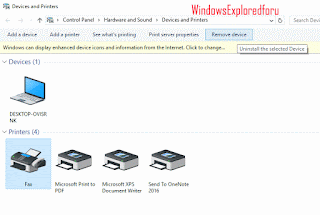
"Remove device option will be next to Printer server properites."
6) Click on the Remove device option.
Method 2 : Using device manager
How to remove printer driver in windows 10..
1) Open device manager
[See : How to open device manager in windows 10]
2) It will display some text links like Audio, input and outputs, Batteries, Computer,Keyboards,
Monitors,and many other things..
3) Expand your Printers ( Which will be under Printer queue option) by clicking on > icon that
displayed near that.
4) When you expanded, you can see many items, right click on the printer you wish to remove..
you will see different options like Update driver software, disable, Uninstall,etc..
5) Click on Uninstall
There will be an option "delete drivers" makesure the box is checked.
6) Close and restart your PC.
If it appears again, select disable while on step 4.
This will fix your problem.
Hope it is helpful.
Are you a beginner ? then below is a link to find all the beginner articles that may help you in
various stages and in mastering basics of Windows 10, just click on the below link to view..
Click to read all basic tutorials..
Windows 10 PC, thats what we gonna
see in this post. In our last we had seen how to cancel printer queque in windows 10 in 2 steps , in
this post lets see how to remove printer in windows 10. We can remove printer using registry, using
powershell and many more methods..
However, in this post lets see how to remove printer using device manager..
How to delete printer device in windows 10 PC.
1) Press Windows (logo) Key on your keyboard.2) Type devices
3) Select devices and Printer on the top most result.
4) Click on the device you wish to remove.
5) When you clicked you will see the Remove device option appearing on the bar.
"Remove device option will be next to Printer server properites."
6) Click on the Remove device option.
Method 2 : Using device manager
How to remove printer driver in windows 10..
1) Open device manager
[See : How to open device manager in windows 10]
2) It will display some text links like Audio, input and outputs, Batteries, Computer,Keyboards,
Monitors,and many other things..
3) Expand your Printers ( Which will be under Printer queue option) by clicking on > icon that
displayed near that.
4) When you expanded, you can see many items, right click on the printer you wish to remove..
you will see different options like Update driver software, disable, Uninstall,etc..
5) Click on Uninstall
There will be an option "delete drivers" makesure the box is checked.
6) Close and restart your PC.
If it appears again, select disable while on step 4.
This will fix your problem.
Hope it is helpful.
Are you a beginner ? then below is a link to find all the beginner articles that may help you in
various stages and in mastering basics of Windows 10, just click on the below link to view..
Available link for download
Wednesday, January 18, 2017
Windows keeps changing default printer in Windows 10 Solved
Windows keeps changing default printer in Windows 10 Solved
Windows keeps changing default printer in Windows 10 - Thats what we gonna show in this post.
If you are using Windows 10 then you may had encountered this problem which our reader
experienced. He complained Windows Keeps changing default printer in Windows 10. and wish to
know something that will control it, whether it is through registry or powershell.
So,in this post lets see how to stop windows changing default printer.
Do you need any software?
No, we dont need an software to control those settings, as there is already an inbuilt option to do that
task inside settings.
so, you dont need to change or edit registry, run powershell commands and so on.
then, how to do it..
Just follow the below steps..
1) Open settings
[Helpful link : How to open settings using different methods in Windows 10]
2) Click on Devices.
3) Select Printers and scanners On your right pane,you can find many options,
4) Find the option Let Windows Manage my default printer
Under that, there will be a text "When this is on, windows will set your default printer to be the one
you used most recently at your current location"
5) Under that, there will be an option to switch it on or off. Select left side of the option, so that it
looks off.
![Windows keeps changing default printer in Windows 10 [Solved]](https://blogger.googleusercontent.com/img/b/R29vZ2xl/AVvXsEiU0yXYrL9ZWkSQ2Fl7cuYLOMwZ1WifrGKhmTRLatCaC_rYLrJSqMVG3uh6_qHumWhicuArWE5mDCgAUwIA-Ij7bAYvEMRbN9JHui_CfZjfAG2jUeA4lImgov9y9UUHdjXfpDIWFs0zbQk/s320/let-windows-manage-my-printer.gif "Windows keeps changing default printer in Windows 10 [Solved]")
Thats it, it will fix the problem..
Hope it is helpful.
If you are using Windows 10 then you may had encountered this problem which our reader
experienced. He complained Windows Keeps changing default printer in Windows 10. and wish to
know something that will control it, whether it is through registry or powershell.
So,in this post lets see how to stop windows changing default printer.
Do you need any software?
No, we dont need an software to control those settings, as there is already an inbuilt option to do that
task inside settings.
so, you dont need to change or edit registry, run powershell commands and so on.
then, how to do it..
Just follow the below steps..
1) Open settings
[Helpful link : How to open settings using different methods in Windows 10]
2) Click on Devices.
3) Select Printers and scanners On your right pane,you can find many options,
4) Find the option Let Windows Manage my default printer
Under that, there will be a text "When this is on, windows will set your default printer to be the one
you used most recently at your current location"
5) Under that, there will be an option to switch it on or off. Select left side of the option, so that it
looks off.
Thats it, it will fix the problem..
Hope it is helpful.
Available link for download
Subscribe to:
Posts (Atom)