Showing posts with label music. Show all posts
Showing posts with label music. Show all posts
Tuesday, March 21, 2017
Music wont play over my bluetooth Speaker or headset How can i fix this Solved
Music wont play over my bluetooth Speaker or headset How can i fix this Solved
Music wont play over my Bluetooth Speaker- how to fix it, thats what we gonna see in this post.
Today, when i visited my friends home he showed his new Bluetooth speaker and asked me some
suggestions why the music doesnt play over his bluetooth speaker. I Checked the usual procedures
like Whether sound drivers are installed, yes it was installed, i then checked device manager and
found out whether the device has drivers that support Windows 10, yes it was updated. But still the
problem persists later i changed an basic option that i forgot to do ???? and it fixed the problem.
So, if you are searching for something that will fix your problem of music not playing on bluetooth
device connected to Windows 10, then here is your guide.
Do you need any software ?
No, but you need appropriate drivers.. if you had connected your PC to internet, then you dont need
to worry because when connected to internet windows will automatically download the required
update thourgh windows update.
OK, then how to do it..?
Just follow the below steps..
Music wont play over my bluetooth Speaker or headset - Fix
1) As said earlier, your PC should have the latest device drivers..
if you suspect on how to confirm, check this article [Link 1] [Link 2]..
2) Check those two links, which may be helpful
After checking, make sure you had paired your bluetooth
[See : How to pair Bluetooth device in Windows 10]
3) Connect your Bluetooth device to Windows 10 PC
[See : How to connect Bluetooth device in Windows 10]
4) After, pairing, connecting its time to play some music..
5) Open your music player and play any music.
Now, on your taskbar on the far right you will see the Speaker icon..
i) Right click the speaker icon, it will display many options like Playback devices, Recording
devices, Volume,Sounds, Troubleshoot Audio Problems.
![Music wont play over my bluetooth Speaker or headset. How can i fix this ? [Solved]](https://blogger.googleusercontent.com/img/b/R29vZ2xl/AVvXsEgcs1Et9S9kNJneksr2wysRSckh1uWBkzDhP1T8QeDHHjPVYzI_PEo47ALVY1_W8XxieUhdAa4klYOcWDrR9aEEcoKGvEfxe2OR9LerHcF__SSHDdjvys81IbYPZqllYYM7B_5Xy8ZUyQ8/s320/playback-devces.gif "Music wont play over my bluetooth Speaker or headset. How can i fix this ? [Solved]")
ii ) Click on Playback devices
iii) It will display the sound window.
iv ) Now, you can find devices under "Select playback device below to modify its settings"
v) There, if you had paired and connected your Bluetooth speaker or headset you will the see the
device there..
vi ) Select your device,if not
vii ) Right click the bluetooth device and click connect
viii) Now, again select your bluetooth speaker and select set it as default
You can see the audio playing on Bluetooth speaker from now on..
Thats it...
Hope it is helpful.
Thats the end of this post..
Click to read all basic tutorials..
Today, when i visited my friends home he showed his new Bluetooth speaker and asked me some
suggestions why the music doesnt play over his bluetooth speaker. I Checked the usual procedures
like Whether sound drivers are installed, yes it was installed, i then checked device manager and
found out whether the device has drivers that support Windows 10, yes it was updated. But still the
problem persists later i changed an basic option that i forgot to do ???? and it fixed the problem.
So, if you are searching for something that will fix your problem of music not playing on bluetooth
device connected to Windows 10, then here is your guide.
Do you need any software ?
No, but you need appropriate drivers.. if you had connected your PC to internet, then you dont need
to worry because when connected to internet windows will automatically download the required
update thourgh windows update.
OK, then how to do it..?
Just follow the below steps..
Music wont play over my bluetooth Speaker or headset - Fix
1) As said earlier, your PC should have the latest device drivers..
if you suspect on how to confirm, check this article [Link 1] [Link 2]..
2) Check those two links, which may be helpful
After checking, make sure you had paired your bluetooth
[See : How to pair Bluetooth device in Windows 10]
3) Connect your Bluetooth device to Windows 10 PC
[See : How to connect Bluetooth device in Windows 10]
4) After, pairing, connecting its time to play some music..
5) Open your music player and play any music.
Now, on your taskbar on the far right you will see the Speaker icon..
i) Right click the speaker icon, it will display many options like Playback devices, Recording
devices, Volume,Sounds, Troubleshoot Audio Problems.
ii ) Click on Playback devices
iii) It will display the sound window.
iv ) Now, you can find devices under "Select playback device below to modify its settings"
v) There, if you had paired and connected your Bluetooth speaker or headset you will the see the
device there..
vi ) Select your device,if not
vii ) Right click the bluetooth device and click connect
viii) Now, again select your bluetooth speaker and select set it as default
You can see the audio playing on Bluetooth speaker from now on..
Thats it...
Hope it is helpful.
Thats the end of this post..
Click to read all basic tutorials..
Available link for download

Sunday, March 19, 2017
Aplikasi JOOX Music Mod APK
Aplikasi JOOX Music Mod APK
Aplikasi JOOX Music ini mirip dengan aplikasi musik player pada umumnya seperti PlayerPro, Neutron Music Player, ataupun PowerAMP yang merupakan apk musik player populer bulan kemarin. Nah, aplikasi Joox Music ini juga menjadi favorit musik player para pengguna Android yang menjadi saingan kuat PowerAMP.

Kelebihan aplikasi Joox Music ini adalah memiliki fitur streaming musik legal, jadi anda dapat memutar musik di aplikasi Joox ini secara Gratis. Dan apakah anda tahu bahwa fitur ini hanya bisa ditemukan di aplikasi Joox Music di aplikasi lainnya yang serupa tidak akan anda mendapatkan fitur ini.
Selain itu anda dapat mendengarkan 50 radio swasta indonesia langsung di aplikasi Joox Music Apk For Android ini yang akan menemani ketika anda sedang berkendara ataupun sedang bersantai. Menarik bukan? JOOX Music memiliki bermacam-macam lagu dari berbagai dunia dan genre musik, karena aplikasi ini memiliki ruang penyimpanan yang banyak, sehingga dapat memuaskan para penggunanya.
Fitur JOOX Music
- Koleksi Besar: akses musik secara instan, lagu barat maupun lokal
- Radio Joox: akses ke lebih dari 50 radio dengan playlist yang luas
- Rekomendasi Playlist: temukan playlist dari kami dengan lagu-lagu yang nyetel dengan mood anda
- Personalisasi Musik: atur playlist anda dengan lagu-lagu favorite di setiap acara
- Download untuk memutarnya secara Offline
- Bebas Iklan
- Real Time Sharing: share lagu-lagu ke teman melalui WeChat.
- Memutar sesukamu
- Download untuk mendengarkan Offline
- Streaming Kualitas Tinggi
- Bebas Iklan
Whats New v2.2.3?
- New features in version 2.2.3: Bug fixed
- New featured in version 2.2:
-Manage your music easily in My Music
-Set your unique Joox profile photo and nickname
-Search for your favorite songs on your phone and play them directly on JOOX!
-Share songs to more social media platforms
-Fixed minor bugs
System required: Android OS 2.3.3 keatas
Cara menginstall JOOX Music v2.2.3 Apk ?
Langkah 1 : Download .apk dan copy ke SD-Card/penyimpanan.Langkah 2: Install file .apk dan Buka itu
Langkah 4: setelah selesai,Install game JOOX Music v2.2.3 Apk
Langkah 5: Enjoys
Download menginstal

 Android: Download .Apk
Download JOOX Music v2.2.3 Apk mod gratis, GameAndroidBaru: memberikan alat yang terbaik untuk JOOX Music v2.2.3 Apk:JOOX Music v2.2.3 Apk hack.
- Anda bisa mendapatkan apk untuk mod dan retak permainan. hack game android
mengapa untuk menginstal dan menjalankan software aplikasi membutuhkan software JOOX Music v2.2.3 Apk bahasa: Download JOOX Music v2.2.3 Apk bahasa indonesia. Berharap Anda sukses vs Download JOOX Music v2.2.3 Apk bahasa indo - Anda bisa mendapatkan apk untuk mod dan retak permainan. hack game android
Available link for download
Friday, March 3, 2017
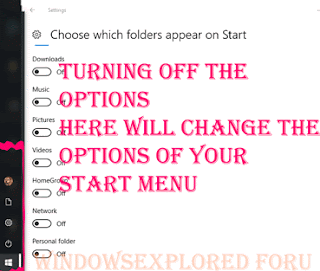
How to remove or hide downloads music homegroup pictures icons from start menu of Windows 10
How to remove or hide downloads music homegroup pictures icons from start menu of Windows 10
Windows 10 having a brand new UI got lot of changes,everyday we are talking about some changes
and errors that happen in our PC. Today in this post lets see how to hide downloads icon, hide
Documents icon,hide Music Icon ,hide pictures icon ,hide homegroup icon, and hide personal folder
icon in start menu of Windows 10. So, that your Start menu looks clean.
Do you need any Software to do this ?
No,you dont need any third party software, infact we dont need gpo to remove icons that we see on the start menu of Windows 10.
Then,how to do it?
just follow the below steps..
How to remove downloads icon from start menu of Windows 10
1) Press Windows + I Icons which will open settings
2) Click on Personalization.
3) Now,it will open a new window, with lot of options like Background,Colors,lockscreen,etc on the left pane, now look for an Option " start " and click it..
" The Start button will be available just above Taskbar(which is the last option in the left pane")
4) When you clicked,it will display the number of items like Show more tiles, Occasionally show suggestions in start, show most used apps ,etc options.
5) Scroll down to the last, you will see the option Choose which folders appear on start, click on it..
6) It will open a new window,Find and click on the downloads option tap/slide/click left side of the option to turn off.
Thats it.
How to remove File explorer icon from Start menu of Windows 10
1) Press Windows + I Icons which will open settings
2) Click on Personalization.
3) Now,it will open a new window, with lot of options like Background,Colors,lockscreen,etc on the left pane, now look for an Option " start " and click it..
" The Start button will be available just above Taskbar(which is the last option in the left pane")
4) When you clicked,it will display the number of items like Show more tiles, Occasionally show suggestions in start, show most used apps ,etc options.
5) Scroll down to the last, you will see the option Choose which folders appear on start, click on it..
6) It will open a new window,Find and click on the File Explorer option tap/slide/click left side of the option to turn off.
Thats it.
How to remove Music icon from Start menu of Windows 10
1) Press Windows + I Icons which will open settings
2) Click on Personalization.
3) Now,it will open a new window, with lot of options like Background,Colors,lockscreen,etc on the left pane, now look for an Option " start " and click it..
" The Start button will be available just above Taskbar(which is the last option in the left pane")
4) When you clicked,it will display the number of items like Show more tiles, Occasionally show suggestions in start, show most used apps ,etc options.
5) Scroll down to the last, you will see the option Choose which folders appear on start, click on it..
6) It will open a new window,Find and click on the Music option tap/slide/click left side of the option to turn off.
Thats it.
How to remove Pictutes from Start menu of Windows 10
1) Press Windows + I Icons which will open settings
2) Click on Personalization.
3) Now,it will open a new window, with lot of options like Background,Colors,lockscreen,etc on the left pane, now look for an Option " start " and click it..
" The Start button will be available just above Taskbar(which is the last option in the left pane")
4) When you clicked,it will display the number of items like Show more tiles, Occasionally show suggestions in start, show most used apps ,etc options.
5) Scroll down to the last, you will see the option Choose which folders appear on start, click on it..
6) It will open a new window,Find and click on the Pictures option tap/slide/click left side of the option to turn off.
Thats it.
How to remove Videos icon from Start menu of Windows 10
1) Press Windows + I Icons which will open settings
2) Click on Personalization.
3) Now,it will open a new window, with lot of options like Background,Colors,lockscreen,etc on the left pane, now look for an Option " start " and click it..
" The Start button will be available just above Taskbar(which is the last option in the left pane")
4) When you clicked,it will display the number of items like Show more tiles, Occasionally show suggestions in start, show most used apps ,etc options.
5) Scroll down to the last, you will see the option Choose which folders appear on start, click on it..
6) It will open a new window,Find and click on the Video option tap/slide/click left side of the option to turn off.
Thats it.
How to remove Network icon from Start menu of Windows 10
1) Press Windows + I Icons which will open settings
2) Click on Personalization.
3) Now,it will open a new window, with lot of options like Background,Colors,lockscreen,etc on the left pane, now look for an Option " start " and click it..
" The Start button will be available just above Taskbar(which is the last option in the left pane")
4) When you clicked,it will display the number of items like Show more tiles, Occasionally show suggestions in start, show most used apps ,etc options.
5) Scroll down to the last, you will see the option Choose which folders appear on start, click on it..
6) It will open a new window,Find and click on the Network option tap/slide/click left side of the option to turn off.
Thats it.
How to remove Homegroup icon from Start menu of Windows 10
1) Press Windows + I Icons which will open settings
2) Click on Personalization.
3) Now,it will open a new window, with lot of options like Background,Colors,lockscreen,etc on the left pane, now look for an Option " start " and click it..
" The Start button will be available just above Taskbar(which is the last option in the left pane")
4) When you clicked,it will display the number of items like Show more tiles, Occasionally show suggestions in start, show most used apps ,etc options.
5) Scroll down to the last, you will see the option Choose which folders appear on start, click on it..
6) It will open a new window,Find and click on the Homegroup option tap/slide/click left side of the option to turn off.
Thats it.
How to remove Personal folder icon from Start menu of Windows 10
1) Press Windows + I Icons which will open settings
2) Click on Personalization.
3) Now,it will open a new window, with lot of options like Background,Colors,lockscreen,etc on the left pane, now look for an Option " start " and click it..
" The Start button will be available just above Taskbar(which is the last option in the left pane")
4) When you clicked,it will display the number of items like Show more tiles, Occasionally show suggestions in start, show most used apps ,etc options.
5) Scroll down to the last, you will see the option Choose which folders appear on start, click on it..
6) It will open a new window,Find and click on the Personal Folder option tap/slide/click left side of the option to turn off.
Thats it.
How to remove settings icon from start menu of Windows 10
1) Press Windows + I Icons which will open settings
2) Click on Personalization.
3) Now,it will open a new window, with lot of options like Background,Colors,lockscreen,etc on the left pane, now look for an Option " start " and click it..
" The Start button will be available just above Taskbar(which is the last option in the left pane")
4) When you clicked,it will display the number of items like Show more tiles, Occasionally show suggestions in start, show most used apps ,etc options.
5) Scroll down to the last, you will see the option Choose which folders appear on start, click on it..
6) It will open a new window,Find and click on the Settings option tap/slide/click left side of the option to turn off.
Thats it.
You can also restore missing settings icon on start menu of Windows 10 by following the above steps,you just need to slide/tap right side of the option so that it shows ON
You can follow us on Social Media for latest updates daily for free.! by following any one of the social link you see on the right pane.
and errors that happen in our PC. Today in this post lets see how to hide downloads icon, hide
Documents icon,hide Music Icon ,hide pictures icon ,hide homegroup icon, and hide personal folder
icon in start menu of Windows 10. So, that your Start menu looks clean.
Do you need any Software to do this ?
No,you dont need any third party software, infact we dont need gpo to remove icons that we see on the start menu of Windows 10.
Then,how to do it?
just follow the below steps..
How to remove downloads icon from start menu of Windows 10
1) Press Windows + I Icons which will open settings
2) Click on Personalization.
3) Now,it will open a new window, with lot of options like Background,Colors,lockscreen,etc on the left pane, now look for an Option " start " and click it..
" The Start button will be available just above Taskbar(which is the last option in the left pane")
4) When you clicked,it will display the number of items like Show more tiles, Occasionally show suggestions in start, show most used apps ,etc options.
5) Scroll down to the last, you will see the option Choose which folders appear on start, click on it..
6) It will open a new window,Find and click on the downloads option tap/slide/click left side of the option to turn off.
Thats it.
How to remove File explorer icon from Start menu of Windows 10
1) Press Windows + I Icons which will open settings
2) Click on Personalization.
3) Now,it will open a new window, with lot of options like Background,Colors,lockscreen,etc on the left pane, now look for an Option " start " and click it..
" The Start button will be available just above Taskbar(which is the last option in the left pane")
4) When you clicked,it will display the number of items like Show more tiles, Occasionally show suggestions in start, show most used apps ,etc options.
5) Scroll down to the last, you will see the option Choose which folders appear on start, click on it..
6) It will open a new window,Find and click on the File Explorer option tap/slide/click left side of the option to turn off.
Thats it.
1) Press Windows + I Icons which will open settings
2) Click on Personalization.
3) Now,it will open a new window, with lot of options like Background,Colors,lockscreen,etc on the left pane, now look for an Option " start " and click it..
" The Start button will be available just above Taskbar(which is the last option in the left pane")
4) When you clicked,it will display the number of items like Show more tiles, Occasionally show suggestions in start, show most used apps ,etc options.
5) Scroll down to the last, you will see the option Choose which folders appear on start, click on it..
6) It will open a new window,Find and click on the Music option tap/slide/click left side of the option to turn off.
Thats it.
How to remove Pictutes from Start menu of Windows 10
1) Press Windows + I Icons which will open settings
2) Click on Personalization.
3) Now,it will open a new window, with lot of options like Background,Colors,lockscreen,etc on the left pane, now look for an Option " start " and click it..
" The Start button will be available just above Taskbar(which is the last option in the left pane")
4) When you clicked,it will display the number of items like Show more tiles, Occasionally show suggestions in start, show most used apps ,etc options.
5) Scroll down to the last, you will see the option Choose which folders appear on start, click on it..
6) It will open a new window,Find and click on the Pictures option tap/slide/click left side of the option to turn off.
Thats it.
How to remove Videos icon from Start menu of Windows 10
1) Press Windows + I Icons which will open settings
2) Click on Personalization.
3) Now,it will open a new window, with lot of options like Background,Colors,lockscreen,etc on the left pane, now look for an Option " start " and click it..
" The Start button will be available just above Taskbar(which is the last option in the left pane")
4) When you clicked,it will display the number of items like Show more tiles, Occasionally show suggestions in start, show most used apps ,etc options.
5) Scroll down to the last, you will see the option Choose which folders appear on start, click on it..
6) It will open a new window,Find and click on the Video option tap/slide/click left side of the option to turn off.
Thats it.
How to remove Network icon from Start menu of Windows 10
1) Press Windows + I Icons which will open settings
2) Click on Personalization.
3) Now,it will open a new window, with lot of options like Background,Colors,lockscreen,etc on the left pane, now look for an Option " start " and click it..
" The Start button will be available just above Taskbar(which is the last option in the left pane")
4) When you clicked,it will display the number of items like Show more tiles, Occasionally show suggestions in start, show most used apps ,etc options.
5) Scroll down to the last, you will see the option Choose which folders appear on start, click on it..
6) It will open a new window,Find and click on the Network option tap/slide/click left side of the option to turn off.
Thats it.
How to remove Homegroup icon from Start menu of Windows 10
1) Press Windows + I Icons which will open settings
2) Click on Personalization.
3) Now,it will open a new window, with lot of options like Background,Colors,lockscreen,etc on the left pane, now look for an Option " start " and click it..
" The Start button will be available just above Taskbar(which is the last option in the left pane")
4) When you clicked,it will display the number of items like Show more tiles, Occasionally show suggestions in start, show most used apps ,etc options.
5) Scroll down to the last, you will see the option Choose which folders appear on start, click on it..
6) It will open a new window,Find and click on the Homegroup option tap/slide/click left side of the option to turn off.
Thats it.
How to remove Personal folder icon from Start menu of Windows 10
1) Press Windows + I Icons which will open settings
2) Click on Personalization.
3) Now,it will open a new window, with lot of options like Background,Colors,lockscreen,etc on the left pane, now look for an Option " start " and click it..
" The Start button will be available just above Taskbar(which is the last option in the left pane")
4) When you clicked,it will display the number of items like Show more tiles, Occasionally show suggestions in start, show most used apps ,etc options.
5) Scroll down to the last, you will see the option Choose which folders appear on start, click on it..
6) It will open a new window,Find and click on the Personal Folder option tap/slide/click left side of the option to turn off.
Thats it.
How to remove settings icon from start menu of Windows 10
1) Press Windows + I Icons which will open settings
2) Click on Personalization.
3) Now,it will open a new window, with lot of options like Background,Colors,lockscreen,etc on the left pane, now look for an Option " start " and click it..
" The Start button will be available just above Taskbar(which is the last option in the left pane")
4) When you clicked,it will display the number of items like Show more tiles, Occasionally show suggestions in start, show most used apps ,etc options.
5) Scroll down to the last, you will see the option Choose which folders appear on start, click on it..
6) It will open a new window,Find and click on the Settings option tap/slide/click left side of the option to turn off.
Thats it.
You can also restore missing settings icon on start menu of Windows 10 by following the above steps,you just need to slide/tap right side of the option so that it shows ON
You can follow us on Social Media for latest updates daily for free.! by following any one of the social link you see on the right pane.
Available link for download
Subscribe to:
Posts (Atom)